
Best VPN for Smart TVs in 2026
Which VPNs actually work on a Smart TV, which TVs run a real VPN app, and which ones need a router or Smart DNS workaround. An honest, no-hype guide for streaming and privacy on the big screen.
Why you need a VPN on a Smart TV
A Smart TV is one of the most data-hungry devices in your home, and it is also where most people stream. A VPN changes what your TV can reach and what others can see.
- Access more streaming libraries. A VPN lets your TV connect through a server in another country, so the platform believes you are there and shows you the catalogue for that region. That is how a single Netflix or Prime Video subscription can unlock thousands of extra titles, plus sports and shows that never officially reach your country.
- Watch home services while travelling. Services like BBC iPlayer, Hotstar, or your local channels geo-lock to your home country and stop working the moment you go abroad. Connecting to a server back home gives your TV a home IP again, so the apps behave exactly as they do on your own sofa.
- Stop your ISP and TV maker from profiling your viewing. Smart TVs quietly log what you watch and sell that data to advertisers, and your internet provider can see every service your TV connects to. A VPN encrypts that traffic, so your provider sees only one scrambled connection instead of your full viewing history.
- Avoid bandwidth throttling. Some ISPs deliberately slow sustained video to ease network load, which shows up as buffering during peak hours. Because a VPN encrypts the stream, the provider can no longer tell it is video and single it out, so speeds often stay steady when they would otherwise dip.
- Protect the whole living room at once. Set the VPN up on your router and every device on the network is covered by one connection, including the TV, the games console, and smart speakers that cannot run a VPN app themselves. It is the simplest way to protect gadgets that have no app of their own.
Which Smart TVs support a VPN app, and which need a workaround
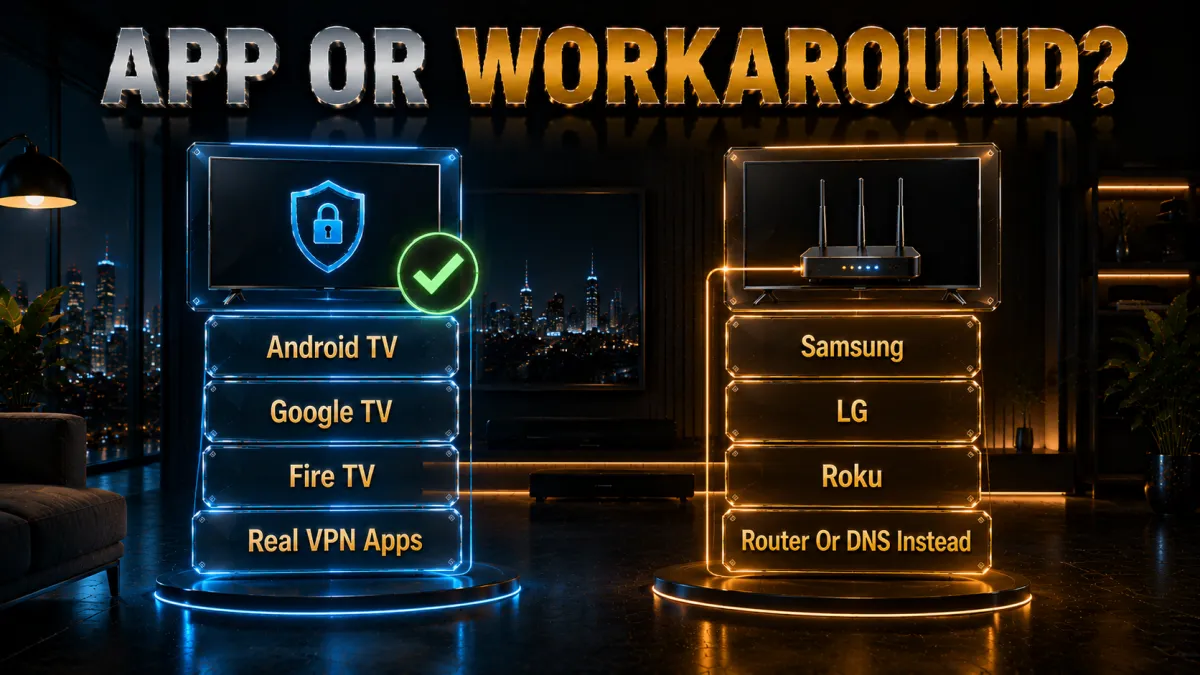
This is the question that trips most people up. Whether you can install a VPN app directly depends entirely on the operating system your TV runs.
- Android TV and Google TV: full app support. These run VPN apps straight from the Google Play Store, so installing one is as easy as on a phone, with a native remote-friendly interface. Sony, Philips, TCL, and many Hisense sets use these systems, which makes them the most VPN-friendly televisions you can buy.
- Amazon Fire TV (Fire OS): full app support. VPN apps install directly from the Amazon Appstore, so every Fire TV Stick and Fire TV built-in television works natively with no workaround. This is why a cheap Fire TV Stick is often the easiest way to add a VPN to an older TV that has no app of its own.
- Apple TV (tvOS 17 and newer): full app support. Apple only added native VPN app support in tvOS 17, so a modern Apple TV box now runs VPN apps with on-demand connect, just like an iPhone. Boxes too old to update to tvOS 17 still need a router or a shared connection instead.
- Samsung (Tizen) and LG (webOS): no app support. Their operating systems simply do not allow VPN apps, and no provider can change that, so you cannot install one no matter which VPN you buy. To protect these sets you use a router, a Smart DNS feature, or a shared hotspot from another device.
- Roku and Roku TVs: no app support. Roku has never permitted VPN apps and shows no sign of changing, so it falls into the same camp as Samsung and LG. The router or Smart DNS route is the only way to give a Roku a different region or an encrypted connection.
Best VPNs for Smart TVs in 2026
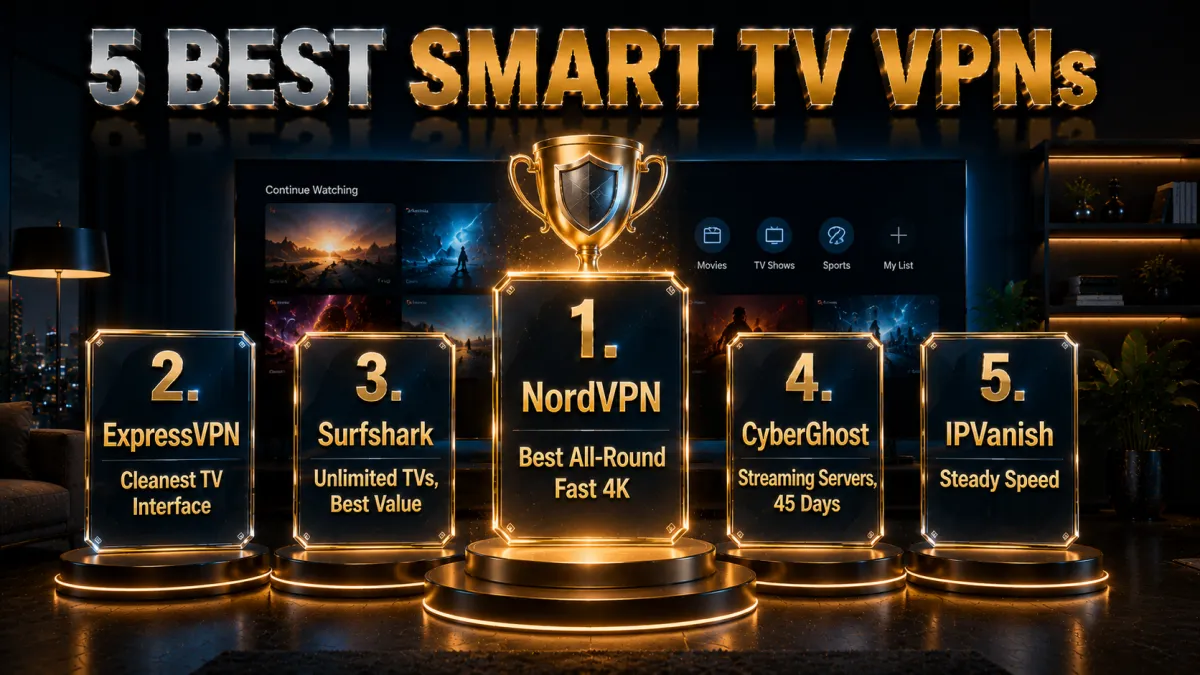
These five providers cover every Smart TV scenario: a polished native app where your TV supports one, and solid router or Smart DNS options where it does not. Ratings reflect our established review framework, not one-off benchmarks.
1. NordVPN, best overall for Smart TVs
NordVPN is the pick we reach for first on a Smart TV because it is the only one of the five that is genuinely strong on every route into your television. On Android TV, Google TV, and Fire TV it has a full native app with a proper remote-friendly layout, and its SmartPlay technology quietly combines VPN routing with smart DNS so streaming services detect it far less often than a plain VPN connection. You connect once and it handles the rest in the background.
Speed is the other half of the story, and this is where NordLynx earns its place. Built on WireGuard, it carries 4K streams smoothly even when you connect from Asia or India to a US server across a long distance, which is exactly the scenario that makes weaker VPNs stutter and buffer. On a wired TV or strong wifi you rarely see a drop.
For Samsung, LG, and Roku, which run no VPN app at all, NordVPN still has you covered with clear router guides and its own Smart DNS, so a single subscription protects any brand of television in the house. Add the widest reliable unblocking of the five, ten simultaneous connections, and an independently audited no-logs policy, and it becomes the safest single choice for most living rooms.
✔ Pros
- Full Android TV and Fire TV apps
- SmartPlay handles streaming automatically
- Fast NordLynx speeds for 4K
- Router guides and Smart DNS for Samsung, LG, Roku
- Audited no-logs policy
✘ Cons
- Best price needs a longer plan
- No native app on Samsung or LG (no VPN can offer this)
| Native TV apps | Android TV, Fire TV, Apple TV |
| Samsung/LG/Roku method | Router or Smart DNS |
| 4K streaming | Excellent |
| Price from | ~$3 to $4/mo (long-term plan) |
| Simultaneous devices | 10 |
| Money-back guarantee | 30 days |
2. ExpressVPN, best TV interface
ExpressVPN wins on polish, and on a television that matters more than it sounds. Its Android TV and Fire TV app is built for a remote control rather than a mouse, with large readable buttons, a single prominent connect button, and a server list you can navigate with a d-pad without squinting. For anyone who finds VPN apps fiddly, this is the least frustrating one to live with on the big screen.
Underneath the clean interface sits Lightway, its own lightweight protocol, which reconnects quickly after the TV wakes from sleep and holds a stable 4K picture through peak evening hours when other networks slow down. That consistency, backed by years of a proven privacy track record and 24/7 support, is why it is the pick we recommend to less technical users who just want it to work first time.
For Samsung, LG, and Roku, ExpressVPN offers MediaStreamer, a Smart DNS feature that unblocks streaming libraries on TVs that cannot run an app, with no router flashing required. The trade-offs are a higher price than most rivals and only eight simultaneous connections, so it rewards people who value a flawless experience over squeezing in the most devices.
✔ Pros
- Cleanest, most TV-friendly interface
- One-tap connect on Android TV and Fire TV
- MediaStreamer Smart DNS for Samsung, LG, Roku
- Reliable at peak streaming hours
- Strong privacy track record
✘ Cons
- Costs more than most rivals
- Fewer devices per plan than the value picks
| Native TV apps | Android TV, Fire TV, Apple TV |
| Samsung/LG/Roku method | MediaStreamer or router |
| 4K streaming | Excellent |
| Price from | ~$6 to $7/mo (long-term plan) |
| Simultaneous devices | 8 |
| Money-back guarantee | 30 days |
3. Surfshark, best value for households
Surfshark is the obvious choice the moment more than one screen is involved, because a single subscription covers unlimited simultaneous devices. Every television, phone, tablet, and laptop in the house can run it at the same time for one low price, which is unusual at this end of the market and makes it the natural pick for families and shared homes.
It does not cut corners to hit that price either. There is a proper Android TV and Fire TV app, WireGuard support keeps 4K stable, and CleanWeb strips ads and known malicious domains before they reach your TV. Its unblocking is reliable across the major services most people actually watch, even if its server network is smaller than that of NordVPN or ExpressVPN and occasionally needs a manual server switch.
For Samsung and LG sets that run no app, Surfshark includes a Smart DNS feature that changes your streaming region at full speed. Put together, you get strong fundamentals, whole-home coverage, and the lowest long-term price of the five, which is why it is the value winner for anyone protecting a lot of screens without paying a premium.
✔ Pros
- Unlimited devices on one plan
- Android TV and Fire TV apps
- Smart DNS for Samsung and LG
- WireGuard keeps 4K stable
- Lowest long-term price of the five
✘ Cons
- Smaller server network than the top two
- Occasional server switching needed
| Native TV apps | Android TV, Fire TV, Apple TV |
| Samsung/LG/Roku method | Smart DNS or router |
| 4K streaming | Very good |
| Price from | ~$2 to $3/mo (long-term plan) |
| Simultaneous devices | Unlimited |
| Money-back guarantee | 30 days |
4. CyberGhost, easiest for beginners
CyberGhost is the friendliest way in for someone setting up a VPN on a television for the first time. Its Android TV and Fire TV apps do not just list servers, they group them by streaming service, so you scroll to the show or platform you want and pick a server that CyberGhost tunes specifically for it. That removes the guesswork of choosing between thousands of near-identical options, which is the exact point where beginners usually give up.
It is also a genuinely privacy-friendly choice. CyberGhost is based in Romania, which has no data-retention law, and it blocks DNS leaks by default. On speed it is solid rather than class-leading; nearby and in-country servers hold HD and 4K comfortably, but it can dip during the busiest evening hours, so it sits a step behind the top two for raw consistency.
The standout is the 45-day money-back guarantee, the longest of the five and well beyond the usual 30 days. On a Smart TV, where you are testing whether your specific set, your streaming apps, and your connection all cooperate, that extra time is genuinely useful, and it makes CyberGhost the lowest-pressure way to find out before you commit.
✔ Pros
- Streaming servers labelled by service
- Beginner-friendly Android TV and Fire TV apps
- Longest 45-day money-back window
- Romania-based, no data-retention law
- Large server network
✘ Cons
- Slower under heavy peak load
- Fewer devices than the value picks
| Native TV apps | Android TV, Fire TV |
| Samsung/LG/Roku method | Router or Smart DNS |
| 4K streaming | Good |
| Price from | ~$2 to $3/mo (long-term plan) |
| Simultaneous devices | 7 |
| Money-back guarantee | 45 days |
5. IPVanish, best for many devices
IPVanish approaches a Smart TV from an infrastructure angle: it owns and operates its entire server network rather than renting from third parties, which gives it tight control over routing and consistently steady throughput. On a Fire TV or Android TV that translates into a level 4K stream without the sudden bandwidth dips that cause buffering, and because it allows unlimited simultaneous connections, every screen in the house can stream at once on one plan.
Where it trails the top picks is streaming reach. It reliably opens the major services, but it unblocks fewer of the smaller regional libraries than NordVPN or Surfshark, so if you like hopping between the catalogues of many countries it will feel more limited. Its app is also more utilitarian than the polished interfaces of Express or Nord, though it is perfectly clear to use with a remote.
The other consideration is jurisdiction: IPVanish is US-based, inside the 9 Eyes intelligence-sharing alliance, which matters more for privacy than for streaming but is worth weighing. For Samsung, LG, and Roku it relies on a router setup rather than a Smart DNS shortcut. It is a focused pick, best when steady speed and unlimited devices matter more to you than the widest library access.
✔ Pros
- Owns its network for steady 4K speed
- Android TV and Fire TV apps
- Unlimited simultaneous devices
- Simple, uncluttered interface
- Strong long-term value
✘ Cons
- Unblocks fewer services than rivals
- US-based, inside the 9 Eyes alliance
| Native TV apps | Android TV, Fire TV |
| Samsung/LG/Roku method | Router |
| 4K streaming | Very good |
| Price from | ~$3 to $4/mo (long-term plan) |
| Simultaneous devices | Unlimited |
| Money-back guarantee | 30 days |
Smart TV VPN comparison at a glance
The side-by-side below shows where each provider leads for Smart TVs.
| Feature | NordVPN | ExpressVPN | Surfshark | CyberGhost | IPVanish |
|---|---|---|---|---|---|
| TV interface | Very good | Best in class | Good | Good, labelled | Basic |
| 4K streaming speed | Excellent | Excellent | Very good | Good | Very good |
| Unblocking power | Widest | Strong | Strong | Good | Fewer services |
| Samsung/LG/Roku | Router + Smart DNS | MediaStreamer | Smart DNS | Router | Router only |
| Devices per plan | 10 | 8 | Unlimited | 7 | Unlimited |
| Long-term price | Low | Higher | Lowest | Low | Low |
| Money-back guarantee | 30 days | 30 days | 30 days | 45 days | 30 days |
How to choose a Smart TV VPN
Not every fast VPN is a good TV VPN. Weight these factors in roughly this order for the big screen.
- The right method for your TV comes first. If you own an Android TV, Google TV, Fire TV, or a modern Apple TV, prioritise the quality of the native app. If you own a Samsung, LG, or Roku, app quality is irrelevant because you will never see it, so weigh router support and Smart DNS instead.
- A remote-friendly app. On a television you navigate with a d-pad and a remote, not a mouse and keyboard, so a clean layout with big buttons and a searchable server list matters far more than it does on a phone. A cluttered app that is fine on mobile can be genuinely painful on a TV.
- Reliable, actively maintained unblocking. The main reason for a TV VPN is usually streaming, and services fight back constantly, so you want a provider that updates its servers to stay ahead of detection. A cheap VPN that unblocks today but gives up in a month is worse than useless on a TV.
- Speed for 4K. High-resolution video needs a lot of sustained bandwidth, so a modern protocol such as WireGuard, NordLynx, or Lightway plus a nearby server keeps the picture crisp. Underpowered VPNs show their limits here as buffering and automatic drops to a lower resolution.
- Enough device slots or a router. If you have several TVs plus phones and laptops, a plan with unlimited connections or a single router setup saves you constantly disconnecting one device to free up another. This is where value picks like Surfshark and IPVanish pull ahead for busy households.
How to install a VPN app on Android TV, Google TV, or Fire TV
If your TV runs one of these systems, setup is quick and needs no extra hardware.
- Open the app store. Go to the Google Play Store on Android TV or Google TV, or the Amazon Appstore on Fire TV, and search for your VPN by name.
- Install and sign in. Download the official app, open it, and log in with your account. Only install the provider’s own app, never a third-party copy.
- Pick the fastest protocol. In settings, choose the provider’s WireGuard-based option (NordLynx, Lightway, or WireGuard) for the best 4K performance.
- Connect to a nearby server. For privacy at home, choose a server close to you. For a specific library, choose a server in that country.
- Open your streaming app and test. Launch the service and confirm it plays. If it flags a proxy, switch to another server in the same country.
Using a VPN on Apple TV
Apple TV changed the game with tvOS 17, which added native VPN app support. Modern Apple TV boxes now behave much like a phone.
- Update to tvOS 17 or newer first. Native app support only arrived with tvOS 17, so check Settings, then System, then Software Updates before you go looking for a VPN app. If your Apple TV is a second-generation model or older it will never reach tvOS 17, so plan for the router method instead.
- Install from the App Store. Once you are on tvOS 17, open the App Store on the Apple TV, search for your VPN by name, install it, and sign in with your account, exactly as you would on an iPhone. Stick to the official app from your provider rather than any third-party lookalike.
- Turn on on-demand connect. In the app settings, enable automatic or on-demand connection so the VPN reconnects itself every time the TV wakes from sleep. This means you are never streaming unprotected because you forgot to press connect after switching the television on.
- Older Apple TV models need a workaround. If your box cannot run tvOS 17, treat it like a Samsung or LG set: install the VPN on your router, or share a VPN-protected hotspot from a phone or laptop. The Apple TV then uses that protected network without needing any app of its own.
Router method for Samsung, LG, and Roku
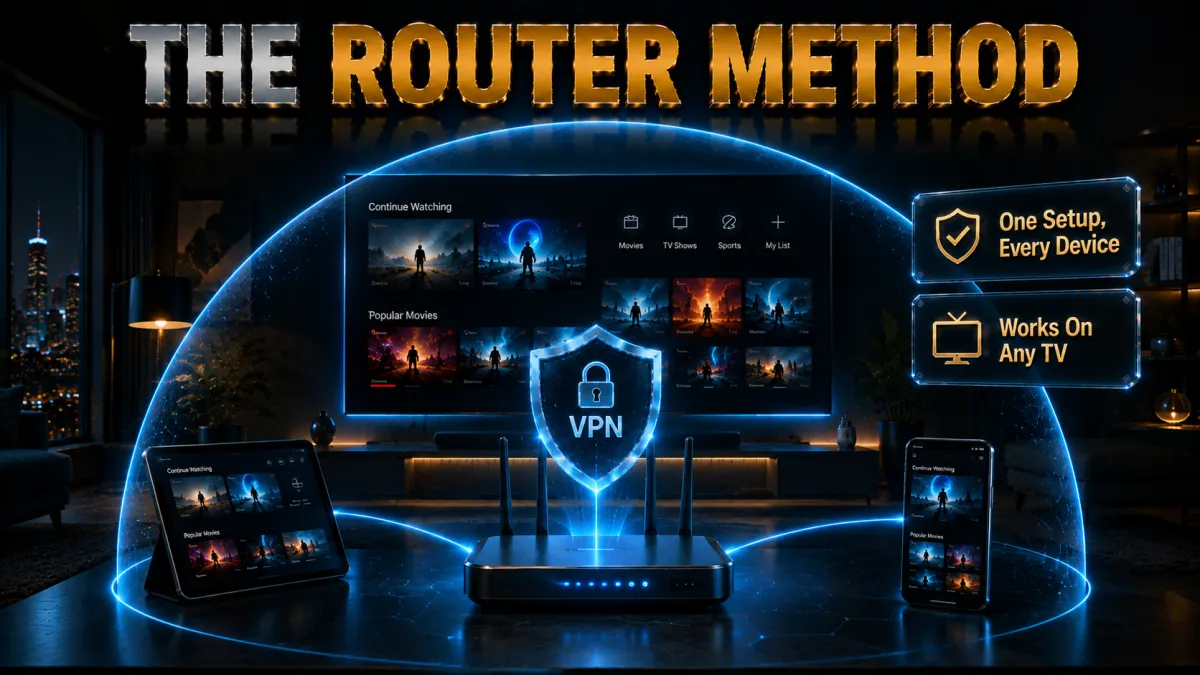
Samsung, LG, and Roku TVs cannot run a VPN app, so the cleanest fix is a VPN on your router. It also protects every other device at once.
- Check router compatibility. Confirm your router supports a VPN client, or can be flashed with firmware like DD-WRT, OpenWRT, or Asuswrt-Merlin. Your provider lists supported models.
- Install the VPN on the router. Follow your provider’s router guide to add the VPN and log in. This is a one-time job.
- Select a nearby server. On the router, connect to a server close to home for streaming speed, or in your target country for a specific library.
- Connect the TV normally. Your Samsung, LG, or Roku TV needs no special settings, it simply uses the protected network like any other device.
- Test a stream. Play a show and confirm it works. If speeds drop, switch to a closer router server.
Smart DNS: unblocking without full encryption
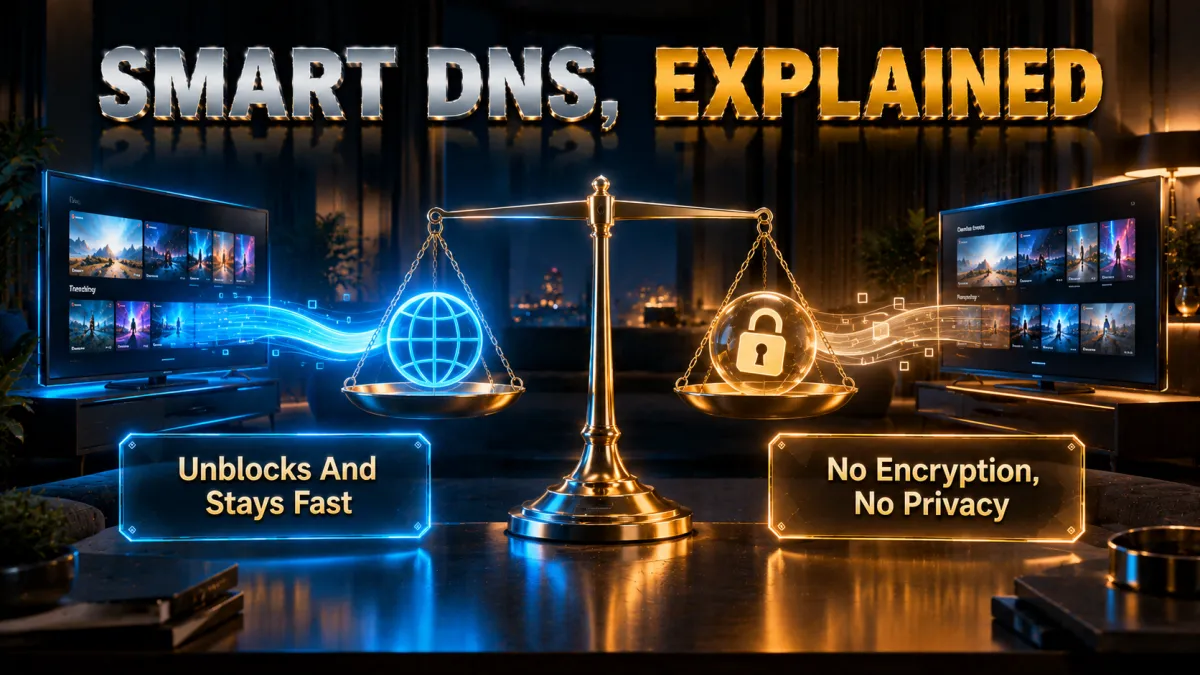
Smart DNS is a lighter alternative that several top providers include. It is worth understanding the trade-off before you rely on it.
- It changes your apparent region, not your IP. Smart DNS reroutes only the small part of your traffic that reveals your location, which is enough to unlock many streaming libraries on a Samsung, LG, or Roku that cannot run a VPN app. Your actual IP address stays the same throughout.
- It keeps full speed. Because Smart DNS does not encrypt your whole connection the way a VPN does, there is little to no speed loss, which makes it well suited to smooth 4K on a TV. For pure streaming that is often the point in its favour over a full VPN.
- It does not protect your privacy. The flip side is that Smart DNS hides nothing from your ISP: your IP is visible and your traffic is unencrypted, so it is strictly an unblocking tool. If you want your viewing hidden from your provider, you need a full VPN, not Smart DNS.
- It is easy to set up on a TV. You typically just enter the DNS addresses from your provider in the network settings of your television, with no router flashing or extra hardware required. That makes it the fastest way to get a Samsung or LG set streaming a foreign library.
Sharing a VPN connection from your PC or phone
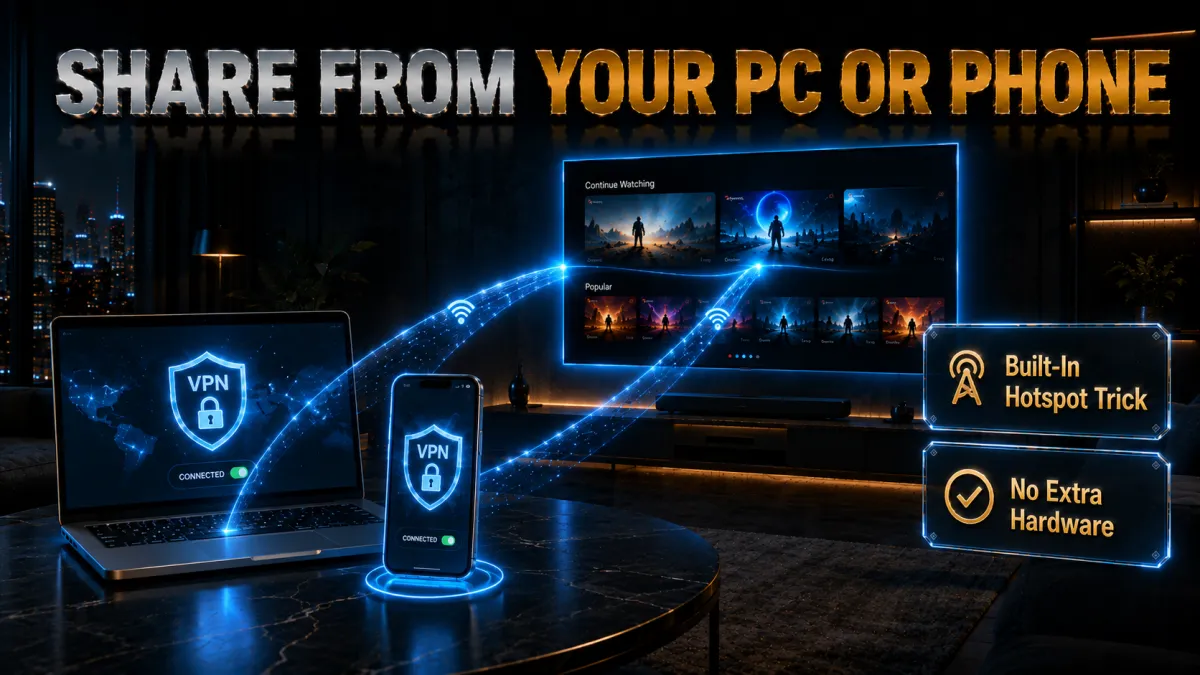
If you do not want to touch your router, you can share a VPN-protected connection from a computer or phone to the TV. It is a handy no-hardware option.
- Connect the VPN on the source device. Run the VPN app on a Windows PC, Mac, or phone and connect to your chosen server.
- Create a hotspot or shared connection. Turn on mobile hotspot on the computer or phone so it broadcasts the protected connection.
- Join the TV to that hotspot. In your TV network settings, connect to the hotspot instead of your normal wifi.
- Confirm the TV is protected. Open a streaming service and check it plays from the VPN region.
- Keep the source device awake. The TV only stays protected while the sharing device is on and connected, so this suits occasional use rather than a permanent setup.
Best VPN settings for 4K streaming on a TV
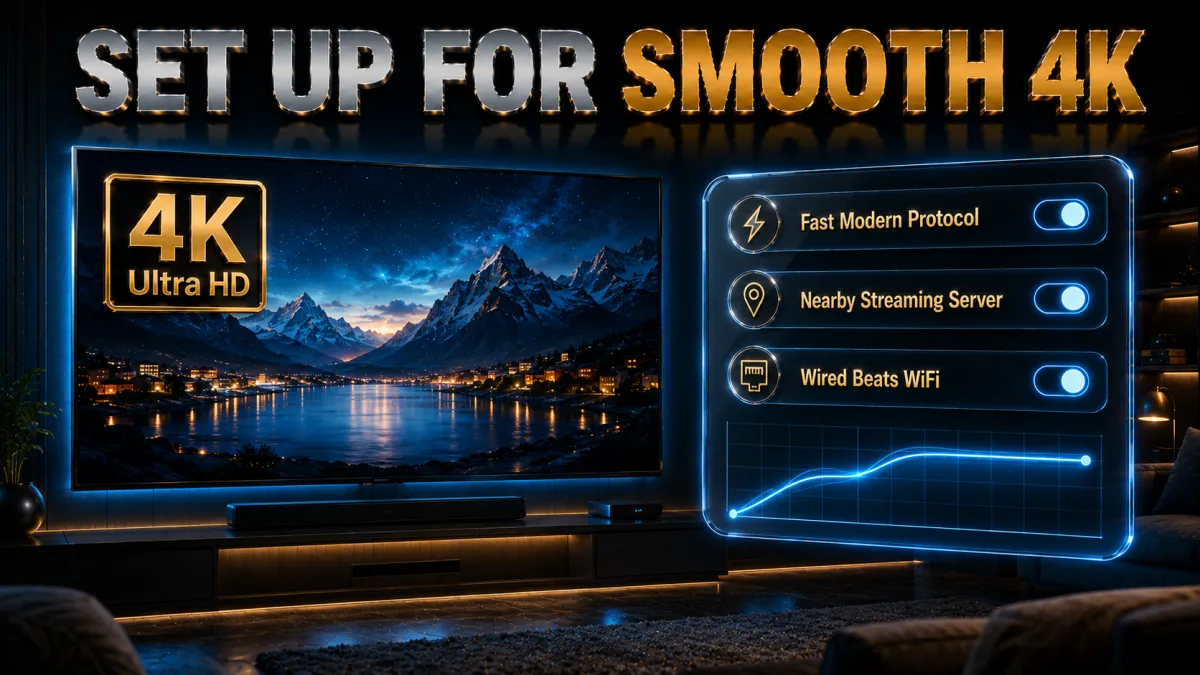
High-resolution video is demanding, so a few settings make the difference between a crisp picture and constant buffering.
- Use a modern protocol. NordLynx, Lightway, and WireGuard add far less overhead than older protocols like OpenVPN, so they carry a 4K stream with room to spare. If your app defaults to an older protocol, switching it in settings is often the single biggest speed win on a TV.
- Pick a nearby or in-country server. The closer the server, the more sustained bandwidth you keep for the stream, so use a local server for privacy and the nearest server inside the target country for a specific library. A server on the far side of the world is the most common cause of buffering.
- Prefer a wired TV connection. If your television has an ethernet port, a cable removes a huge source of jitter and dropouts that wifi introduces, VPN or not. Many people blame the VPN for buffering that is actually a weak wireless signal reaching the TV.
- Avoid overloaded servers. A nearby server that is packed with users at peak time can feel slower than a slightly farther one that is quiet, so if a stream stutters, try a couple of alternatives in the same region. Most apps show server load or let you pick manually.
- Match the server to the library you want. For a US show connect to a US server, and for the UK connect to a UK server, because the platform decides your catalogue from the server location. Picking a distant country you do not need only adds latency and raises the chance of a proxy error.
Fixing “VPN detected” and proxy errors on a Smart TV
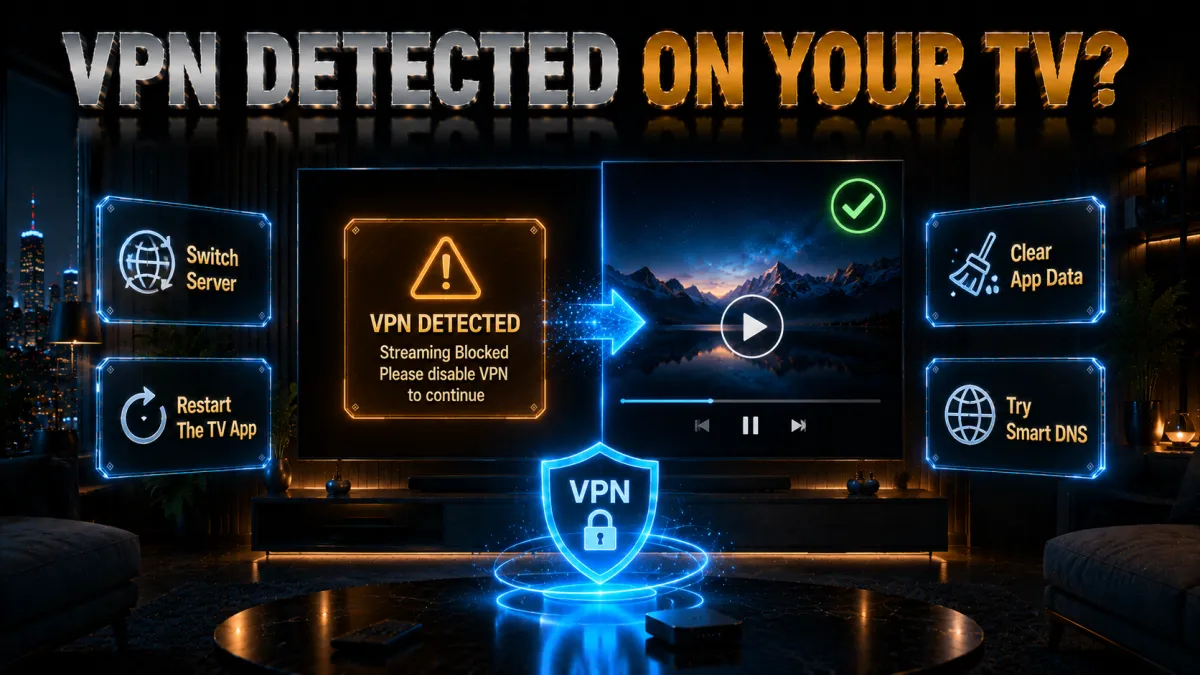
Streaming services actively block VPNs, so an occasional error is normal. Work through these fixes before giving up.
- Switch to another server in the same country. Streaming detection almost always targets specific server IP addresses rather than the whole provider, so hopping to a different node in the same region usually clears the error within seconds. This one step fixes the large majority of proxy warnings.
- Clear the streaming app cache. The app can cling to a stale location it detected earlier, so clearing its data or reinstalling it forces a fresh location check on your current server. On Android TV and Fire TV this lives in the system app settings.
- Restart the VPN connection. Disconnecting and reconnecting, or fully closing and reopening the VPN app, drops a session that has been flagged and gives you a clean one. It is quick and often works when a simple server switch does not.
- Try a streaming-optimised server. Providers like CyberGhost and NordVPN label certain servers for specific services, and those are refreshed most aggressively against blocks, so they are the least likely to trip a proxy error. Use those before assuming the service has beaten the VPN entirely.
- Update everything. An outdated VPN app, streaming app, or TV firmware can all cause odd detection errors that a simple update clears. Make sure all three are current before spending time on more involved fixes.
Should you use a free VPN on a Smart TV?
Free VPNs are tempting for a TV, but they usually fail at the one thing you want them for. Here is the reality.
- They rarely unblock major services. Streaming platforms identify and block the small pool of free VPN IP addresses almost as fast as they appear, so you are far more likely to hit a proxy error than to watch anything. The one job you wanted it for is the job it fails at most.
- Data caps kill 4K fast. Most free plans limit you to a few gigabytes a month, and a single evening of high-resolution streaming can burn through that entire allowance in one sitting. After that your TV drops back to your normal, blocked connection.
- Crowded servers buffer. Free tiers pack huge numbers of users onto a handful of servers, which is the exact opposite of what smooth 4K needs, so even when they do connect the picture stutters and drops resolution. Paid networks spread load across thousands of servers instead.
- Privacy trade-offs. A VPN costs money to run, so some free providers cover that cost by logging and selling your data, which undermines the very privacy a TV VPN is supposed to give you. If a service is free, it is worth asking how it actually pays for itself.
If budget is the concern, a low-cost long-term plan with a money-back guarantee is a far better bet than a free service that cannot reliably stream.
What your Smart TV actually tracks
A VPN is not only about streaming. Smart TVs are among the most privacy-invasive devices in a modern home, and a VPN limits part of that.
- Automatic content recognition. Many televisions take periodic snapshots of whatever is on screen and match them against a database to build a profile of your viewing, then sell that profile to advertisers. It runs quietly in the background whether the content comes from an app or an external box.
- App and network activity. Your ISP can see which streaming services and sites your TV connects to, even if it cannot see the exact video, which is enough to profile your habits. A VPN encrypts that traffic so your provider sees only one anonymous connection.
- Location and IP. Every app and tracker on the TV can read your real IP address, which ties your viewing to your home and rough location. A VPN replaces it with the server address, so those trackers see the VPN rather than you.
- What a VPN cannot stop. If you are logged into a streaming account, that service still knows exactly what you watch regardless of the VPN, because you told it who you are. So a VPN limits third-party tracking but not the platforms you sign in to.
- Turn off the built-in TV tracking. Almost every set has a viewing-data or content-recognition switch buried in the privacy menu, so turn it off alongside running a VPN for the strongest result. On many Samsung and LG sets this is enabled by default out of the box.
- Use encrypted DNS where you can. Some Android TV and Google TV sets let you set a private or encrypted DNS in the network settings, which stops your ISP reading your lookups even in moments between VPN sessions. It is a small extra layer that costs nothing.
The best VPN setup by TV brand
Because the method matters more than the brand of VPN, here is the quickest path to a working setup for each popular type of Smart TV.
- Sony, Philips, TCL, Hisense (Android TV or Google TV). Install the VPN app straight from the Google Play Store on the television, sign in, and connect, with no extra hardware needed. This is the easiest route of all, so if a set runs Android TV you are in the best possible position.
- Amazon Fire TV and Fire TV built-in sets. Install the app from the Amazon Appstore; every one of our five picks has a native Fire TV app, so choose on price and unblocking rather than compatibility. A plug-in Fire TV Stick is also the cheapest way to VPN-enable an older TV that has no app support.
- Apple TV 4K. Update to tvOS 17 or newer, then install the VPN from the App Store and enable on-demand connect. If your box is too old for tvOS 17, fall back to a router or a shared hotspot from another device.
- Samsung (Tizen) and LG (webOS). There is no app for these, so use a router VPN for full encryption, or a Smart DNS or MediaStreamer feature if you only need to unblock a library. ExpressVPN and NordVPN are the smoothest here thanks to their DNS features and clear guides.
- Roku and Roku TVs. Roku also runs no VPN app, so the router or Smart DNS route applies exactly as it does for Samsung and LG. Set the VPN on your router once and every Roku in the house picks up the protected connection automatically.
The universal setup checklist, whichever method you chose
Whatever route the sections above pointed you to, this sequence finishes the job properly.
- Pick one method and commit to it. A TV with an app store gets the native app. A Samsung, LG or Roku set gets the router, Smart DNS, or an external box such as a Fire TV Stick or an NVIDIA Shield. Mixing two methods on one television is where most of the confusion starts.
- Install and authenticate. Native app: install from the store and use the code login from your phone rather than typing with a remote. Router: load the provider configuration following their guide for your exact model. Smart DNS: register your IP in the account panel, then set the DNS values on the TV.
- Choose and save the right server. Nearest server for privacy and smooth playback, a specific country only when you actually need one. On a router, remember that the whole house inherits that choice.
- Turn on auto-connect. A connection that starts with the TV makes the setup permanent. A VPN that has to be remembered on a television will be forgotten by Friday.
- Test with the content you set this up for. Play the actual service, in the evening when the network is busy, and confirm it holds. If the TV has a browser, a speed test there turns a feeling into a number.
- Restart the TV and check again. Confirm the connection survives a reboot. If it does not, auto-connect is not really on, and you will find that out at the worst possible moment.
Common Smart TV VPN mistakes
Most people who say a VPN made their TV worse made one of these avoidable errors. Fix them and the experience changes.
- Buying for the app when the TV has no app. Samsung, LG, and Roku owners often pay for a VPN because it has a slick television app they will never actually see on that set. Check your TV operating system first, then buy for router support and Smart DNS instead.
- Picking a distant server for no reason. Connecting to a far-off country you do not need adds latency and buffering for zero benefit. Unless you are deliberately opening a specific foreign library, always connect to the nearest server for the smoothest picture.
- Leaving an old protocol selected. A heavy legacy protocol such as OpenVPN eats into the bandwidth 4K needs, so dig into settings and switch to WireGuard, NordLynx, or Lightway. This alone often turns a buffering stream into a smooth one.
- Using a free VPN. Free services rarely unblock the big platforms and almost always cap the data that 4K burns through, so they fail at the one job you wanted them for. A cheap long-term paid plan with a refund is far better value on a TV.
- Streaming over weak wifi. Buffering that gets blamed on the VPN is very often just a poor wireless signal reaching the television. Use an ethernet cable, move the router closer, or add a mesh node before you conclude the VPN is the problem.
Related reading:
Frequently Asked Questions
Can you put a VPN on any Smart TV?
Effectively yes, but the method depends on the TV. Android TV, Google TV, Fire TV, and modern Apple TV run VPN apps directly. Samsung, LG, and Roku do not, so you protect them with a router, Smart DNS, or a shared connection from a PC or phone.
Does a Samsung or LG TV support a VPN app?
No. Samsung (Tizen) and LG (webOS) do not allow VPN apps. To use a VPN on them you install the VPN on your router, use a Smart DNS feature, or share a VPN-protected hotspot from another device.
Can I use a VPN on Apple TV?
Yes, if your Apple TV runs tvOS 17 or newer, which added native VPN app support. You install the VPN from the tvOS App Store like any other app. Older Apple TV models need a router or a shared connection.
Will a VPN slow down 4K streaming on my TV?
It can, mainly if you use a distant server or an old protocol. To keep 4K smooth, choose a nearby or in-country server, a modern protocol like WireGuard, and a wired TV connection where possible.
What is Smart DNS and how is it different from a VPN?
Smart DNS only changes the parts of your traffic that reveal location, so it unblocks many libraries at full speed but does not encrypt your connection or hide your IP. A VPN encrypts everything and protects privacy, at a small speed cost. Use Smart DNS for unblocking only.
Can I watch US Netflix on my Smart TV with a VPN?
Yes, connect to a US server in your VPN app (or via router or Smart DNS for Samsung, LG, and Roku), then open Netflix. If it shows a proxy error, switch to another US server, since detection usually targets specific IPs.
Is it legal to use a VPN on a Smart TV?
In most countries, yes, using a VPN is legal and normal. A few countries restrict VPN use, so check your local law. Separately, streaming services have their own terms about region access, which govern your account.
How many TVs can I protect with one VPN?
It depends on the provider and method. On a router, one connection covers every device including all your TVs. On apps, NordVPN allows ten devices and ExpressVPN eight, while Surfshark and IPVanish allow unlimited simultaneous connections.
Do free VPNs work on Smart TVs?
Rarely well. Free VPNs are blocked by major streaming services quickly, cap data that 4K burns through fast, and crowd users onto slow servers. A low-cost paid plan with a refund window is a far better choice.
Why does my streaming app say “VPN detected” on my TV?
The service has flagged your VPN server’s IP. Switch to another server in the same country, clear the streaming app cache, or use a streaming-optimised server. Keeping the apps and TV firmware updated also helps.
Do I need a VPN app or a router for my TV?
Use the app if your TV runs Android TV, Google TV, Fire TV, or modern Apple TV, since it is quickest. Use a router if your TV is Samsung, LG, or Roku, or if you want to protect the whole home at once.
Can a VPN stop my Smart TV from tracking me?
It helps but does not do everything. A VPN hides your IP and encrypts what your ISP can see, which limits some tracking. It cannot stop a service you are logged into from seeing what you watch, so adjust the privacy settings in the TV and each app too.
Do I need a VPN on my TV if my phone already has one?
The VPN on your phone protects the phone only. Your television sends its own traffic to its own apps, so it needs its own coverage through a native app, the router, or Smart DNS. Plans with unlimited devices, such as Surfshark and IPVanish, make adding every screen a decision you only have to take once.
Does running the VPN on my router cover the TV?
Yes. Everything connected to that router travels through the tunnel, including a television that cannot run a VPN app itself. Check that your router supports VPN clients, follow the provider guide for your model, and keep two caveats in mind: budget router chips cap encrypted speeds, and the whole house inherits whichever country you select.
Which is better for a TV: native app, router, or Smart DNS?
Use the native app wherever the platform allows it, because it is the simplest, the easiest to change, and it encrypts everything. Use the router where the TV has no app store and you want permanent coverage for the whole house. Use Smart DNS only when you need streaming re-routing on an app-less television and you accept that it encrypts nothing. Plenty of homes end up with a sensible mix of two.
Can I use a VPN on a Fire TV Stick or NVIDIA Shield?
Yes, and both are among the easiest routes in this whole topic. The Amazon Appstore carries every major VPN and installation matches a phone, with a code-based login that saves you typing on a remote. An NVIDIA Shield runs Android TV, so the same apps install the same way. Either box is also the cheapest way to add VPN capability to a television that cannot install apps by itself.
The Bottom Line
The most important decision for a Smart TV VPN is not which brand, it is which method your TV supports. Get that right and the rest is easy. Android TV, Google TV, Fire TV, and modern Apple TV take a native app in minutes, while Samsung, LG, and Roku need a router or Smart DNS.
Once you know your method, the pick follows from what you value most, since all five here cover both routes to some degree.
- NordVPN is the safest all-round choice, with strong apps, the widest unblocking, and router plus Smart DNS for any TV brand.
- ExpressVPN is the polish pick, with the cleanest TV interface and MediaStreamer for Samsung, LG, and Roku.
- Surfshark is the value winner, protecting every TV and device on unlimited connections for the lowest price.
- CyberGhost is the easiest for first-timers, with labelled streaming servers and the longest 45-day money-back window.
- IPVanish is the many-devices choice, running its own network for steady speed with unlimited connections.
Here is the practical move: check your TV’s operating system first, then pick your provider for that method, connect to the server that matches the library you want, and play one full show before you judge it. If your Samsung or LG owners club is tempted by a slick app in the ads, remember you will never see it on that TV, so spend your money on router support and Smart DNS instead, and you will actually get what you paid for.
Jyoti VPN Expert leads VPN testing at VPN Expert Guide, covering streaming and regional access, speed and latency testing, and leak checks on Windows, Android and router-level setups. Our guides are built from vendor documentation, provider terms and our own connection testing on a residential line in India, and we publish those measurements in full so readers can check them. Every guide is reviewed before publication and dated so you can see how current it is.
Meet our testing team →Last updated: September 2, 2026