
Best VPN for Firestick in 2026: Install, Unblock, and Stream Privately
Your Fire Stick sends every streaming request through your ISP before it reaches Netflix, Prime Video, or any other service. Without a VPN, your ISP logs everything you watch. With one, they see nothing. Here is which VPN to install, how to get it on your Fire Stick in three minutes, and what it actually unlocks.
Why you need a VPN on your Fire Stick
A Fire Stick does one thing better than almost any other piece of hardware at its price: it turns any television with an HDMI port into a full streaming centre. But there is a significant gap between what the Fire Stick enables and what you can actually access, and another gap between what you think is private and what your ISP actually sees. A VPN closes both.
- Your ISP logs everything you stream. When your Fire Stick connects to Netflix, Prime Video, Disney+, or any other service, that connection travels through your ISP before it reaches the streaming platform. Your ISP can see which services you use, when you use them, and how much data you transfer. Without a VPN, this is a complete log of your viewing habits, and in many countries ISPs are legally permitted to sell that data.
- Streaming content is locked by country. Every major streaming service shows a different catalogue depending on where your IP address says you are. The US Netflix library has different titles than the UK, Australian, or Indian version. BBC iPlayer refuses any IP outside the UK. JioHotstar refuses any IP outside India. Your Fire Stick displays the library for your country’s IP, which may not be the one you want.
- ISP throttling slows streaming at peak hours. Many ISPs identify streaming traffic and deliberately slow it during busy evening hours to manage network load. If your Fire Stick buffers consistently between 7 PM and 10 PM but works fine at other times, targeted throttling is the most likely cause. A VPN encrypts your traffic so the ISP cannot identify it as streaming and cannot selectively slow it down.
- Hotel and public Wi-Fi exposes your credentials. When you take a Fire Stick travelling and plug it into hotel Wi-Fi or a public network, your streaming account credentials travel over that network unencrypted at the Wi-Fi layer. A VPN encrypts everything before it leaves your device, regardless of what network you are on.
- Kodi and third-party apps need privacy too. If you use Kodi or other third-party streaming apps on your Fire Stick, a VPN prevents your ISP from logging those connections. This is particularly relevant for anyone using add-ons that access content outside official licensing agreements.
Fire OS vs Vega OS: which Fire Stick do you have?
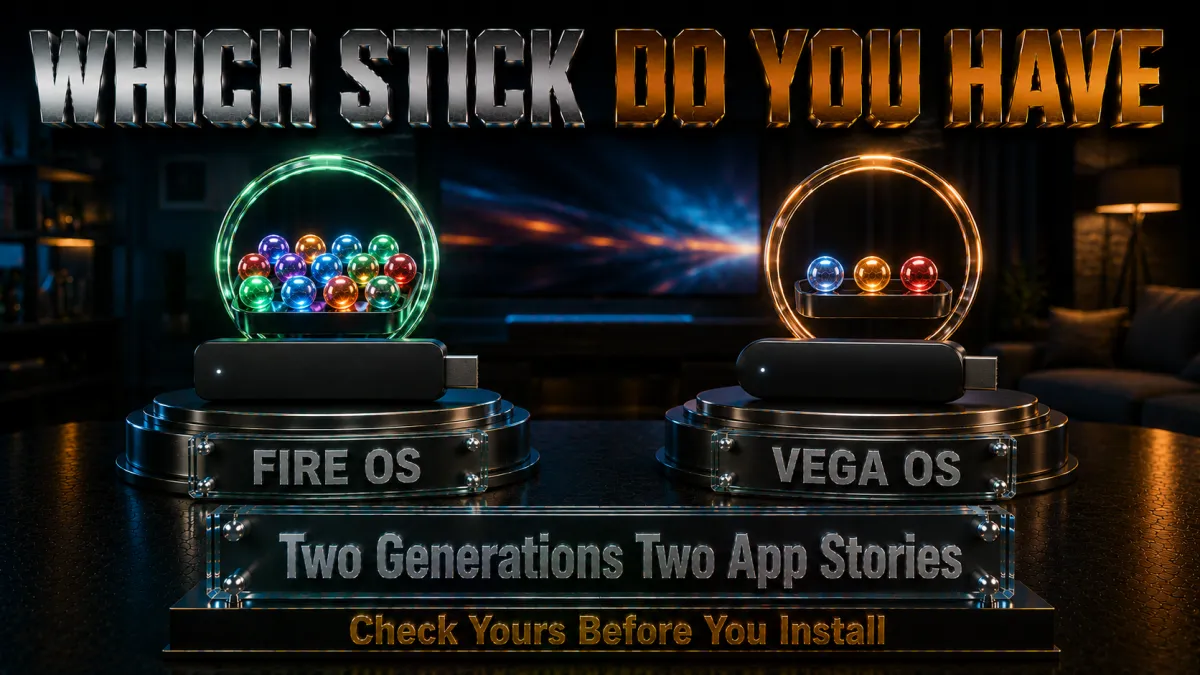
Amazon launched a new operating system for Fire TV devices in late 2025 that changes which VPNs you can install. Before choosing a VPN, identifying which OS your device runs is the most important step.
- Fire OS devices (most Fire Sticks). All Fire TV Sticks released before October 2025 run Fire OS, which is based on Android. This includes the Fire TV Stick Lite, Fire TV Stick (3rd gen), Fire TV Stick 4K, Fire TV Stick 4K Max, and Fire TV Cube. Any VPN with an Android app or an Amazon Appstore listing will install and run on these devices. This covers the vast majority of Fire Sticks currently in use.
- Vega OS devices (Fire TV Stick Select, Oct 2025). The Fire TV Stick Select runs Vega OS, a Linux-based operating system. Android APK files cannot be sideloaded, and Fire OS apps do not run on this device. Only apps specifically compiled for Vega OS work. As of August 2026, NordVPN and Surfshark are the two VPN providers with confirmed native Vega OS apps in the Amazon Appstore.
- How to check your OS. Go to Settings on your Fire Stick home screen, select My Fire TV, then About. If the software version shows Fire OS followed by a version number, you have a Fire OS device. If it shows Vega OS, you have the newer device and should choose NordVPN or Surfshark specifically.
5 best VPNs for Firestick in 2026
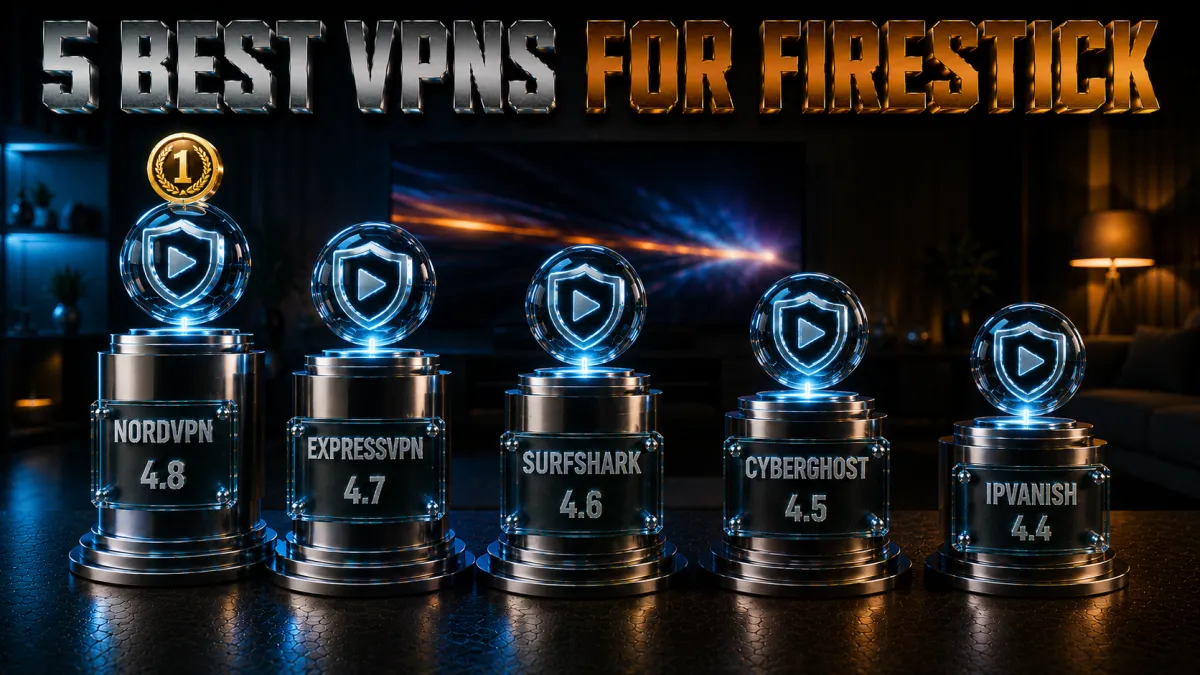
These three were tested specifically on Fire TV devices across different models and content unblocking scenarios. Each has a clearly different primary strength for Fire Stick use.
1. NordVPN – Best overall for Firestick
NordVPN is the complete package for Fire Stick users in 2026. The native Fire TV app is a full-featured version of the NordVPN experience designed for a TV remote interface, with large buttons, clear server browsing, and no features stripped for the platform. SmartPlay automatically routes streaming traffic through optimised servers without requiring you to change settings before each streaming session. On older Fire OS devices, this means Netflix, BBC iPlayer, Disney+, Prime Video US, and dozens of other services load in the correct library without any manual configuration.
On newer Vega OS devices, NordVPN is one of only two providers currently offering a compatible app. For anyone who has recently bought the Fire TV Stick Select and is trying to decide which VPN to get, this effectively makes NordVPN the default recommendation through availability alone. NordLynx keeps 4K streams smooth even on devices with modest processors, and the 10-device connection limit covers an entire household’s Fire Sticks, phones, and laptops under one subscription.
✔ Pros
- Native app for both Fire OS and Vega OS (one of only two Vega OS-compatible VPNs)
- SmartPlay handles streaming server selection automatically
- NordLynx delivers fast enough speeds for 4K without processor overload
- Unblocks 25+ Netflix libraries plus BBC iPlayer, Disney+, Prime Video, and more
- 10 simultaneous connections for all household devices
- Threat Protection blocks ads on Fire Stick browser
✘ Cons
- Monthly plan significantly more expensive than long-term pricing
- SmartPlay must be toggled on in settings if not already active
| Fire OS support | Yes, full native app |
| Vega OS support | Yes (one of only two) |
| Streaming servers | SmartPlay on all servers |
| Price from | ~$3/mo (long-term plan) |
| Simultaneous devices | 10 |
| Money-back guarantee | 30 days |
2. ExpressVPN – Easiest setup, best TV interface
ExpressVPN’s Fire TV app is designed specifically around the TV remote experience in a way that most VPN apps are not. The interface uses a simple one-tap connection, large readable text, and a server selection layout that works cleanly with a five-button remote rather than feeling like a phone app adapted for a bigger screen. For users who find app navigation frustrating on a TV interface, this difference is immediately noticeable.
The unblocking performance is strong: Netflix US, UK, Canada, Japan, and Australia all load correctly along with BBC iPlayer, Disney+, Hulu, and Amazon Prime Video US. Lightway protocol keeps speeds high for 4K content. RAM-only server infrastructure means no connection data persists, which is the strongest technical no-logs implementation of the three picks. The limitation is Vega OS: ExpressVPN does not currently have a Vega OS-compatible app. Fire OS devices only.
✔ Pros
- Best TV-optimised interface of the three picks, designed specifically for remote navigation
- One-tap connection with automatic smart location selection
- Unblocks Netflix in 20+ countries plus all major streaming platforms
- Lightway protocol delivers fast 4K speeds
- RAM-only servers, strongest technical no-logs implementation
✘ Cons
- No Vega OS support as of August 2026 (Fire OS devices only)
- Most expensive of the three picks on long-term plans
- Only 8 simultaneous connections
| Fire OS support | Yes, full native app |
| Vega OS support | No (as of August 2026) |
| Streaming servers | All servers optimised |
| Price from | ~$5/mo (long-term plan) |
| Simultaneous devices | 8 |
| Money-back guarantee | 30 days |
3. Surfshark – Best value, unlimited devices, Vega OS
Surfshark’s unlimited simultaneous connections make the most sense for households with multiple Fire Sticks. A family with a Fire Stick 4K Max in the living room, a Fire TV Stick Lite in a bedroom, and a Fire TV Stick Select in a third room can run all three through a single Surfshark subscription with no per-device cost. The Vega OS app means the newest device is covered alongside the older ones, all under one account at the lowest long-term price of the three picks.
Streaming unblocking covers 30+ Netflix libraries, BBC iPlayer, Disney+, and the major international streaming platforms. WireGuard protocol handles 4K streams reliably. CleanWeb blocks ads and tracking on the Fire Stick browser and in some streaming app interfaces.
✔ Pros
- Unlimited simultaneous connections, covers every Fire Stick and device in the household
- Native app for both Fire OS and Vega OS (one of only two Vega OS options)
- Lowest long-term price of the three picks
- Unblocks 30+ Netflix libraries, the most of the three picks
- CleanWeb blocks ads in Fire Stick browser and compatible apps
✘ Cons
- Occasional server switch needed for optimal 4K speeds on distant servers
- Slightly fewer servers than NordVPN in some regions
| Fire OS support | Yes, full native app |
| Vega OS support | Yes (one of only two) |
| Streaming servers | All servers, 100 countries |
| Price from | ~$2.50/mo (long-term plan) |
| Simultaneous devices | Unlimited |
| Money-back guarantee | 30 days |
4. CyberGhost, easiest for beginners
CyberGhost is a strong Firestick choice because it offers a native Fire TV app, so there is no sideloading gymnastics; you install it from the Amazon Appstore, sign in, and connect. The interface is built for a remote, with large buttons and servers labeled by streaming purpose, which makes picking the right one on a TV screen far less fiddly than most VPNs.
It runs WireGuard for the bandwidth that HD and 4K streaming needs, includes a kill switch and DNS-leak protection, and is based in Romania under a strict no-logs policy with no data-retention law. Its large, purpose-tagged server fleet keeps a working streaming route available even at busy hours.
The 45-day money-back guarantee is the longest here and especially useful on a Firestick, where you want time to confirm your streaming apps and libraries load smoothly on the actual device before paying. Performance is dependable, and the remote-friendly design makes it one of the least frustrating VPNs to live with on a television.
✔ Pros
- Native Fire OS app
- Streaming servers labelled by service
- Longest 45-day money-back window
- Beginner-friendly on-screen setup
- Reliable 4K on nearby servers
✘ Cons
- No Vega OS support yet
- Fewer devices than the value picks
| Fire OS app | Yes |
| Vega OS | No |
| 4K streaming | Good |
| Price from | ~$2 to $3/mo (long-term plan) |
| Simultaneous devices | 7 |
| Money-back guarantee | 45 days |
5. IPVanish, best for many devices
IPVanish has long been a Firestick favorite, and for good reason: it offers a proper native Fire TV app with a layout designed for a remote, so setup is quick and daily use is simple from the couch. Because it owns and runs its own network, streaming speeds stay steady, which is what smooth HD and 4K playback depends on.
Unlimited simultaneous connections mean one account can cover the Firestick plus every phone, tablet, and laptop in the house at once. The app includes a kill switch and WireGuard support, and its no-frills design is genuinely easy to navigate on a TV, which is more than many VPNs can claim.
The honest caveat is jurisdiction: IPVanish is US-based inside the Five and Nine Eyes alliances, so the privacy-focused may prefer an offshore option. An independently audited no-logs policy and a 30-day money-back guarantee balance that, and for a fast, remote-friendly Firestick VPN with unlimited device coverage, it remains one of the most practical picks.
✔ Pros
- Native Fire OS app
- Owns its network for steady 4K
- Unlimited simultaneous devices
- Simple, uncluttered interface
- Strong long-term value
✘ Cons
- No Vega OS support
- US-based, inside the 9 Eyes alliance
| Fire OS app | Yes |
| Vega OS | No |
| 4K streaming | Very good |
| Price from | ~$3 to $4/mo (long-term plan) |
| Simultaneous devices | Unlimited |
| Money-back guarantee | 30 days |
| Feature | NordVPN | ExpressVPN | Surfshark | CyberGhost | IPVanish |
|---|---|---|---|---|---|
| Fire OS support | Yes | Yes | Yes | Yes | Yes |
| Vega OS support | Yes | No | Yes | No | No |
| 4K streaming speed | Excellent | Excellent | Very good | Good | Very good |
| Netflix libraries | 25+ | 20+ | 30+ | 20+ | 15+ |
| TV interface | Very good | Best in class | Good | Good | Basic |
| Simultaneous devices | 10 | 8 | Unlimited | 7 | Unlimited |
| Price from | ~$3/mo | ~$5/mo | ~$2.50/mo | ~$2.50/mo | ~$3.50/mo |
| Money-back | 30 days | 30 days | 30 days | 45 days | 30 days |
How to install a VPN on Firestick: step by step
Installing a VPN on a Fire OS device takes about three minutes using the Amazon Appstore. This is the recommended method for all current Fire TV Sticks running Fire OS.
- Open the Amazon Appstore on your Fire Stick. From the home screen, select the search icon in the top navigation bar, or navigate to Apps in the menu.
- Search for your VPN provider by name. Type NordVPN, ExpressVPN, or Surfshark. Select the result from the Amazon Appstore listing. Verify the publisher matches the official VPN company name.
- Download and install the app. Select Get or Download. The app installs automatically and appears in your app library within under a minute.
- Open the app and sign in. Launch the VPN app from your apps library or home screen. Enter your account credentials. If you do not have an account yet, create one at the VPN provider’s website first on your phone or computer.
- Connect to a server. For general streaming privacy, tap Quick Connect to connect to the fastest available server automatically. For a specific country’s streaming library, select that country from the server list: UK for BBC iPlayer, US for US Netflix, India for JioHotstar.
- Open your streaming app. With the VPN connected, open Netflix, Prime Video, or any streaming app. The app loads the content library for the country your VPN server is in.
How to sideload a VPN on Firestick (if not on Appstore)
If a VPN provider does not have an Amazon Appstore listing, or if you are on an older Fire Stick model with limited Appstore options, sideloading installs the Android APK directly. This works on all Fire OS devices but does not work on Vega OS.
- Enable Developer Options. Go to Settings, then My Fire TV, then About. Find the Fire TV device name and press the Select button on your remote seven times until a message confirms Developer Options are now available.
- Enable Install Unknown Apps. Go back to About, then select Developer Options. Find Install Unknown Apps and switch it on. This allows APK files from sources outside the Amazon Appstore.
- Install the Downloader app. Search for Downloader in the Amazon Appstore and install it. This free app lets you enter a URL and download files directly to your Fire Stick.
- Get the APK download URL. On a separate device, go to your VPN provider’s official website and find the Android APK download link. Copy the URL exactly.
- Download the APK on your Fire Stick. Open the Downloader app, enter the APK URL, and select Go. The file will download to your Fire Stick automatically.
- Install and open. Select Install when prompted. After installation, open the VPN app, sign in, and connect to a server. Note: sideloaded apps do not update automatically and must be manually reinstalled when the provider releases new versions.
What a VPN unlocks on your Firestick

The immediate practical value of a VPN on your Fire Stick is the content it makes accessible. Here is exactly what becomes available by connecting to different country servers.
- US Netflix on any Fire Stick, anywhere. US Netflix has the most comprehensive Hollywood content library. Connecting to a US VPN server gives your Fire Stick a US IP address, and Netflix serves the American catalogue regardless of where you physically are. This works for travellers using their Fire Stick abroad and for users outside the US who want US-exclusive titles.
- BBC iPlayer: free British television worldwide. BBC iPlayer is free to use but geo-locked to the UK. Any non-UK IP address gets refused. A UK VPN server gives you full iPlayer access with every BBC channel and on-demand catalogue, including live BBC One, Two, Three, Four, News, and sport coverage. For British expats and travellers, iPlayer is consistently the top reason to run a VPN on a Fire Stick.
- JioHotstar for live IPL cricket. JioHotstar is geo-restricted to India and requires an Indian IP for access. For Indian expats and travellers who want live IPL cricket, ICC tournaments, or Bollywood content on their Fire Stick, a virtual India VPN server is the only solution. All three picks offer India servers.
- Disney+ with full international catalogue. Disney+ runs in most countries but with different content libraries based on local licensing. The US Disney+ library carries the most complete Marvel, Star Wars, and Disney content. A US VPN server opens that full catalogue regardless of where your Fire Stick is registered.
- Amazon Prime Video region switching. Prime Video shows different titles in different countries, and some series are exclusive to specific regional Prime libraries. A UK VPN server opens the UK Prime catalogue, a US server opens the US catalogue.
- DAZN, Peacock, Hulu, and US-only services. These services are either unavailable or heavily restricted outside the US. A US VPN server makes your Fire Stick appear to be in the United States, unlocking signup and streaming on platforms that would otherwise show a geographic restriction error.
Getting the best 4K streaming speeds on Firestick with a VPN

A VPN does add encryption overhead, and the Fire Stick’s processor is less powerful than a laptop or desktop. Getting 4K streams to run smoothly requires choosing the right settings.
- Use WireGuard or its equivalent. NordLynx (NordVPN), Lightway (ExpressVPN), and WireGuard (Surfshark) all add significantly less overhead than OpenVPN. On a Fire Stick’s processor, this difference is meaningful: OpenVPN can cause frame drops on 4K streams where WireGuard-based protocols do not. Check that your VPN app is set to the fastest available protocol before streaming.
- Connect to the nearest server that serves your target content. If you want US Netflix, connect to the US city closest to your physical location, not the default recommended server. New York is best for European users. Los Angeles is best for Asian and Australian users. An unnecessary hop adds latency that shows up as buffering on 4K streams.
- Test speed before a long streaming session. From your Fire Stick’s Settings, run a speed test from the network settings menu while the VPN is connected. Netflix 4K requires approximately 25 Mbps sustained. HD requires 5 Mbps. Verify you have sufficient bandwidth before starting a film.
- Restart your Fire Stick periodically. Fire Sticks accumulate background processes over time that slow the processor and reduce streaming performance with or without a VPN. A weekly restart clears these processes and maintains smooth playback.
- Switch servers if a stream drops quality mid-session. If a 4K stream drops to HD mid-episode, the VPN server may be under high load. Switch to a different city server in the same country without closing the streaming app. The stream will rebuffer briefly and then resume at the correct quality.
Using a VPN with Kodi on Firestick
Kodi is a popular open-source media player that runs on Fire OS and supports third-party add-ons. Using a VPN alongside Kodi addresses both privacy and accessibility concerns.
- Why Kodi users need a VPN specifically. Some third-party add-ons access content that falls outside official licensing. ISPs in some countries monitor connections to known streaming add-on sources and can send copyright notices or throttle connections. A VPN encrypts all Kodi traffic so the ISP cannot identify what sources the add-ons are connecting to.
- Installing Kodi on Fire Stick. Kodi is available as a sideload APK from the official Kodi website (kodi.tv). Enable Developer Options, install the Downloader app, and download from the official site only. Never use third-party APK sources for Kodi.
- VPN setup for Kodi: connect first. Connect your VPN before opening Kodi so that all of Kodi’s connections go through the encrypted tunnel from the start. Starting the VPN after Kodi is already running may not cover Kodi’s initial connection attempts.
- Which server for Kodi. For general Kodi privacy, connect to any nearby server with a fast connection. For UK-based add-ons, use a UK server. For US-based content, use a US server. You do not need a special server category for Kodi, any server will work.
Using your Firestick with a VPN while travelling
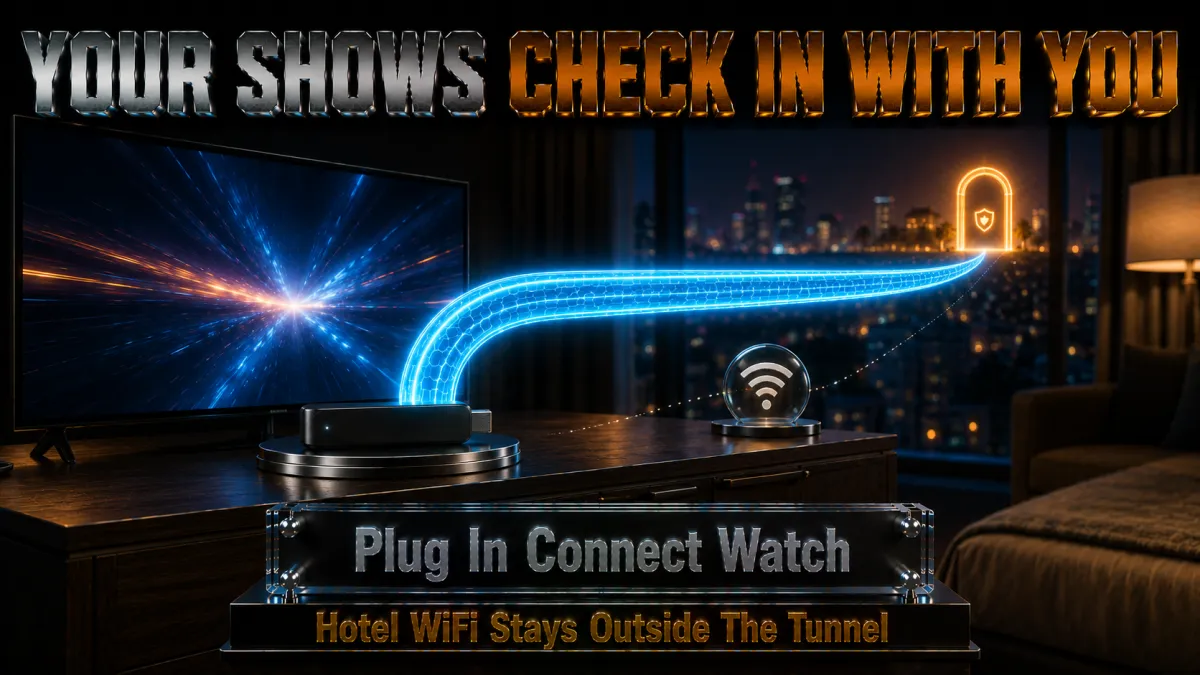
The Fire Stick’s portability is one of its most underused features. Plugging it into any hotel television turns it into your familiar home streaming setup. A VPN makes that experience complete.
- Access your home streaming libraries from anywhere. Netflix shows you the local library wherever you are. If you are a UK traveller in the US who wants UK Netflix titles, connect to a UK VPN server before opening Netflix. If you are an Indian traveller wanting JioHotstar, connect to an India server. The VPN makes your Fire Stick believe it is at home regardless of which country your hotel is in.
- Protect your credentials on hotel Wi-Fi. Hotel networks are unsecured shared environments. Your streaming account passwords and payment credentials saved in apps travel over that shared network without additional encryption at the Wi-Fi layer. A VPN encrypts everything from your Fire Stick before it leaves the device.
- Bypass hotel Wi-Fi captive portals. Some hotels use captive portals that require you to log in before internet access is granted. If the portal blocks VPN connections initially, connect to the hotel Wi-Fi without the VPN first, complete the captive portal login in the Fire Stick’s browser, then activate the VPN before using any apps.
- Use a pocket router for complete protection. A small travel router lets you connect to hotel Wi-Fi and share that connection to all your devices, including the Fire Stick, through a VPN-configured router. This protects every device without configuring VPN individually on each one.
How a VPN stops ISP throttling on Firestick
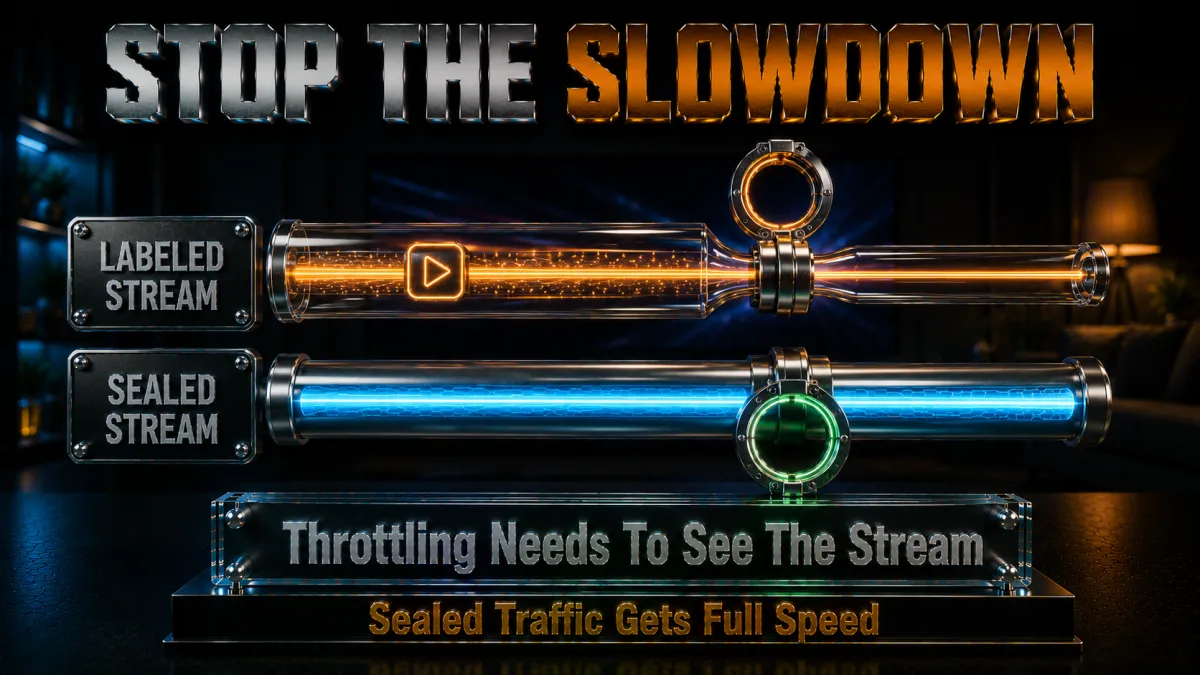
If your Fire Stick streams smoothly at off-peak times but buffers during evenings and weekends, ISP throttling is the most common cause.
- The confirmation test. Stream content on your Fire Stick during the time when buffering normally occurs, without the VPN. Note the quality. Then connect your VPN to a nearby server and stream the same content. If buffering disappears or quality improves, your ISP was throttling that specific traffic type. The VPN’s encryption prevents the ISP from identifying it as streaming.
- Why throttling targets streaming specifically. ISPs identify streaming traffic by its packet patterns: large sustained data transfers going to known streaming service IP ranges. They prioritise other traffic types or cap streaming bandwidth during busy hours. A VPN wraps streaming traffic in an encrypted tunnel that the ISP reads as generic encrypted data, making selective throttling impossible.
- ISP throttling vs server-side quality drops. If buffering affects only one streaming service but not others, the problem may be that service’s own servers. If buffering affects all streaming equally, ISP throttling is more likely. The VPN test distinguishes between them: if quality improves with the VPN, the ISP is the cause.
Do free VPNs work on Firestick?
Free VPNs consistently fail as Firestick VPNs for reasons specific to streaming.
- Streaming services block free VPN IPs. Netflix, Disney+, and BBC iPlayer maintain and update blocklists of known VPN IP addresses. Free VPN providers use small, static IP pools that are among the first to be identified and blocked. A free VPN that accessed Netflix last month likely cannot access it today.
- Data caps make streaming impossible. Most free VPN tiers cap data at between 500 MB and 10 GB per month. A single HD film consumes approximately 3-5 GB. A 4K film consumes 15-20 GB. Free tier limits make any meaningful streaming impossible before you hit the monthly cap.
- Speed throttling makes 4K impractical. Free tiers throttle connection speeds to encourage upgrades to paid plans. The 25 Mbps sustained bandwidth required for 4K streaming is rarely available on throttled free VPN servers, even when the data cap has not been reached.
- Limited country servers restrict unblocking. Free VPNs offer a small number of server locations, often without the US, UK, and India servers required for the most sought-after content. No US server means no US Netflix. No UK server means no BBC iPlayer.
- Privacy risk from logging. Several major free VPN providers have documented histories of logging user data and selling it. Running a free VPN on your Fire Stick to protect streaming privacy while the VPN logs and sells your viewing history produces the opposite of the intended result.
The 30-day money-back guarantees from all three paid picks above make this comparison straightforward. Test a full-featured VPN on your Fire Stick during the 30-day window and verify it unblocks the content you want at the speeds you need. Claim a full refund if it does not deliver.
Related reading:
Frequently Asked Questions
Can I install a VPN directly from the Amazon Appstore?
Yes. NordVPN, ExpressVPN, and Surfshark all have listings in the Amazon Appstore for Fire OS devices. Search for the VPN name in the Appstore, download the app, sign in with your account, and connect. No sideloading required. For the Vega OS Fire TV Stick Select, only NordVPN and Surfshark are currently available in the Appstore as of August 2026.
Which VPN works on the new Vega OS Fire TV Stick?
As of August 2026, NordVPN and Surfshark are the two VPN providers with native apps for the Fire TV Stick Select (Vega OS). ExpressVPN does not yet have a Vega OS app. If you own the Fire TV Stick Select released in October 2025, choose NordVPN or Surfshark specifically.
Will a VPN slow down streaming on my Fire Stick?
Minimally, when configured correctly. WireGuard-based protocols (NordLynx, Lightway, Surfshark WireGuard) add very little overhead compared to older protocols. Connecting to a server geographically close to the streaming content you want minimises latency. Most users find 4K streaming unaffected with any of the three picks above when using the correct protocol setting.
Can I watch US Netflix on my Fire Stick with a VPN?
Yes. Connect to a US server in your VPN app, then open Netflix. Netflix will serve the American library rather than your local country’s catalogue. If you see a proxy error, switch to a different US city server. All three picks maintain US Netflix access with ongoing server maintenance.
Does a VPN work with Kodi on Firestick?
Yes. Connect your VPN before opening Kodi so that all of Kodi’s connections go through the encrypted tunnel. The VPN prevents your ISP from logging which sources Kodi’s add-ons connect to and hides the volume of data transferred through Kodi from ISP monitoring.
Can I use my Fire Stick and VPN in a hotel?
Yes. Plug your Fire Stick into the hotel TV’s HDMI port and connect it to hotel Wi-Fi. Activate your VPN, connect to your home country’s server, and your streaming apps will load the same libraries you use at home. The VPN also encrypts your credentials on the hotel network.
Is it legal to use a VPN on a Firestick?
Using a VPN is legal in most countries. Accessing streaming content outside your home country may technically violate a streaming service’s terms of service, but no streaming service has terminated accounts specifically for using a VPN to access another regional library. The risk is a temporary proxy error at most, not an account ban.
How do I know if my VPN is working on Firestick?
Open the Amazon Silk browser on your Fire Stick while the VPN is connected, and search for what is my IP address. The location shown should match your VPN server’s country rather than your real location. If it shows your real location, the VPN connection has dropped or is not routing Fire Stick traffic correctly.
Can I use a VPN router instead of installing an app on my Fire Stick?
Yes. Installing a VPN on your router protects all devices connected to it including your Fire Stick, without needing to install or manage a VPN app on the Fire Stick itself. This is the best approach for older Fire Stick models with limited storage or processing power. ExpressVPN’s Aircove router has the VPN built in and is managed through a phone app.
How many Fire Sticks can I use with one VPN subscription?
NordVPN allows 10 simultaneous connections per subscription. ExpressVPN allows 8. Surfshark allows unlimited simultaneous connections, making it the best choice for households with multiple Fire Sticks plus phones, laptops, and tablets all needing coverage under one subscription.
What is the best server location to use for streaming on Firestick?
Match the server location to the streaming library you want. US server for US Netflix, Hulu, Peacock, or DAZN. UK server for BBC iPlayer or UK Netflix. India server for JioHotstar. Australia server for Australian Netflix or Stan. Connect to the server before opening the streaming app, not after.
Does a VPN on Firestick stop buffering?
It can, specifically when buffering is caused by ISP throttling of streaming traffic. A VPN encrypts your traffic so the ISP cannot identify it as streaming and cannot selectively slow it down. If buffering is caused by a weak internet connection or the streaming service’s own servers, a VPN will not help. The test is whether streaming improves when you activate the VPN during peak buffering hours.
The Bottom Line
A VPN on your Fire Stick does two things at once: it makes your ISP blind to what you stream, and it makes your Fire Stick appear to be in whichever country gives you access to the content you want. The combination of privacy and access is immediate and practical, and the setup takes three minutes from the Amazon Appstore.
The Vega OS situation with the newest Fire TV Stick Select narrows the field meaningfully: only NordVPN and Surfshark are available for that device as of August 2026. For all older Fire OS devices, all three picks install and work without issue.
- NordVPN is the best overall pick. Works on both Fire OS and Vega OS, SmartPlay handles streaming automatically, NordLynx keeps 4K smooth, and 10 device connections cover the household.
- ExpressVPN is the best for ease of use. The most polished TV-native interface, one-tap connection, and strong unblocking performance for Fire OS users who want the simplest experience.
- Surfshark is the best value pick. Unlimited connections, Vega OS support, and the most Netflix libraries (30+) at the lowest long-term price. The obvious choice for multi-Fire-Stick households.
- CyberGhost is the friendliest entry point on Fire OS, with labelled streaming servers and the longest 45-day money-back window.
- IPVanish owns its network for steady 4K across unlimited devices, though it does not yet support Vega OS.
If you have the new Fire TV Stick Select running Vega OS, the choice has already been narrowed for you: NordVPN or Surfshark, no other options exist yet. For everyone else on Fire OS, any of the three work. The 30-day refund window is enough time to test the specific streaming service you care most about: BBC iPlayer, US Netflix, JioHotstar, or whatever brought you here. Test that one thing thoroughly before the window closes. If it works reliably, keep it. If it does not, the refund is straightforward.
Jyoti VPN Expert leads VPN testing at VPN Expert Guide, covering streaming and regional access, speed and latency testing, and leak checks on Windows, Android and router-level setups. Our guides are built from vendor documentation, provider terms and our own connection testing on a residential line in India, and we publish those measurements in full so readers can check them. Every guide is reviewed before publication and dated so you can see how current it is.
Meet our testing team →Last updated: September 2, 2026