
How to Unblock Instagram at Work in 2026: The Honest Guide
Instagram blocked on the office network is one of the most-searched workplace annoyances, and most guides skip the two questions that matter: whose network is it, and whose device are you holding? This guide answers the technical side fully, and it starts where an honest guide must: your employer’s acceptable-use policy, the difference between your own phone on your own data and a company laptop on the company network, and the career arithmetic no ten-minute scroll is worth.
Why Instagram gets blocked at work

Knowing the reason predicts the block’s shape.
- Productivity policy is the usual driver. Employers block social apps to keep working hours pointed at work, a legitimate call on a network they own and pay for. The block is a management decision expressed in firewall rules, which is why the firewall is only half the story.
- Bandwidth management comes second. Reels and Stories are heavy video, and an office of scrolling employees competes with video calls and cloud tools for the same line. Blocking the heaviest recreational traffic is often as much plumbing as policy.
- Security teams dislike unmanaged apps. Social platforms carry phishing links, malware ads, and data-leak surface, and filtering them trims the attack paths IT has to watch. On company devices this extends to app allow-lists, not just network rules.
- How the block is built matters to you. Most workplaces filter at the network level: DNS blocking, domain filtering, or firewall rules on the WiFi, which is exactly the layer a VPN tunnels past. Device-level controls on company hardware are a different animal no network trick touches, per the device section.
The honest section: policy, consequences, and whose device it is

Read this before any method below.
- Your acceptable-use policy is the actual rulebook. Most employment contracts or IT policies say what personal use is allowed on company networks and devices, and that document, not this guide, defines your risk. Ten minutes finding and reading it beats every workaround on this page.
- Company device changes everything. Employer-owned laptops and phones commonly run monitoring and management software that sees activity regardless of network tricks, and installing an unauthorised VPN on one can itself violate policy. On company hardware, the honest answer is: do not.
- Company network, personal device is the grey zone. Your own phone on office WiFi rides their network under their rules; a VPN hides the content of your traffic but not the fact of VPN use, which some workplaces also restrict. Know the policy; the tunnel does not read it for you.
- Personal device, personal data is the clean lane. Your phone on your mobile plan involves no company property at all, and no policy short of a phones-away rule reaches it. This is the answer for most people, and it needs no software at all.
- The career arithmetic, stated plainly. Disciplinary trouble over a social feed is a terrible trade, and workplaces that block aggressively often monitor aggressively too. When policy is unclear, asking beats testing; nothing on Instagram expires in an afternoon.
How unblocking actually works: the methods ranked honestly
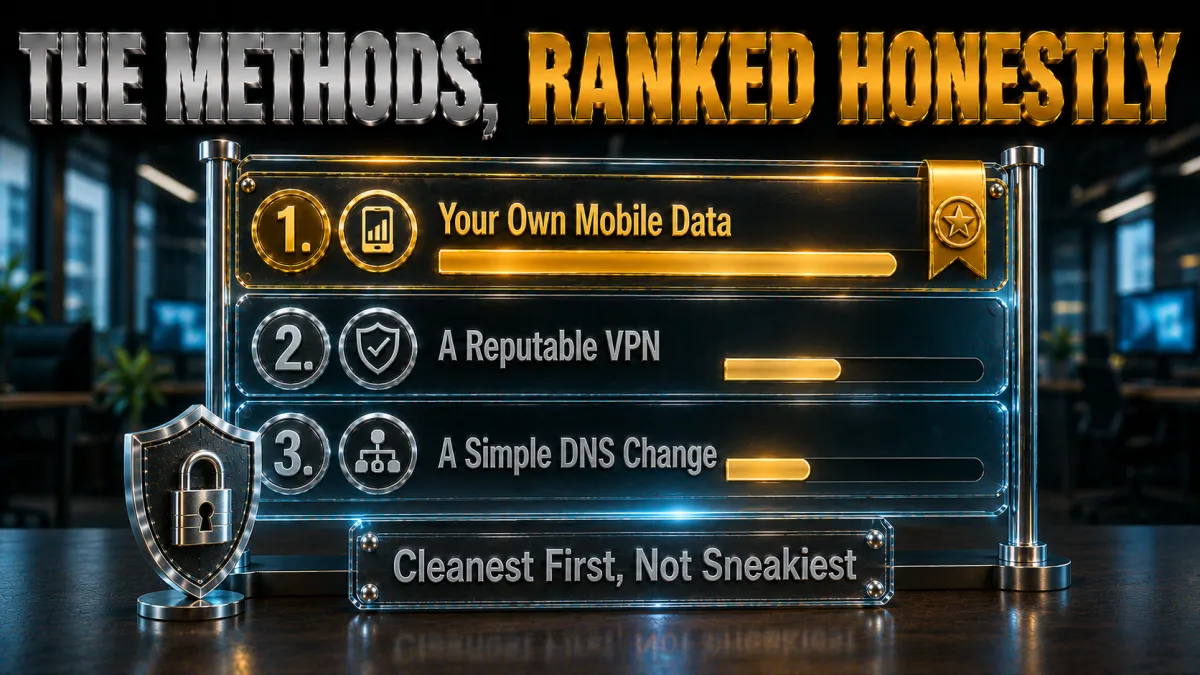
Every option, with its real trade-offs.
- Mobile data: the best method for most people. Switching WiFi off on your personal phone bypasses the office network entirely, involves no policy grey areas beyond phone etiquette, and works instantly. It is the first answer, not the fallback.
- VPN on a personal device: the network-filter answer. An encrypted tunnel makes your traffic unreadable to the office filter, so domain and DNS blocks cannot see Instagram to stop it, per the VPN section below. Right tool when WiFi is your only connectivity and policy permits personal browsing.
- DNS changes: the lighter fix for lighter blocks. Where the block is DNS-only, switching your device’s DNS resolver defeats it without a tunnel, per the DNS section. Fails against deeper filtering, costs nothing to try on a personal device.
- Web proxies: mentioned to be warned against. Free proxy sites see your traffic, inject ads, and harvest logins, per our proxy guides, and Instagram credentials are exactly what they catch. Skip them entirely.
- What has no method: company devices. Managed hardware enforces rules on the device itself, beneath any network trick, and attempting workarounds there is both futile and policy-violating. The honest scope of this guide is personal devices only.
Why a VPN beats workplace network filters
The mechanics, briefly and honestly.
- Encryption blinds the filter. The office firewall blocks Instagram by recognising its domains and traffic; inside a VPN tunnel, all the filter sees is encrypted data to one server. What cannot be recognised cannot be selectively blocked.
- The tunnel exits elsewhere. Your traffic emerges from the VPN server, outside the office network’s control, where Instagram is just another website. The block exists only on the network you tunnelled through.
- What the network still sees. Admins can observe that a VPN is in use, how much data moves, and when, even without reading contents. Invisibility of content is not invisibility of the tunnel, an honesty note that matters on monitored networks.
- Aggressive networks need obfuscation. Some workplace firewalls detect and block VPN protocols themselves; obfuscated modes disguise the tunnel as ordinary HTTPS, per our obfuscation guides. The picks below carry it, which is half of why they were picked.
Best method by device: the practical map
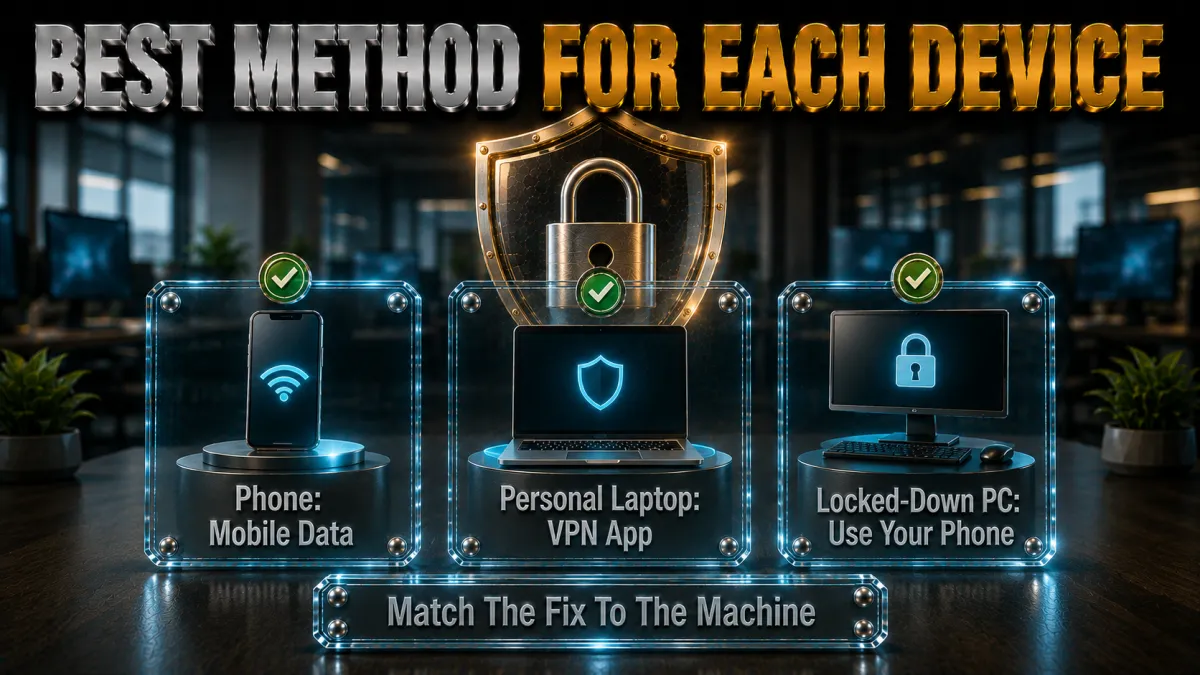
Match the approach to the hardware in your hand.
- Personal iPhone or Android on mobile data. No method needed: WiFi off, Instagram works, no company anything involved. The complete answer for anyone with a data allowance to spare.
- Personal phone stuck on office WiFi. A reputable VPN app from the official store, connected to a nearby server with obfuscation available, defeats network filtering where policy allows personal browsing. Install and test it on home WiFi first so the office attempt is one tap, not a setup session.
- Personal laptop on office WiFi. Same VPN logic, desktop app, same policy caveat, with the added note that laptops on company networks sometimes face portal restrictions that phones dodge. OpenVPN TCP 443 is the fallback profile that usually passes.
- Company phone or laptop, any network. No method, deliberately: managed devices enforce policy below the network layer, and unauthorised tools on them are a policy violation in themselves. The clean lane is your own hardware or a conversation with IT.
The DNS method: when the light fix is enough
The no-tunnel option for shallow blocks.
- How it works. DNS-level blocks stop Instagram by refusing to resolve its domains; pointing your personal device at a public resolver like well-known open DNS services restores resolution. Two minutes in network settings, no software.
- When it succeeds. Smaller offices with router-level DNS filtering and nothing deeper are the winnable case. If Instagram loads after the switch, the block was shallow and you are done.
- When it fails. Firewalls that filter by domain inspection or IP address ignore your resolver choice entirely, which is most corporate-grade setups. Failure here is diagnostic: the block is deeper, and only the tunnel route remains.
- The same honesty applies. Changing DNS on a personal device is trivial technically and still subject to whatever the acceptable-use policy says about circumventing network controls. The lighter method does not carry lighter rules.
How to choose a VPN for workplace use
The criteria this specific situation rewards.
- Obfuscation availability first. Workplace firewalls that block VPN protocols are common, and obfuscated or stealth modes are the difference between working and not. NordVPN, ExpressVPN, and Surfshark carry it, per the comparison table.
- Quick, quiet mobile apps. The realistic use is a personal phone and short sessions; apps that connect in two taps and reconnect instantly fit the pattern. All five picks qualify; polish varies by card.
- Nearby servers for feed speed. Instagram is video-heavy, and a low-latency nearby endpoint keeps Reels smooth on lunch-break WiFi. Server spread in your region matters more than global totals.
- Audited no-logs as the trust floor. Your personal browsing rides the provider, and only independent audits verify the no-logs promise, the standing criterion across this site. Workplace context does not lower the bar.
- Refund windows for the real test. The only test that matters runs on your office’s actual WiFi at your actual break time, and 30-to-45-day guarantees make that test free. Calendar the deadline; decide inside it.
The 5 best VPNs for unblocking Instagram at work in 2026
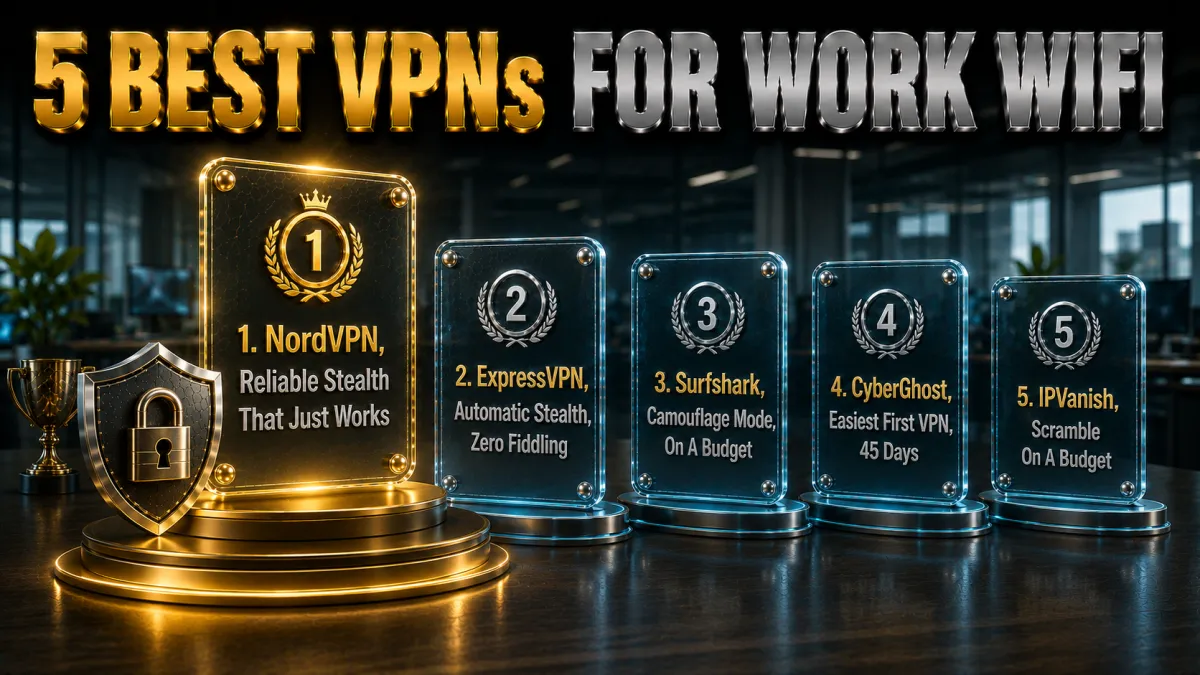
Ranked for obfuscation, quick discreet mobile apps, and feed-smooth speed.
1. NordVPN – Best overall for workplace networks
NordVPN pairs dedicated obfuscated servers, the answer to firewalls that block VPN protocols themselves, with NordLynx speed that keeps Reels smooth on crowded lunch-hour WiFi. The mobile apps connect in two taps, reconnect instantly after elevator dead zones, and multiple independent no-logs audits carry the personal-privacy side.
For the personal-phone-on-office-WiFi case this guide is scoped to, it is the most complete tool here.
✔ Pros
- Dedicated obfuscated servers
- NordLynx speed for video feeds
- Fast, discreet mobile apps
- Multiple independent no-logs audits
- 30-day refund window
✘ Cons
- Obfuscation needs OpenVPN protocol mode
- Best price on longer plans
| Obfuscation | Yes, dedicated servers |
| TCP-443 fallback | Yes |
| Audited no-logs | Yes, multiple audits |
| Jurisdiction | Panama |
| Devices | 10 |
| Money-back | 30 days |
2. ExpressVPN – Automatic stealth, zero fiddling
ExpressVPN applies obfuscation automatically whenever the network calls for it, no modes to find, no protocols to toggle, which makes it the pick for anyone who wants the tunnel to just work on a fussy office firewall. Lightway reconnects through WiFi drops before the feed notices, and RAM-only audited infrastructure holds the trust line.
The premium price buys the absence of fiddling; on hostile networks that absence is the product.
✔ Pros
- Automatic obfuscation, no setup
- Best behaviour on strict firewalls
- Instant Lightway reconnects
- RAM-only audited servers
- 30-day refund window
✘ Cons
- Most expensive of the five
- 8-device cap
| Obfuscation | Yes, automatic |
| TCP-443 fallback | Yes |
| Audited no-logs | Yes, audited |
| Jurisdiction | British Virgin Islands |
| Devices | 8 |
| Money-back | 30 days |
3. Surfshark – Camouflage mode on a budget
Surfshark’s Camouflage mode disguises the tunnel on OpenVPN connections at the lowest long-term price here, and unlimited devices mean the same cheap plan covers your phone, laptop, and everything at home. Speeds are comfortably feed-smooth on nearby servers.
A step behind the top two on raw pace and stealth polish, and clearly ahead of both on price.
✔ Pros
- Camouflage obfuscation included
- Lowest long-term price of the five
- Unlimited simultaneous devices
- Audited no-logs policy
- 30-day refund window
✘ Cons
- Stealth polish behind the top two
- Occasional peak-hour dips
| Obfuscation | Yes, Camouflage mode |
| TCP-443 fallback | Yes |
| Audited no-logs | Yes, audited |
| Jurisdiction | Netherlands |
| Devices | Unlimited |
| Money-back | 30 days |
4. CyberGhost – The easiest first VPN, 45 days to prove it
CyberGhost is the gentlest on-ramp: plain-language apps, one-tap connection, and a 45-day money-back guarantee that covers six weeks of real lunch breaks before any money sticks. OpenVPN TCP 443 handles moderately fussy office networks.
The honest limit: no dedicated obfuscation mode, so the strictest firewalls point one or two cards up.
✔ Pros
- 45-day refund, longest trial here
- Plainest apps of the five
- TCP-443 fallback for fussy networks
- Audited no-logs, transparency reports
- Huge server network
✘ Cons
- No dedicated obfuscation mode
- Speeds good rather than leading
| Obfuscation | No dedicated mode |
| TCP-443 fallback | Yes |
| Audited no-logs | Yes, audited |
| Jurisdiction | Romania |
| Devices | 7 |
| Money-back | 45 days |
5. IPVanish – Scramble on a budget
IPVanish brings brisk WireGuard speeds, a Scramble obfuscation option on OpenVPN, and unlimited connections at a fair price, a workable budget answer for moderately filtered offices.
The standing honesty: US jurisdiction and a lighter independent-audit history than the four above anchor it at fifth.
✔ Pros
- Brisk WireGuard speeds
- Scramble option on OpenVPN
- Unlimited simultaneous connections
- Fair pricing
- 30-day refund window
✘ Cons
- US jurisdiction, lighter audit history
- Stealth behind the leaders
| Obfuscation | Scramble option |
| TCP-443 fallback | Yes |
| Audited no-logs | Policy in place, lighter audit history |
| Jurisdiction | United States |
| Devices | Unlimited |
| Money-back | 30 days |
| Feature | NordVPN | ExpressVPN | Surfshark | CyberGhost | IPVanish |
|---|---|---|---|---|---|
| Obfuscation | Dedicated servers | Automatic | Camouflage | None dedicated | Scramble |
| Strict-firewall passage | Excellent | Best here | Strong | Basic | Moderate |
| Feed speed | Leading | Very strong | Solid | Good | Brisk |
| Audited no-logs | Multiple audits | Audited | Audited | Audited | Lighter history |
| Devices | 10 | 8 | Unlimited | 7 | Unlimited |
| Money-back | 30 days | 30 days | 30 days | 45 days | 30 days |
Setting it up: personal device, five minutes
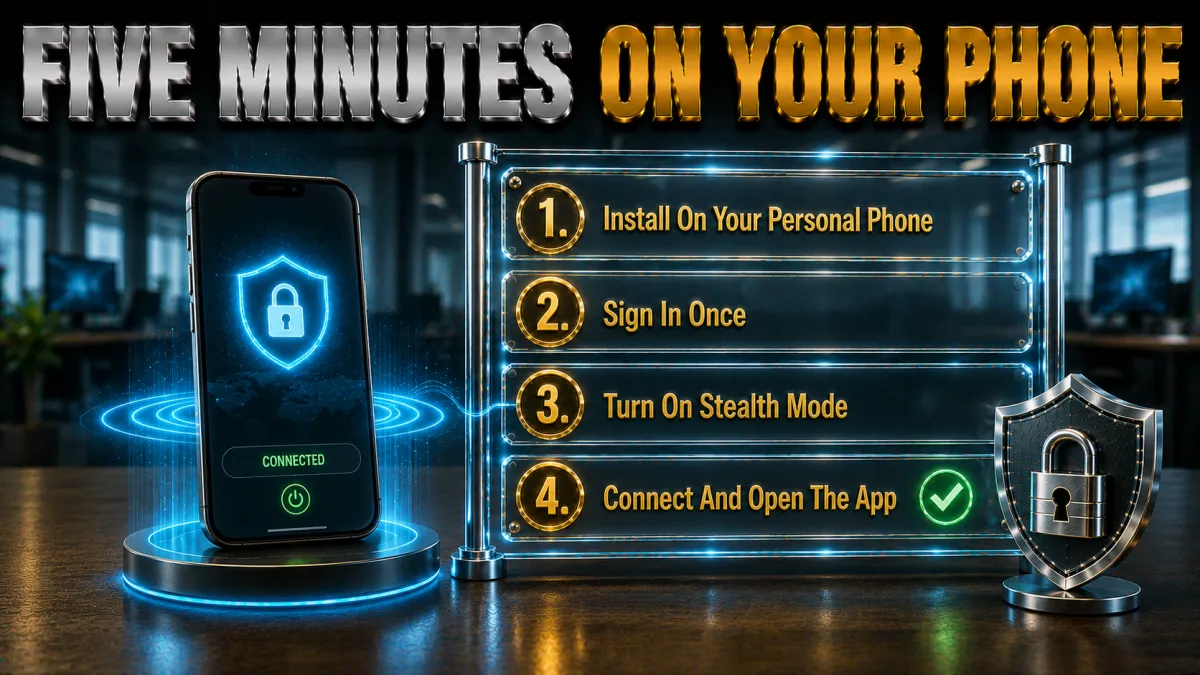
The whole process, scoped to your own hardware.
- Confirm the policy first. Find the acceptable-use section of your handbook or IT policy and read what it says about personal browsing and network tools. Everything after this step assumes the answer was not “forbidden.”
- Subscribe and note the refund date. Sign up on the provider’s site and calendar the deadline; the window is your real-world trial. All five picks give at least 30 days.
- Install at home, from official stores only. Set up and test the app on home WiFi so the office attempt is one tap, not a troubleshooting session. Impostor VPN apps are their own security problem; official sources only.
- Enable the kill switch. A dropping tunnel that leaks mid-scroll defeats the exercise; the switch turns drops into silence. Thirty seconds in settings.
- Pick a nearby server and test the feed. Low latency keeps Reels smooth; the closest sensible endpoint is the default. Confirm Instagram loads and plays video properly.
- Prepare the fallback profile. Set up the obfuscated or TCP-443 option now, so a fussy office firewall meets a ready answer rather than lunchtime fiddling. Two profiles cover nearly every network.
The mobile-data option deserves its own section
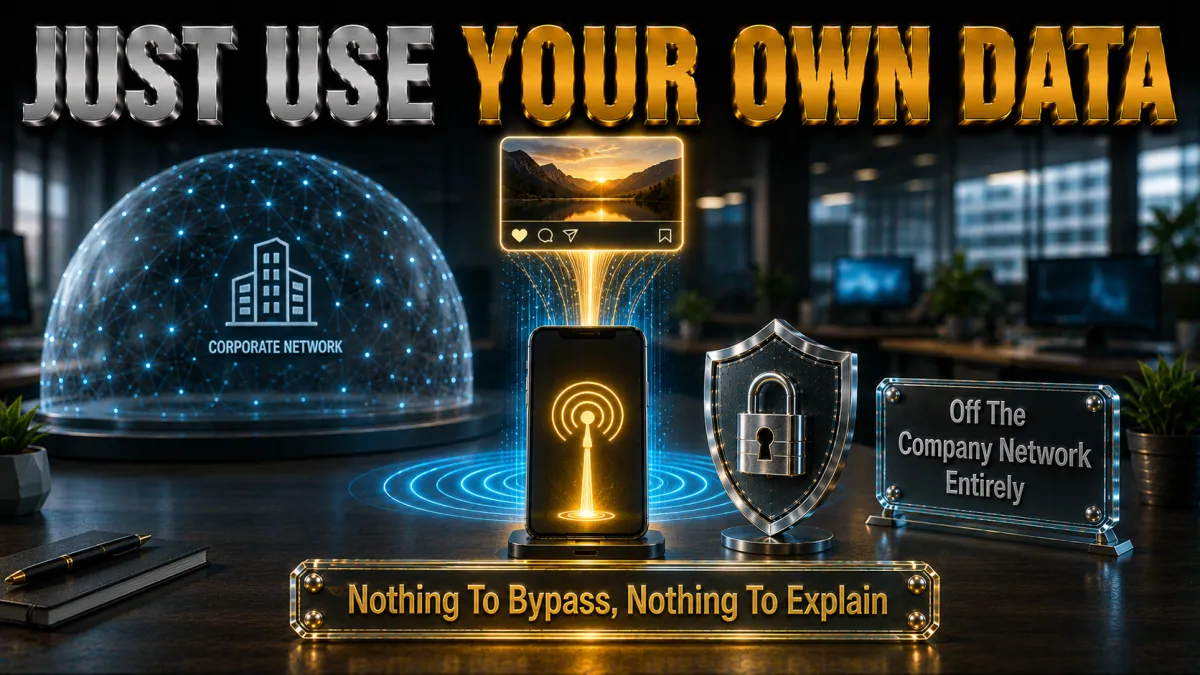
The cleanest answer, argued properly.
- It touches nothing that is not yours. Your phone, your data plan, no company network, no policy grey zone beyond ordinary phone etiquette. For a few minutes of scrolling, this is the whole solution.
- Data costs are smaller than assumed. Casual feed browsing measured in minutes consumes modest data; video autoplay settings turned down shrink it further. Check your plan’s allowance against a week of realistic breaks before assuming you need anything else.
- It sidesteps every technical arms race. Firewalls, filters, obfuscation, none of it applies to a connection the office does not own. The best workaround is the one with nothing to work around.
- When it genuinely is not enough. Dead-zone buildings, exhausted data caps, and no-signal basements are the real cases where office WiFi is the only path, and where the VPN sections above become relevant. Scope the tool to the actual gap.
If Instagram still will not load: the fix ladder
Work top to bottom on your personal device.
- Switch servers. The nearest endpoint may be crowded or flagged; two or three hops find a clean one. Fix number one in every guide we write.
- Engage obfuscation. If the VPN itself will not connect on office WiFi, the firewall likely blocks VPN protocols; stealth modes exist for exactly this. NordVPN, ExpressVPN, and Surfshark carry it.
- Drop to OpenVPN TCP 443. The universal fallback rides the same port as ordinary secure web traffic and passes most filters. Slower, steadier, usually sufficient for a feed.
- Clear the app’s cache or use the browser. Instagram’s app sometimes caches the blocked state; the mobile browser version tests whether the path is actually open. Diagnostic and workaround in one.
- Toggle to mobile data and compare. If Instagram works on data and not on tunnelled WiFi, the network is winning the arms race, and the honest answer may simply be data for the break. Two minutes settles it.
- Reconsider the venue. A network engineered to defeat obfuscated tunnels belongs to an employer with strong opinions about it, which returns you to the policy section. Some fights are not worth the feed.
Mistakes people make unblocking Instagram at work

The recurring errors, collected for skipping.
- Doing any of this on a company device. Managed hardware sees past network tricks and logs the attempt; it is the one unambiguous mistake on this page. Personal hardware only, full stop.
- Skipping the policy read. Ten minutes with the handbook beats guessing about consequences, and workplaces vary enormously. The document is the risk map; read it.
- Using free proxy sites. They see and monetise your traffic, and Instagram logins are prime harvest, per our proxy analysis. The free option is the expensive one.
- Free VPN tiers for daily use. Caps, throttles, and data-hungry business models break video feeds and privacy alike. Refund windows make real services free to trial; use those instead.
- Forgetting the tunnel is visible as a tunnel. Content encryption does not hide VPN use from network admins, an honesty point that matters on monitored WiFi. Decide with that fact in view.
- Trading real risk for trivial reward. A disciplinary conversation over Reels is a bad exchange anywhere; when in doubt, mobile data or the wait. Instagram keeps.
Alternatives worth considering
The non-technical answers, briefly.
- Batch it to breaks on mobile data. The feed consumed in two deliberate windows costs less attention than a drip all day, and no policy anywhere objects to your own phone on your own data at lunch. Most people land here happily.
- Ask IT about the policy’s edges. Some workplaces allow social media on a guest network or during breaks and simply never advertised it. One polite question can dissolve the whole problem.
- Use the desktop site’s limits as a feature. Instagram’s browser version, where reachable, delivers messages and posts without the app’s autoplay pull. Less feed, more control.
- Notice what the block is telling you. If the workday genuinely cannot spare ten minutes for a feed, the workload conversation matters more than the firewall one. The honest guide notes it and moves on.
Related reading:
Frequently asked questions
Is it legal to unblock Instagram at work?
Using a VPN is legal in most countries, and workplace blocks are policy rather than law, so the question is employment consequences, not legal ones. Your acceptable-use policy defines the real risk; read it before any method on this page.
Can I get in trouble for using a VPN at work?
If your employer’s policy restricts personal browsing or network tools, yes, discipline is possible regardless of the technical success. On a personal phone using mobile data, no company property is involved and the question dissolves.
What is the safest way to use Instagram at work?
Your personal phone on your own mobile data: no company network, no company device, no policy grey zone beyond phone etiquette. The VPN route exists for the narrower case where office WiFi is your only connectivity and policy permits personal use.
Why is Instagram blocked on my work WiFi?
Usually productivity policy, sometimes bandwidth management, occasionally security filtering, expressed as DNS or domain rules on the office firewall. The block’s shape decides the counter: shallow DNS blocks fall to a resolver change, deeper filtering only to an encrypted tunnel.
Will a VPN unblock Instagram on a work computer?
On a company-managed computer, the honest answer is do not try: monitoring and management software operate on the device itself, beneath any network trick, and unauthorised tools there typically violate policy outright. This guide’s methods are scoped to personal devices only.
Which VPN works best on strict office networks?
ExpressVPN’s automatic obfuscation handles hostile firewalls with zero configuration, and NordVPN’s dedicated obfuscated servers match it with one settings change. Both disguise the tunnel as ordinary secure web traffic, which is what strict networks actually test.
Can my employer see what I do through a VPN?
On your personal device, the tunnel hides the content of your traffic from the network, though admins can still see that a VPN is in use and how much data flows. On company devices, monitoring happens on the machine itself and sees everything regardless.
Does changing DNS unblock Instagram at work?
Only where the block is DNS-level, typical of smaller offices with router filtering; corporate firewalls that inspect domains or IPs ignore your resolver entirely. It costs two minutes to try on a personal device, and failure tells you the block is deeper.
Are free VPNs or proxy sites safe for this?
No: free proxies see and monetise your traffic, with Instagram logins the prize, and free VPN tiers throttle video while running data-hungry business models. Refund windows on reputable services make the real tool free to trial.
Will Instagram work on office WiFi with the VPN connected?
If the office filters at the network level and your policy permits personal browsing, an encrypted tunnel typically restores the feed, with obfuscation covering firewalls that block VPN protocols themselves. The fix ladder handles the remaining cases, ending honestly at mobile data.
Which server should I choose for smooth Reels?
The nearest low-latency endpoint; video feeds care about latency and steady throughput, both of which favour short routes. Hop between two or three nearby options at your actual break time and keep the smoothest.
How much mobile data does Instagram use on a break?
Casual browsing measured in minutes uses modest data, and turning down video autoplay and upload quality in the app’s data-saver settings shrinks it further. A week of realistic breaks usually fits comfortably inside an ordinary plan.
What should I test during the VPN refund window?
The office WiFi at your real break times, both the standard and obfuscated profiles, feed smoothness on nearby servers, and reconnection behaviour as you move around the building. Thirty days covers all of it; calendar the deadline and decide inside it.
Does the VPN need to stay on all day at work?
No; the realistic pattern is connecting for the break and disconnecting after, which also keeps your personal browsing and any work portals on the office network cleanly separated. Short deliberate sessions are both the discreet pattern and the healthy one.
Can I use Instagram on a work guest network?
Guest networks are often filtered more lightly than staff WiFi, and some workplaces provide them precisely for personal devices at breaks; the same acceptable-use caveats apply, so check what the guest network terms say. If it is open and permitted, it beats every method on this page.
The Bottom Line
- Policy first, methods second. The acceptable-use document defines your actual risk, and reading it beats every workaround on this page.
- Mobile data is the clean answer. Personal phone, personal plan, no company anything: for most people this is the entire solution.
- NordVPN leads the WiFi-only case. Obfuscated servers plus feed-smooth speed handle filtered networks; ExpressVPN’s automatic stealth is the zero-fiddling alternative.
- Company devices are out of scope, deliberately. Managed hardware enforces policy beneath every network trick, and the honest guide says so plainly.
- The refund window is your office-specific test. Thirty to forty-five days on your real network at your real break times, then a decision.
The feed is not worth a disciplinary file, and it never needed one: know your policy, prefer your own data, and save the tunnel for the narrow case it actually fits.
Jyoti VPN Expert leads VPN testing at VPN Expert Guide, covering streaming and regional access, speed and latency testing, and leak checks on Windows, Android and router-level setups. Our guides are built from vendor documentation, provider terms and our own connection testing on a residential line in India, and we publish those measurements in full so readers can check them. Every guide is reviewed before publication and dated so you can see how current it is.
Meet our testing team →Last updated: August 25, 2026