
Best VPN for Chromebook in 2026: Apps, Extensions and Built-in Options
The three ways a VPN runs on ChromeOS, which one protects the whole Chromebook rather than just the browser, and five providers compared only on facts you can check on their own pages. No fabricated benchmarks.
Choosing the best VPN for Chromebook: three connection routes

ChromeOS gives you three ways to run a VPN, and they don’t protect the same things. Google’s Chromebook VPN guidance documents Android VPN apps and the built-in VPN client (checked 1 Oct 2026); Chrome extensions work differently.
- Android VPN app (the usual choice). On a Chromebook with the Google Play Store, you install the provider’s Android app and add it under Settings > Network > Add connection. In addition, every provider in this guide points Play-capable Chromebooks to its app first.
- Chrome extension (browser only). VPN extensions use Chrome’s proxy API, which exists “to manage Chrome’s proxy settings” (Chrome for Developers, checked 1 Oct 2026). However, that covers Chrome tabs, not Android or Linux apps. Here is the difference between a proxy and a VPN.
- Built-in VPN (manual settings). ChromeOS has its own client for IKEv2, L2TP/IPsec and OpenVPN, plus WireGuard on some models. Therefore, you enter the server details yourself.
- Chrome Web Store “VPN apps” are different. Google lists clients such as Cisco AnyConnect and GlobalProtect. Instead, they connect you to a company or school network, not a consumer VPN.
Connection routes and coverage compared
| Route | What it covers | Needs | Always-on | Where you set it up |
|---|---|---|---|---|
| Android VPN app | Chrome windows, Chrome apps and Android apps (full tunnel, per Google); Linux apps per ChromeOS source | Google Play on the Chromebook, allowed by the admin if managed | Yes, in Android settings, with optional Block connections without VPN | Play Store, then Settings > Network |
| Chrome extension | Chrome browser only (proxy) | Chrome Web Store access | Not documented by Google | Chrome Web Store |
| Built-in VPN | Traffic through ChromeOS’s own VPN client | Compatible settings from the provider; WireGuard only on some models | Not documented for personal use | Settings > Network > Add connection |
Check the tunnel mode before you rely on it. Google describes a typical full-tunnel VPN as covering Chrome windows, Chrome apps and Android apps. Split tunnelling is different:
- Full tunnel: those app connections normally use the VPN.
- Split tunnel: selected sites or apps can bypass it. Leave split tunnelling off if you want the broadest coverage your setup allows.
However, these are typical behaviours, not a promise about every kind of Chromebook traffic (Google Chromebook Help, checked 1 Oct 2026).
What “whole Chromebook” protection really means
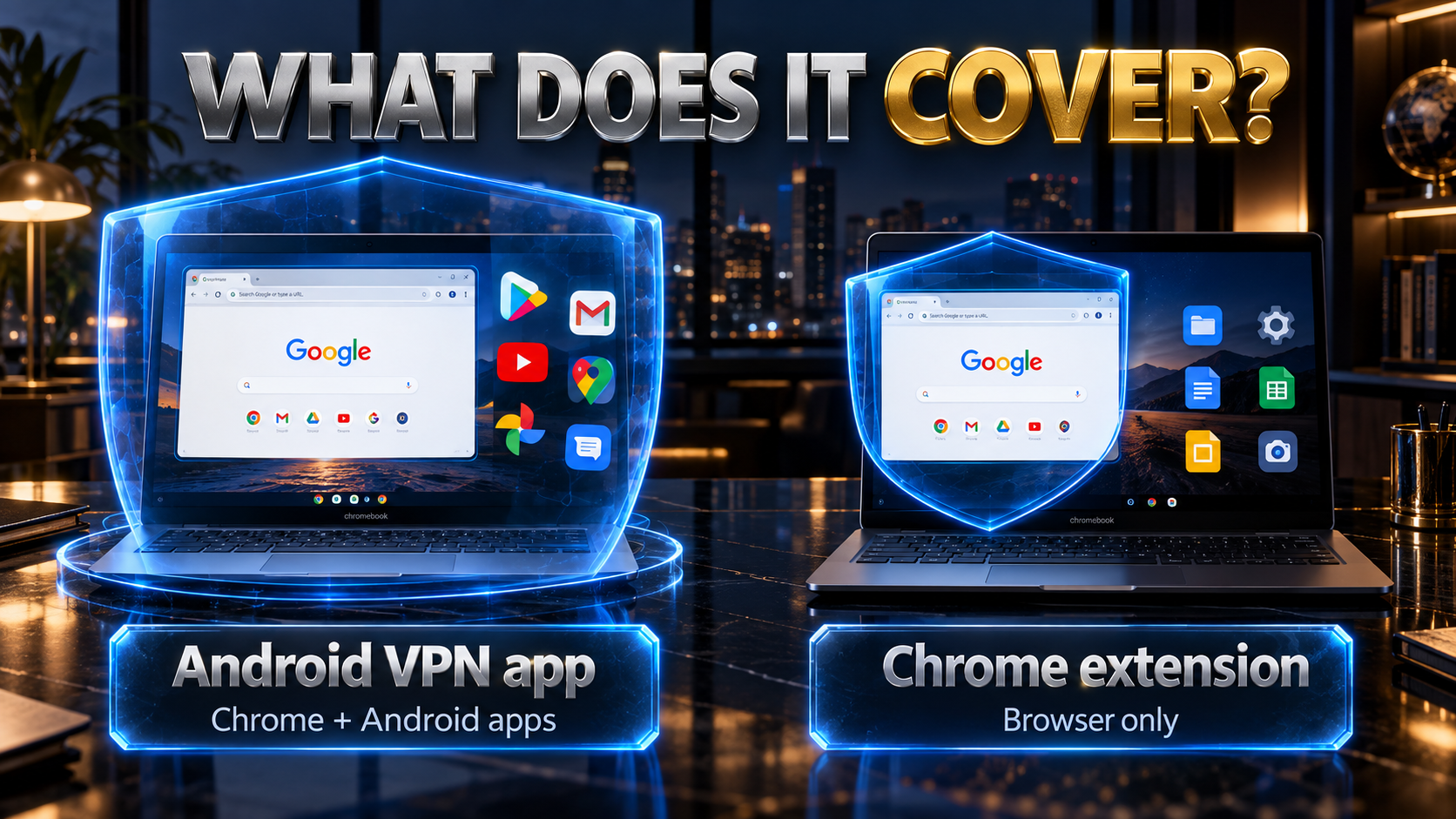
If your Chromebook has Google Play, the provider’s Android app is usually the practical first choice. It can cover Chrome and Android apps when configured as a full tunnel. A Chrome extension works inside the browser, so choose it only when browser coverage is what you need.
“Whole device” still has limits. Check these before assuming every connection is protected:
- Split tunnelling: your VPN may deliberately send selected apps or sites outside the tunnel.
- Managed Chromebooks: a school or employer can set network rules you cannot change.
- System traffic: Google distinguishes user traffic from ChromeOS updates and policy traffic.
So describe an Android app as normally covering Chrome and Android app traffic in full-tunnel mode—not every background service on every network.
Use Linux apps? Do one extra check. Proton describes Linux-container traffic passing through its VPN, and an older ChromeOS source change supports that route, but your own setup may differ.
- Connect the VPN and check the public address in Chrome and inside the Linux terminal.
- Disconnect, then compare both addresses again.
If the result is unclear, do not assume the Linux container is covered.
An extension is still useful when you only need Chrome browsing covered or your Chromebook has no Play Store. In other words, it is a smaller tool for a smaller job. The built-in ChromeOS VPN is another route, but it requires settings and credentials that your VPN provider actually supports. A menu in ChromeOS does not mean a consumer subscription can be entered there automatically.
Best VPN for Chromebook: compatibility checks
Three checks tell you which route your Chromebook can use.
- Does it have the Google Play Store? Go to Settings > Apps > Manage Google Play preferences. Google says that if you can’t find this option, your Chromebook doesn’t work with Android apps (Google Chromebook Help, checked 1 Oct 2026). Chromium says “all devices that launched in or after 2019 support Android Apps” and lists older models that do (Chromium Projects list, checked 1 Oct 2026).
- Is it managed by a school or employer? Then “you might not be able to add the Google Play Store or download Android apps”, Google warns. The admin’s settings come first.
- Is it still getting updates? “ChromeOS devices receive 10 years of updates”, and pre-2021 devices on extended updates may lose some features (Google Auto Update policy, checked 1 Oct 2026). Check your model’s date on that page.
In short: on a managed Chromebook, ask your admin. With the Play Store, use the provider’s Android app. Without it, choose between a browser-only extension and the built-in VPN, which only helps if your provider supplies settings.
Best VPN for Chromebook: choosing your connection route

Start with your Chromebook, not a provider’s sales page. Open Settings and check whether Google Play is available.
- Play Store available: install the official Android VPN app, then test what it covers on your device.
- Before buying: compare the provider’s Chromebook setup instructions and features you will actually use.
- Using Android apps? Do not buy a long plan just because the provider offers a Chrome extension. Browser-only coverage may not meet your needs.
No Play Store? Pick the route based on the traffic you need to cover:
- Chrome browsing only: an official browser extension may be enough.
- Beyond Chrome: ask whether your provider supplies compatible settings for ChromeOS’s built-in VPN.
- Only at home: a VPN on your own router can cover devices using that network, but it will not travel with the Chromebook.
However, neither the built-in client nor a router is an automatic substitute for the Android app.
On a school or work Chromebook, ask the administrator before installing or changing a VPN. A managed device can restrict apps and network settings, and the organisation may already provide the connection it wants you to use. The relevant question is not which consumer VPN ranks first, but which route the admin permits.
How we selected the best VPN options for Chromebook

These are documented options, not a speed-test ranking. We selected providers whose Chromebook routes and plan terms a reader can check:
- an official Android app and Chrome extension;
- a provider-authored Chromebook page or setup guide;
- published device limits and refund terms.
However, we did not run Chromebook speed, battery, streaming or leak tests for this article. That is why there are no invented scores or “fastest on ChromeOS” claims.
Each card explains who a provider could suit and one reason to think twice. NordVPN appears first as our overall editorial pick; the remaining cards follow alphabetically for easy comparison. NordVPN is the editorial pick shown in the image, not a measured speed-test winner. Refund windows are not free trials; check the current plan and eligibility terms before paying.
First decide which reader you are:
- No Play Store, need more than browser coverage? Solve the installation route before comparing prices.
- Only use Chrome? Compare extensions.
- Use Linux apps? Test Linux traffic on your own Chromebook.
Once the route is clear, the provider cards become more useful.
The 5 best VPNs for Chromebooks in 2026

NordVPN is our overall Chromebook pick because its official guide documents an Android app, Chrome extension and VPN-router route. By comparison, the other four providers follow alphabetically, with a different practical fit for each. All five offer an official Android app and Chrome extension, but their limits and terms differ. Our best VPN for Android guide covers the mobile apps in more detail. However, we did not rank these providers by Chromebook speed.
1. NordVPN – Best overall Chromebook VPN
NordVPN‘s Chromebook guide covers “the three main methods”: Android app, Chrome extension and a VPN-enabled router. However, it warns that the extension “only secures your internet traffic within the Chrome browser” and that “some older Chromebook models may not support the NordVPN Android application” (NordVPN Chromebook guide, checked 1 Oct 2026).
However, its manual OpenVPN guides cover other platforms, not ChromeOS (NordVPN OpenVPN guides).
✔ Pros
- Official Google Play app
- Router route documented for use at home
- 10 devices on one account
✘ Cons
- No guide for ChromeOS’s built-in VPN client
- Some older Chromebooks may not run its app
| Android app (Google Play) | Yes, Nord Security (Play listing) |
| Chrome extension | Yes, browser traffic only (Chrome Web Store) |
| Devices per account | 10 devices (NordVPN pricing) |
| Money-back | 30 days (NordVPN pricing) |
| Chromebook guide | Official Chromebook guide |
2. CyberGhost – Chromebook VPN with a longer refund window
CyberGhost‘s Chromebook page points you to its Play app, says you can set it up “manually using OpenVPN in your network settings” if your Chromebook can’t run Android apps, and says its extension “only protects browser traffic” (CyberGhost Chromebook page, checked 1 Oct 2026).
Also, note that its Chrome Web Store listing shows a last update on 23 September 2025.
✔ Pros
- Official Google Play app
- 45-day refund on plans longer than a month
- Manual OpenVPN route mentioned for Chromebooks without Play
✘ Cons
- 14-day refund on the monthly plan
- Extension not updated since September 2025
| Android app (Google Play) | Yes, CyberGhost SRL (Play listing) |
| Chrome extension | Yes, browser traffic only (Chrome Web Store) |
| Devices per account | 7 devices (CyberGhost pricing) |
| Money-back | 14 days monthly, 45 days on longer plans (CyberGhost refund terms) |
| Chromebook guide | Official Chromebook page |
3. ExpressVPN – Chromebook VPN with a documented browser route
ExpressVPN‘s Chromebook tutorial covers its Android app, “for Chrome OS devices that support Android apps” (ExpressVPN Chromebook tutorial, checked 1 Oct 2026). For Chromebooks that don’t, its Chromebook page says the extension “provides protection directly in your browser” (ExpressVPN Chromebook page).
Meanwhile, for manual setups it supports only OpenVPN, having dropped PPTP and L2TP (ExpressVPN manual setup note).
✔ Pros
- Official Google Play app
- Extension documented for Chromebooks without Android apps
- Step-by-step Chromebook tutorial
✘ Cons
- Device limit depends on the tier
- Refund guarantee limited to first-time users
| Android app (Google Play) | Yes, ExpressVPN (Play listing) |
| Chrome extension | Yes, browser traffic only (Chrome Web Store) |
| Devices per account | 10 Basic, 12 Advanced, 14 Pro (ExpressVPN device limits) |
| Money-back | 30 days, first-time users (ExpressVPN pricing) |
| Chromebook guide | Official Chromebook tutorial |
4. Proton VPN – free Chromebook VPN option to try
Proton VPN‘s Chromebook guide is the only one here that mentions Linux. Specifically, it says the Android app secures Chrome OS connections and “connections from Android apps and Linux apps running inside a Linux container (Crostini)” (Proton VPN Chromebook guide, checked 1 Oct 2026).
Proton VPN Free covers 1 device, and Proton offers a money-back guarantee “for all subscriptions if requested within the first 30 days”.
✔ Pros
- Free plan for one device
- Chromebook guide states Linux (Crostini) coverage
- 30-day refund on all subscriptions
✘ Cons
- Free plan limited to one device
- WireGuard files not documented for ChromeOS’s built-in client
| Android app (Google Play) | Yes, Proton AG (Play listing) |
| Chrome extension | Yes, browser traffic only (Chrome Web Store) |
| Devices per account | 10 devices on Plus, 1 on Free (Proton VPN pricing) |
| Money-back | 30 days, all subscriptions (Proton VPN pricing) |
| Chromebook guide | Official Chromebook guide |
5. Surfshark – Chromebook VPN for many devices
Surfshark‘s Chromebook page says it “supports all Chromebooks that run Android apps” (Surfshark Chromebook page, checked 1 Oct 2026), and its setup guide installs the app from Google Play (Surfshark Chromebook guide).
However, a free trial works on only 3 devices until it ends (Surfshark pricing page).
✔ Pros
- Unlimited devices
- Official Play app and Chrome extension
- Manual IKEv2 and OpenVPN details published
✘ Cons
- Chromebook guide covers the Play app only
- No guide for ChromeOS’s built-in VPN client
| Android app (Google Play) | Yes, Surfshark B.V. (Play listing) |
| Chrome extension | Yes, browser traffic only (Chrome Web Store) |
| Devices per account | Unlimited (Surfshark pricing) |
| Money-back | 30 days (Surfshark pricing) |
| Chromebook guide | Official Chromebook guide |
Chromebook VPN facts side by side
The facts from the cards in one table. For reference, sources for changing figures are linked in the provider sections above; figures checked 1 Oct 2026.
| Provider | Play Store app | Chrome extension | Chromebook guide | Devices | Money-back |
|---|---|---|---|---|---|
| CyberGhost | Yes | Yes, browser only | Chromebook page | 7 devices | 45 days on longer plans (14 monthly) |
| ExpressVPN | Yes | Yes, browser only | Chromebook tutorial | 10, 12 or 14 by tier | 30 days, first-time users |
| NordVPN | Yes | Yes, browser only | Chromebook guide | 10 devices | 30 days |
| Proton VPN | Yes | Yes, browser only | Chromebook guide | 10 on Plus, 1 on Free | 30 days |
| Surfshark | Yes | Yes, browser only | Chromebook guide | Unlimited | 30 days |
Best VPN for Chromebook: five checks before paying
- Confirm your model. Open the Play Store on the Chromebook itself. A Play listing on your phone does not prove the app will install on your Chromebook.
- Read the provider’s Chromebook guide. Check whether it documents an Android app, an extension, a router, or a manual connection. Those are different routes with different coverage.
- Inspect the actual plan. Device allowances and refund eligibility can vary by tier or term. Record the plan name shown at checkout before you pay.
- Keep the installer official. Use the provider’s site, Google Play or the Chrome Web Store listing it links to. Similar names and logos do not establish who published an extension.
- Plan a real test. Connect on the Wi-Fi networks you normally use, check the public IP, try your Android apps, and test Linux separately if it matters.
A changed public IP is a useful check, not a full security audit. However, it does not prove that every app or background service used the VPN.
- For sensitive use, follow your provider’s leak-check instructions.
- On a managed device, follow your school or workplace rules.
- If a site fails with the VPN on, try a nearby server or ask support before changing unfamiliar protective settings.
Best VPN for Chromebook: setup steps

These steps follow Google’s instructions for Android VPN apps (checked 1 Oct 2026). No Play Store? Skip to the next section.
Install and connect the Android app
- Install the app from Play. Open the Launcher, select Play Store, find your provider’s app and select Install. Check the developer name against the cards above.
- Open the app and sign in. If Android asks to let the app set up a VPN connection, allow it.
- Or add it from Settings. In Settings, “Network” section, select Add connection, then Add [app name], and follow the on-screen steps.
- Connect. Pick a server in the app, or select the connection name under “Network” in Settings.
- Confirm it’s working. Check your public IP in Chrome before and after connecting. If it doesn’t change, the VPN isn’t carrying your traffic.
Turn on Always-on VPN
Google documents Always-on VPN for Android VPN apps. First, add the app as a connection (Settings > Network > Add connection > Add [app name]), then follow this path: Settings > Apps > Manage Google Play preferences > Android Settings > Network & internet > VPN > Settings (gear icon next to your app) > Always-on VPN.
- At the bottom right, select the time, then select Settings.
- On the left panel, select Apps. Under “Apps,” select Manage Google Play preferences.
- Select Android Settings. In the window that appears, select Network & internet, then VPN. Your VPN app should be listed.
- To the right of your app, select Settings (the gear icon) and turn on Always-on VPN. If you’d rather lose the connection than go online without the VPN when it drops, also turn on Block connections without VPN.
If an Always-on VPN connection stops, ChromeOS shows a notification that stays until you reconnect (Google Chromebook Help, checked 1 Oct 2026). In other words, these labels are Google’s wording. The last steps run inside the Android settings app, so menu wording can vary between Chromebooks and Android versions (Google’s own pages also write “Android settings” in lower case), so look for the closest match.
Test the connection before relying on it

Run these four checks on the Chromebook you actually use:
- Check Chrome: connect the VPN, note your public IP address and country in an IP checker, disconnect and compare. Reconnect to another permitted server and check again.
- Check your apps: open an Android app that uses the network. If you use Linux, test from inside Linux too—especially when split tunnelling is enabled.
- Check a drop: with Always-on VPN enabled, disconnect the service and see what ChromeOS reports. “Block connections without VPN” is a separate optional switch that can take you offline when the VPN drops.
- Check your usual Wi-Fi: try the networks you actually use. If a managed Chromebook blocks a connection, ask the administrator. Note the VPN app version, ChromeOS version and network when contacting support.
If the public address does not change as expected, check the active ChromeOS connection rather than relying on a browser extension icon.
No Play Store? Built-in VPN, extensions and older Chromebooks

ChromeOS built-in VPN
Every Chromebook has a built-in VPN client under Settings > Network > Add connection. Google lists these VPN types (checked 1 Oct 2026):
- IKEv2. Server hostname plus a pre-shared key, user certificate or username and password.
- L2TP/IPsec. Pre-shared key or user certificate, plus a username and password.
- OpenVPN. “Basic support”. To import an “.ovpn” file, Google suggests OpenVPN for Android instead, if you have the Play Store.
- WireGuard. “Some Chromebooks have basic built-in support”. ChromeOS developer docs say it “requires kernel support (available on kernel version 5.4+)” (ChromiumOS VPN docs). Background: what WireGuard is.
Built-in VPN is a fallback only when your provider supplies compatible settings. None of the five providers here publishes a step-by-step guide for ChromeOS’s built-in client.
- Surfshark and Proton publish generic manual credentials or configuration files.
- CyberGhost says a manual OpenVPN setup is possible.
- ExpressVPN and NordVPN’s Chromebook guides focus on apps and extensions.
Check the exact protocol and credentials with your provider before treating this as a usable route (checked 1 Oct 2026).
Chrome extension only, and ChromeOS Flex or out-of-support devices
Without Play, a provider’s Chrome extension is the simplest option, but it covers Chrome only. Linux apps and ChromeOS itself keep using your normal connection.
On ChromeOS Flex, Google says only that it “supports the deployment of some Android VPN apps”, pointing to an admin deployment guide (ChromeOS Flex Help, checked 1 Oct 2026), so don’t assume Play apps are available. Chromebooks that launched before 2019 and aren’t on Chromium’s list of older Android-capable models (Chromium Projects list) are also limited to the extension or built-in VPN.
If the VPN will not connect or seems to cover only Chrome
Check which route you installed. A Chrome extension can show a connected status while Android and Linux apps continue to use their normal connection. If you expected device-wide coverage and have Google Play, install and connect the provider’s Android app instead. Also, avoid running two VPN products at once until you understand which one controls the active connection.
Check the account and plan. Sign in to the provider’s app, verify that the subscription is active, and make sure you have not hit a device allowance. Therefore, the provider’s current account page is a better source than an old screenshot or a general review. If you are on a free plan, read which features and devices that plan actually includes.
Network and device checks
Check the network. Try a nearby server and then another network that you are permitted to use. For example, a captive portal may need you to sign in before the VPN connects. In addition, a school or employer may intentionally restrict VPN installation or traffic. Therefore, do not interpret a network block as proof that the provider’s app is broken everywhere.
Check ChromeOS support. If the Play Store is missing, compare your model with Google’s Android-app support information. However, on ChromeOS Flex, do not assume a consumer Play app can be installed. If you are using the built-in VPN, verify that the protocol, server details and credentials came from the provider or your administrator for ChromeOS-compatible setup.
Check Always-on settings. When Block connections without VPN is enabled and the VPN stops, loss of internet access can be expected. Then reconnect through the app before changing the switch. If the menu labels differ from this guide, use Google’s current Chromebook instructions as the authority; the Android settings screens can vary by device.
If none of these steps resolves the issue, send the provider a precise description: Chromebook model, ChromeOS version, whether you installed an app or extension, the server you tried, and the exact error. Because it identifies the actual fault, that is more useful than switching to a second provider without first identifying the route problem.
Does the VPN cover Linux (Crostini) apps?
Linux coverage needs its own test. Google’s Chromebook Help does not explicitly promise that a VPN covers Linux apps. Proton’s Chromebook guide says its Android app can cover Linux-container connections on supported Chromebooks, but your setup may differ.
- Compare the public IP inside the Linux terminal with the one Chrome shows while connected.
- Disconnect and compare again. A Chrome extension never covers Linux apps.
Linux is off by default (Settings > About ChromeOS > Developers), and on a work or school Chromebook “you might not be able to use Linux” (Google Chromebook Help, checked 1 Oct 2026).
School and work Chromebooks: what your admin controls
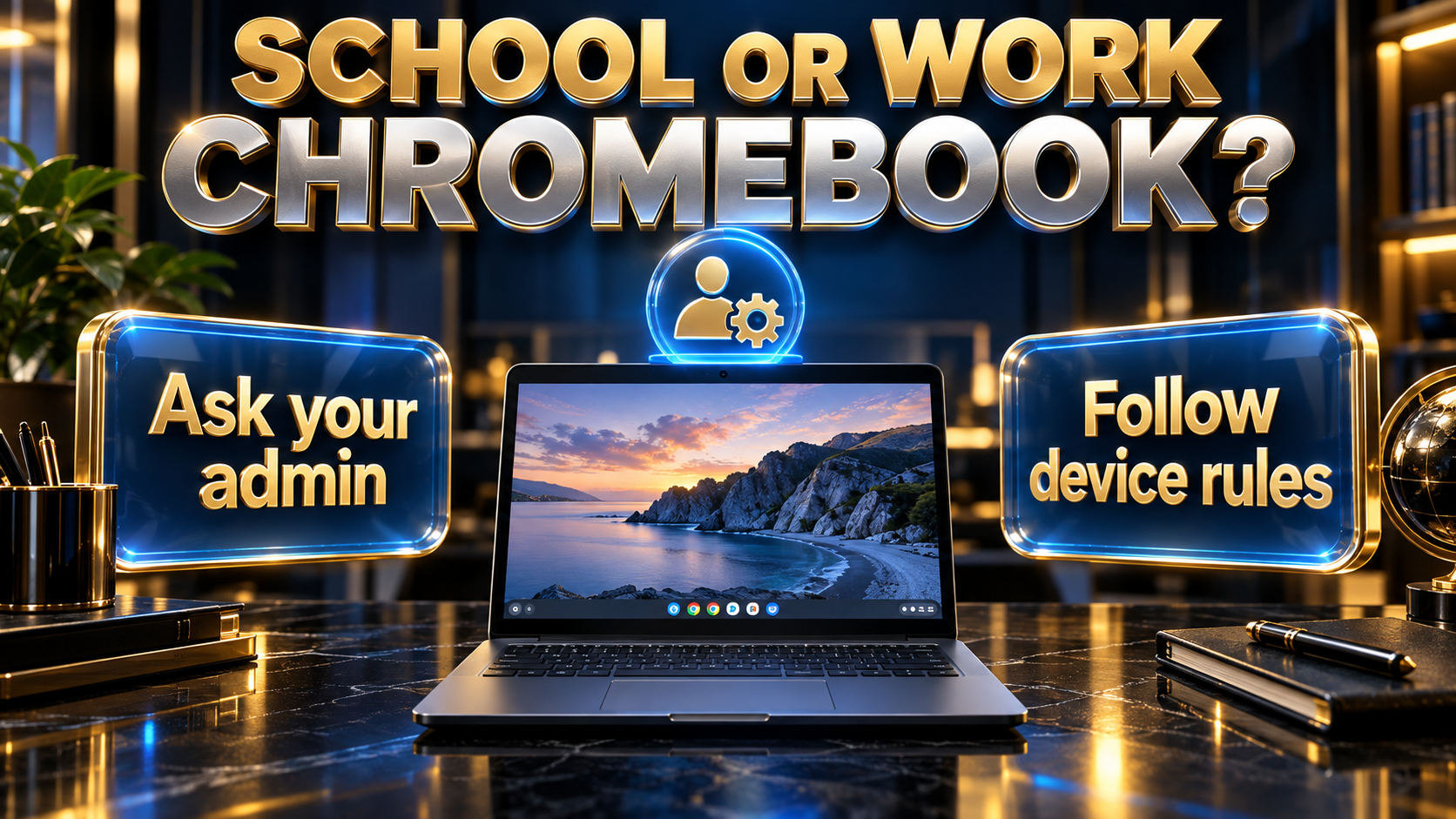
On a managed Chromebook, the organisation’s admin settings decide which VPN, if any, you use. Google documents these controls:
- Play Store apps. Admins choose “Allow all apps, admin manages blocklist” or “Block all apps, admin manages allowlist” (Chrome Enterprise and Education Help, checked 1 Oct 2026).
- Pushed VPN settings. Admins can push L2TP/IPsec and some OpenVPN configurations to devices (Google admin VPN page).
- Forced Always-on VPN. Admins can force an Android VPN app and stop users disconnecting; if it fails, user traffic is blocked. If your admin forces an Always-on Android VPN, Google says it covers user traffic but not the Chromebook’s own system traffic: “VPNs apply to Android and Chrome user traffic. System traffic, such as OS and policy updates, is not directed through the VPN” (Chrome Enterprise and Education Help, checked 1 Oct 2026).
- Managing VPN connections. The VpnConfigAllowed policy is titled “Allow the user to manage VPN connections” (Chrome Enterprise policy page).
Related reading:
Frequently Asked Questions
Can I use a free VPN on a Chromebook?
Yes. Proton VPN Free covers 1 device, and Proton’s Android app runs on Chromebooks with Google Play (Proton free VPN page, checked 1 Oct 2026). Be wary of unknown free extensions, which route your browsing through servers someone else runs.
Does a VPN Chrome extension protect my whole Chromebook?
No. An extension works through Chrome’s proxy settings, so it covers the Chrome browser only. For broader coverage, use an Android VPN app in full-tunnel mode, or the built-in VPN if your provider supplies compatible settings. Test Linux and system traffic separately.
Can I use a VPN on a school Chromebook?
Only if your school allows it. Admins can block Play Store apps, push VPN settings, force an Always-on VPN and control whether you manage VPN connections. Ask IT first.
Does my Chromebook support WireGuard without an app?
Some models do. In Settings, select Add connection, then Add next to “OpenVPN / L2TP”, and see whether WireGuard appears under Provider type.
Can I import an .ovpn file?
Google describes the built-in OpenVPN support as basic. To import an .ovpn file on a Chromebook with the Play Store, Google suggests installing OpenVPN for Android instead.
How many Chromebooks can share one subscription?
It depends on the provider: CyberGhost 7, ExpressVPN 10, 12 or 14 by tier, NordVPN 10, Proton VPN Plus 10 (Free 1) and Surfshark unlimited. The provider sections above link to the sources for these figures.
Will a VPN work with Android apps and Chrome at the same time?
Yes, with an Android VPN app set up as a full tunnel. Google says a full tunnel sends all traffic from all Chrome windows, Chrome apps, and Android apps through the VPN (Google Chromebook Help, checked 1 Oct 2026).
The Bottom Line
On a Chromebook, the route matters more than the brand. With Google Play, the provider’s Android app is the route Google documents for Chrome and Android apps, with Always-on support.
Without Play, an extension protects Chrome only, and the built-in VPN depends on your provider’s settings.
- CyberGhost offers 45-day refunds on plans longer than a month.
- ExpressVPN documents its extension for Chromebooks without Android apps.
- NordVPN documents three routes, including a home router.
- Proton VPN has a free one-device plan and a guide that mentions Linux apps.
- Surfshark allows unlimited devices.
Use the money-back window to confirm a VPN works on your model and network, and re-check terms before you pay. This guide is general information, not professional security advice.
Saurabh VPN Expert writes and reviews VPN guides for VPN Expert Guide, covering privacy, streaming, regional access, and device setup. Our articles draw on provider documentation and published product information, with updates when important details change.
Meet our testing team →Last updated: October 9, 2026