
How to Use CyberGhost VPN on Android: The 2026 Setup Guide
CyberGhost on Android works fine out of the box and works properly only after four settings most people never open. This guide is the complete 2026 setup: install and log in the right way, switch to WireGuard, turn on Android’s real kill switch, set the unsecured Wi-Fi Smart Rule, and fix the battery setting that silently kills protection. Every step is numbered, every screen is named, and the common problems get their own troubleshooting section.
Why CyberGhost fits Android specifically
The platform match, stated before the steps.
- Auto-connect rules live where the risk lives. Phones hop networks all day, cafe to office to airport, and CyberGhost’s Smart Rules trigger the tunnel automatically on unsecured WiFi, which is precisely where the public-WiFi threat model from our dedicated guide applies. Protection that engages itself beats protection you must remember.
- The one-tap habit. The home-screen widget and quick-settings tile make connecting as cheap as checking the time, and habits form around cheap actions. On desktop a VPN is a decision; on this setup it becomes a reflex.
- Task-sorted servers help most on a small screen. Scrolling a raw list of thousands of servers is desktop work; tapping a Streaming or Gaming category and letting the app pick is phone work. The beginner-first design pays exactly here.
- One slot of seven. Your phone consumes a single connection from the seven-device allowance, leaving room for the laptop, the TV, and the tablet. Count your household screens before subscribing, per the full review.
Installing CyberGhost on Android, the safe way
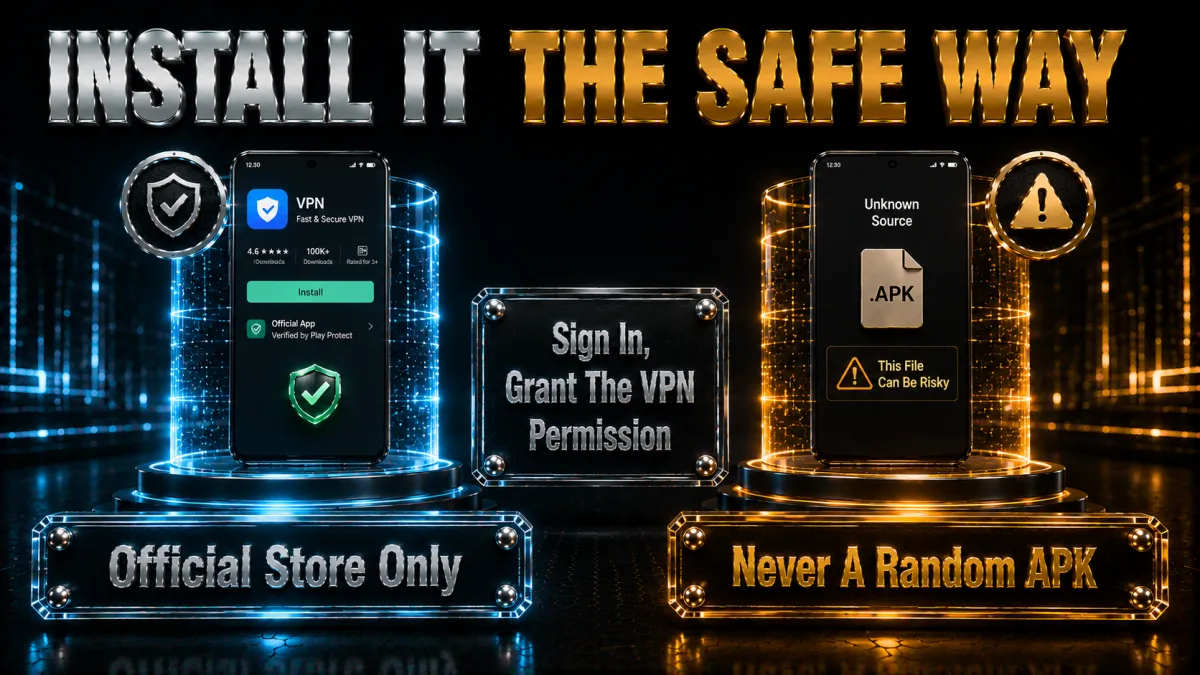
Five minutes, once, and only through the official route.
- Open the Google Play Store and search for CyberGhost VPN. Verify the developer name reads CyberGhost SRL before installing; lookalike VPN apps are a real category of Android malware, and the developer line is your check. Never sideload a VPN APK from a forum or a “free mod” site, ever.
- Install and open the app. First launch offers account creation or sign-in; use the account from your subscription purchase, with a strong unique password per our identity-protection guidance.
- Approve the connection request. Android will ask permission to set up a VPN connection the first time you connect; this system dialog is normal and required, and it is Android’s way of ensuring apps cannot route your traffic silently.
- Tap the connect button. The app picks its best server and the key icon appears in your status bar: that icon is your always-visible confirmation the tunnel is up. Learn to glance for it the way you glance at signal bars.
- Run the leak check. With the tunnel up, run the IP, DNS, and WebRTC checks from our leak-testing guide in your mobile browser. Verification before trust, two minutes, once per device.
The four settings that actually matter
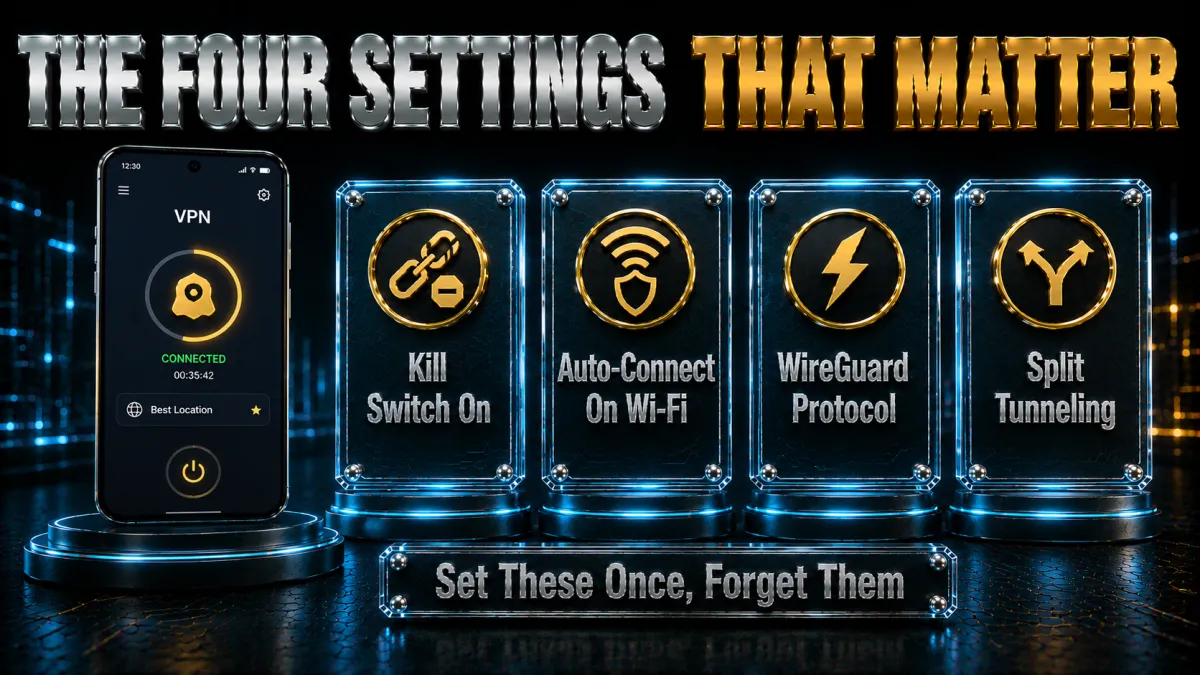
Fifteen minutes of configuration that carries the whole setup.
- Protocol: WireGuard. In Settings, VPN Protocol, choose WireGuard for the best speed-per-battery trade on mobile; fall back to OpenVPN TCP only when a hostile network blocks the tunnel, per the troubleshooting section. Automatic is acceptable; explicit WireGuard is predictable.
- Kill switch: Android’s own, plus the app’s. In Android Settings, Network and Internet, VPN, tap the gear beside CyberGhost and enable Always-on VPN and Block connections without VPN. This system-level pair is the strongest kill switch Android offers, stopping any traffic the moment the tunnel drops; the app-level option complements it rather than replacing it.
- Smart Rules: auto-connect on unsecured WiFi. In the app’s Smart Rules, set the tunnel to start automatically on any unsecured network, and optionally on all WiFi. This single rule converts the public-WiFi guidance from our guides into behaviour that happens without you.
- Battery optimisation: exempt the app. In Android Settings, Apps, CyberGhost, Battery, choose Unrestricted so aggressive Android battery managers do not kill the tunnel during long idle stretches. Skipping this step is the single most common cause of “my VPN keeps disconnecting overnight” complaints.
Daily use: widgets, tiles, and the habit
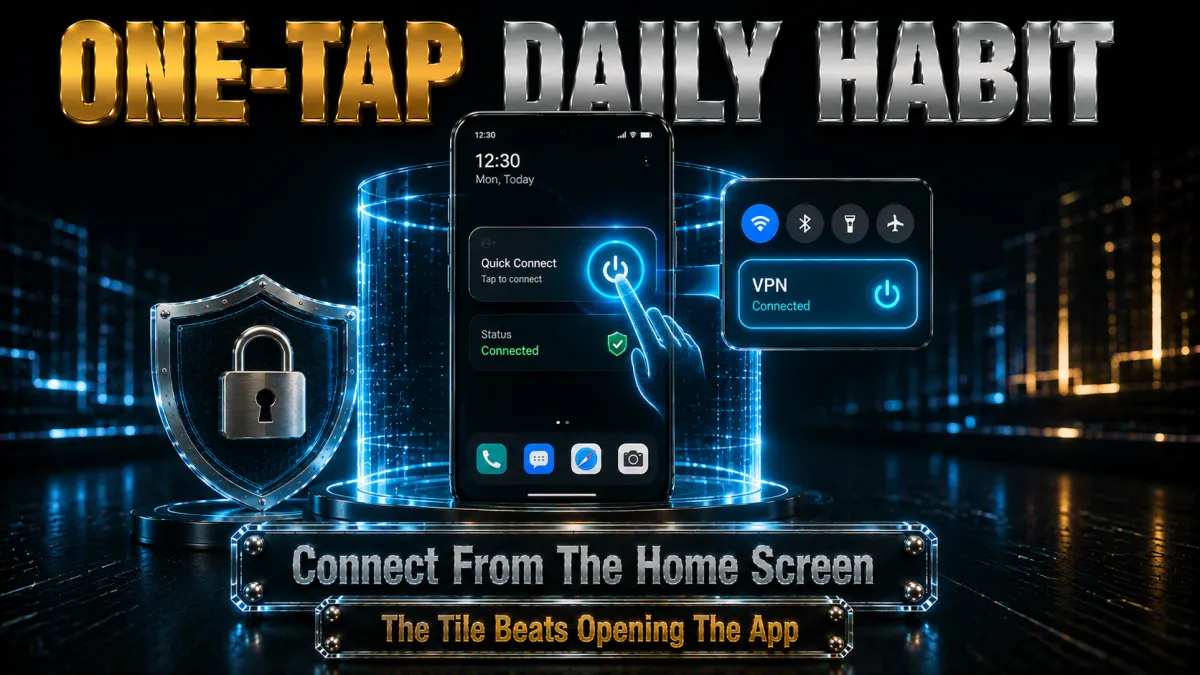
Making protection ambient rather than administrative.
- Add the home-screen widget. Long-press the home screen, Widgets, CyberGhost, and place the connect widget where your thumb lives. One tap connects to your last or favourite server; the same tap disconnects.
- Add the quick-settings tile. Pull down the notification shade, edit tiles, and drag the CyberGhost tile into the active set. Connection control without leaving whatever app you are in.
- Favourite your regulars. Star the two or three servers your routine actually uses, your nearest city for speed, a streaming pick for evenings, so the choice is made once rather than daily. Favourites plus widget is the whole daily interface.
- Glance for the key. The status-bar key icon is the truth about your protection at any moment. The five-second audit, key present, expected server in the app, becomes automatic within a week.
Streaming on Android with CyberGhost
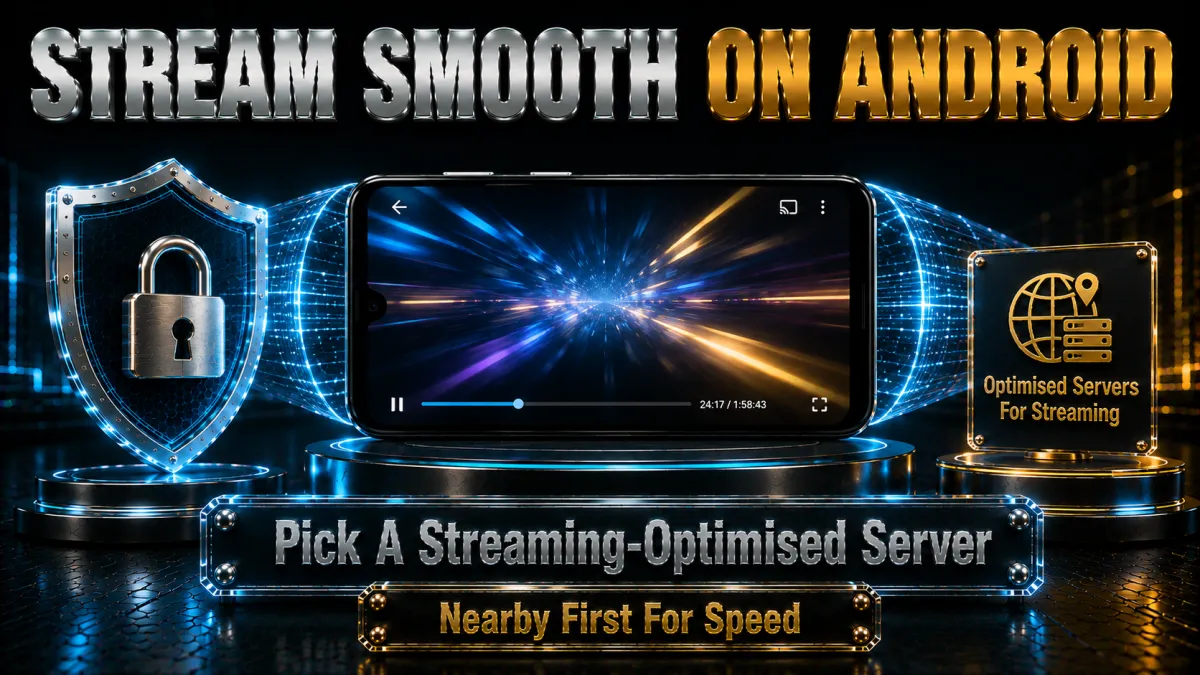
The task-sorted servers doing their job on the small screen and the cast target.
- Use the For Streaming category. The app’s streaming list names servers optimised for specific platforms and regions; pick the one matching your target rather than a generic endpoint. This is the trial-and-error the labels exist to remove.
- Casting changes the path. Chromecast and smart-TV casting pull the stream on the TV device, not the phone, so the phone’s tunnel does not cover it; for protected living-room streaming use CyberGhost’s native Android TV or Fire TV apps within your seven slots, per the full review.
- Speed expectations, honestly. WireGuard to a nearby streaming server leaves comfortable headroom for HD on ordinary mobile connections, and buffering usually indicts a crowded server rather than the service; hop within the category and retry. No fabricated Mbps tables here, per the standing policy: the test plan below measures your phone.
- The standing terms note. Platforms’ terms restrict cross-border catalogue access, and that use rides at your own account risk, the caveat this site attaches everywhere. Mechanics described, terms yours to weigh.
Battery and data: what the tunnel really costs
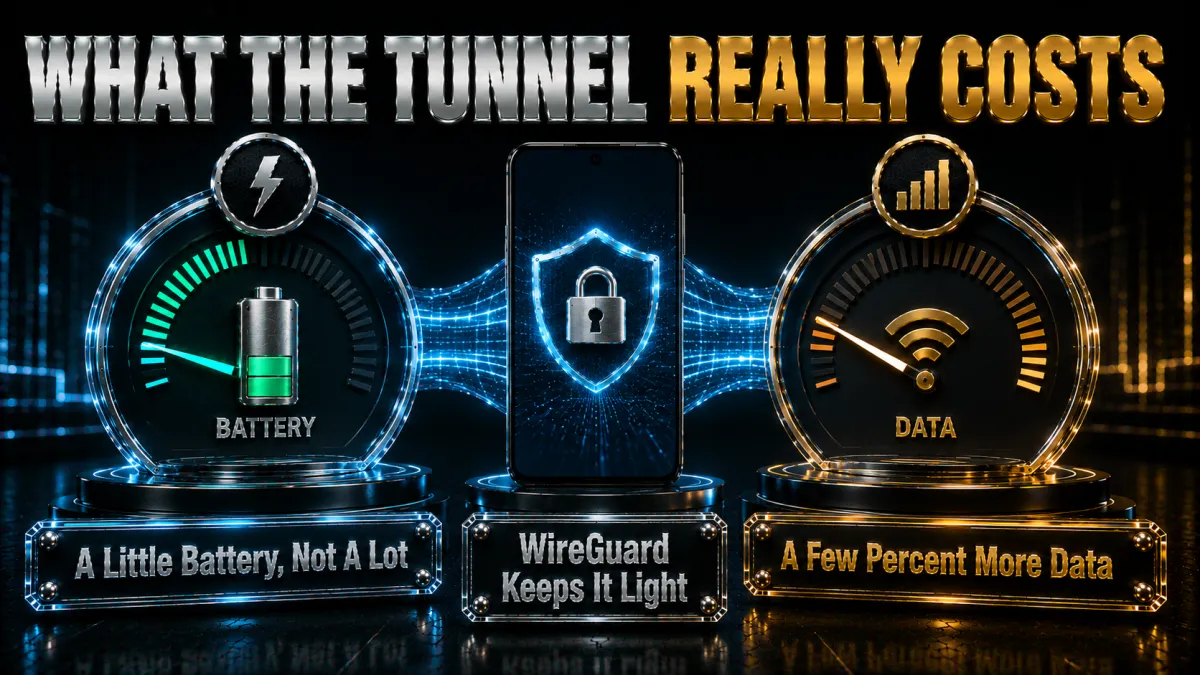
The honest overheads, so nothing surprises you.
- Battery: modest with WireGuard. The protocol was built for exactly this job, and with the always-on configuration above expect a small daily percentage cost rather than a drain. If your experience differs sharply, the troubleshooting section’s protocol and battery checks are the first stops.
- Data: encryption overhead is small. The tunnel wraps your traffic with a modest additional data cost, single-digit percent in ordinary use; on a capped mobile plan it is noticeable arithmetic only for heavy streamers. WiFi use carries no such worry.
- The always-on trade. Block connections without VPN means no traffic flows if the tunnel is down, which is the point, and occasionally that means a beat of waiting on flaky networks while it re-establishes. The security is worth the beat; the setting is reversible if your patience disagrees.
- Split tunnelling for the exceptions. The app’s App Split Tunneling excludes specific apps, your bank’s app if it objects to VPNs, a local service needing your real network, from the tunnel while everything else stays protected. Use it as the precision tool for conflicts rather than a default.
Smart Rules: automation worth setting up
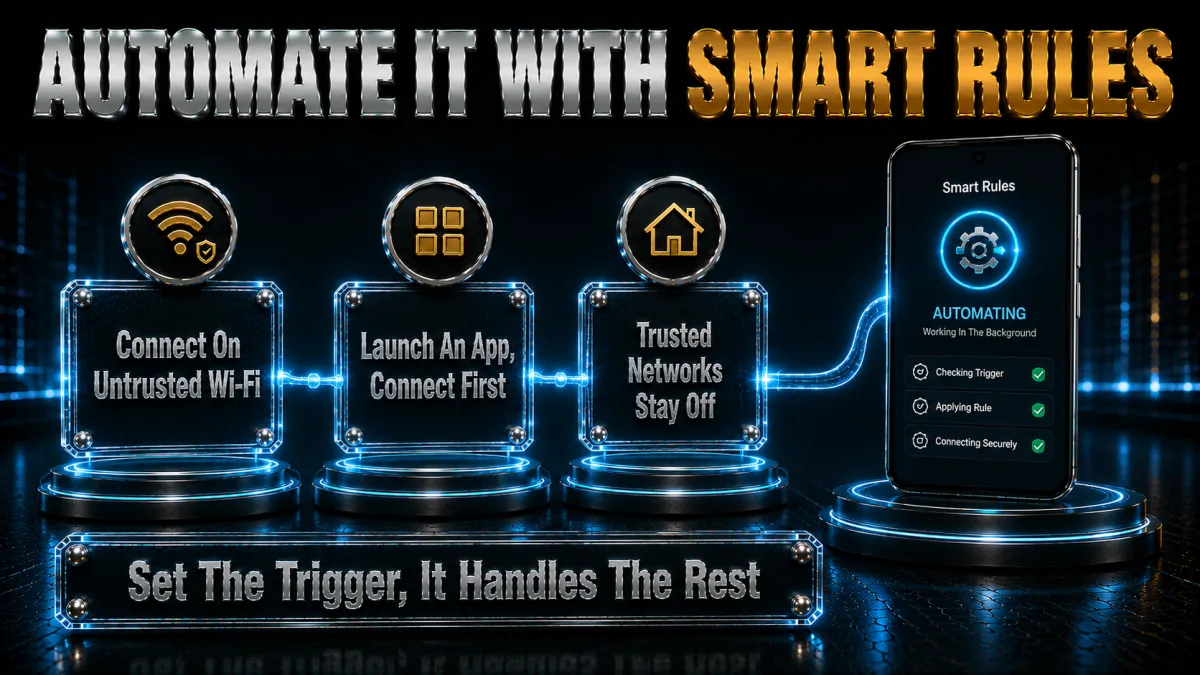
The feature that turns settings into behaviour.
- The WiFi rule, again, because it matters most. Auto-connect on unsecured WiFi is the single highest-value automation on the platform, covering the cafe-airport-hotel pattern where phone risk actually concentrates. If you configure exactly one rule, configure this one.
- Trusted-network exceptions. Mark your home WiFi as trusted if you prefer the tunnel off there, a reasonable choice on a network you control, and keep every other network untrusted by default. The rule set should match your real threat map, not a slogan.
- App-launch rules. Smart Rules can raise the tunnel when a chosen app opens, your banking app on public WiFi, a work tool, before the app touches the network. A precision habit for specific risks.
- Server-per-rule choices. Each rule can target a specific server or category, so the WiFi rule can use your fast nearby favourite while a streaming-app rule uses the labelled server. Configured once, correct forever.
Troubleshooting: the problems Android users actually hit
The short ladder, in the order that resolves fastest.
- Tunnel will not connect: switch protocol. Move from WireGuard to OpenVPN TCP in settings; hostile or heavily filtered networks sometimes block UDP-based protocols, and TCP 443 usually passes. This one switch resolves the majority of connection failures.
- Keeps disconnecting: battery settings. Re-check the Unrestricted battery exemption and Android’s Always-on VPN toggle; aggressive OEM battery managers (common on several major Android brands) silently kill background VPN services. This is the overnight-disconnect fix.
- Slow speeds: hop within reason. Try two or three servers in your nearest category at your actual hour before judging, per the standing hop habit; distance and load explain most disappointments. The test plan below turns this into numbers.
- App or site objects to the VPN: split tunnel it. Add the objecting app to App Split Tunneling rather than disconnecting everything; protection for the rest of the phone continues. Precision beats surrender.
- No internet at all with VPN on: DNS and reinstall. Toggle airplane mode, reconnect, and if the fault persists clear the app’s cache or reinstall from the Play Store; stale local state explains most total-blackout cases. The kill switch doing its job during a server outage looks identical, so also try one different server first.
Honest limits: what this setup does not do
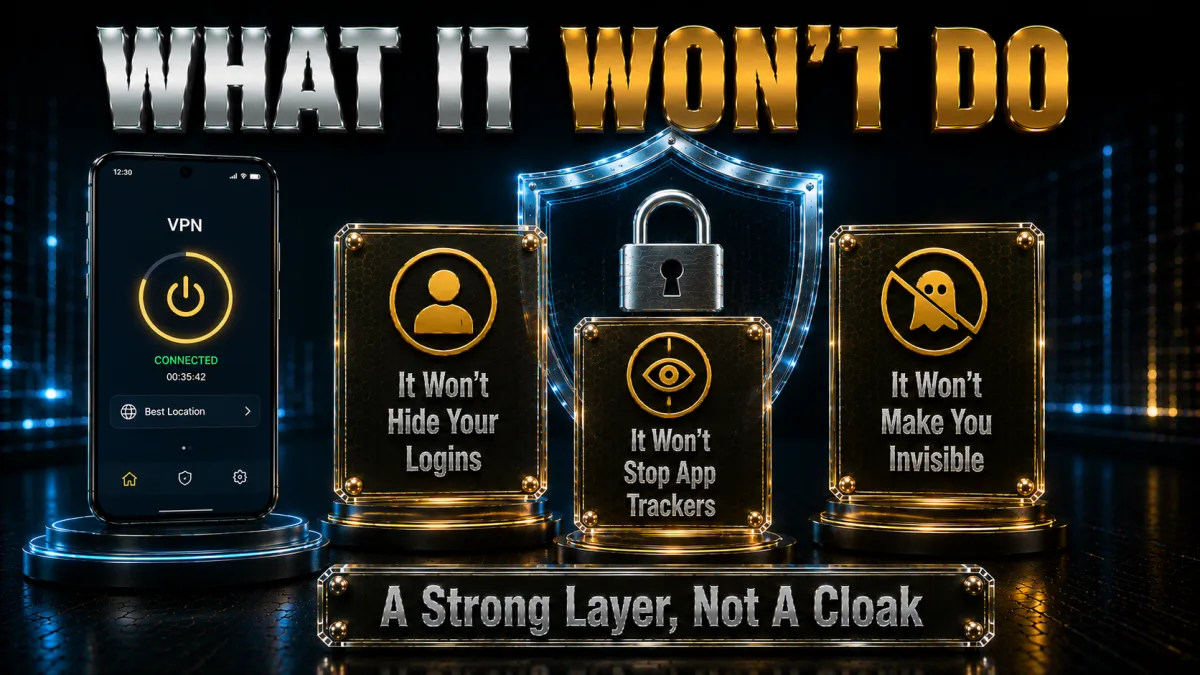
The standing honesty, applied to a phone.
- Not anonymity. Apps you sign into, Google services on the phone itself, and every account you use know who you are through any tunnel. The VPN changes network visibility, not identity, per the standing line across this site.
- Not a malware shield. The content blocker trims known bad domains, and it is no substitute for Play Protect hygiene, cautious installs, and updates. Layers, per our identity-protection stack: VPN, passwords, 2FA, sense.
- Not a fix for hostile networks. CyberGhost lacks a dedicated obfuscation mode, so networks that aggressively fight VPNs may defeat it even on OpenVPN TCP; the full review names the rivals that own that terrain. Managed expectations are part of an honest setup guide.
- Not a licence. Streaming terms, workplace policies, and local law all still apply through the tunnel. Mechanics described, obligations yours, everywhere on this site.
Test it on your own phone: the 45-day plan
The proving period, adapted for Android.
- Day 1: full setup. Install, the four settings, widget, tile, favourites, leak check. Fifteen minutes, once, per the sections above.
- Week 1: the ten-minute speed method. Baseline on WiFi and mobile data without the VPN, then three nearby servers on WireGuard at your real evening hour; note the numbers. Your phone’s results outrank every review’s.
- Weeks 2-3: live normally. Let Smart Rules do the connecting through your real cafe, commute, and travel days; note any friction with server and hour. The habit test is the honest test.
- Week 4: streaming and battery audit. Evening streams on labelled servers, plus a look at Android’s battery stats for the app’s real daily cost on your handset. Numbers over impressions.
- Weeks 5-6: decide on evidence. One support-chat contact with something real, then keep or refund before the calendared 45-day deadline (long plans only, per the full review’s pricing honesty). Six weeks of your own phone beats every page of ours.
How CyberGhost compares on Android specifically
The Android apps of the services we rank, judged on platform terms.
| Feature | CyberGhost | NordVPN | ExpressVPN | Surfshark | IPVanish |
|---|---|---|---|---|---|
| Auto-connect rules | Smart Rules, granular | Yes | Yes | Yes | Yes |
| Widget and tile | Both, polished | Both | Both | Both | Widget |
| Split tunnelling | Per app | Per app | Per app | Per app + routes | Per app |
| Task-sorted servers | Yes, the headline | No | No | No | No |
| Obfuscation on Android | None dedicated | Yes | Automatic | Camouflage | Scramble |
| Battery behaviour | Good on WireGuard | Good | Excellent (Lightway) | Good | Good |
- Where CyberGhost wins the platform. Task-sorted server discovery and granular Smart Rules make it the least-thought-required Android VPN we have set up, which is the correct prize for a phone. Beginners feel this daily.
- Where rivals answer. ExpressVPN’s Lightway sips battery hardest and handles hostile networks automatically; NordVPN and the rest carry obfuscation modes CyberGhost lacks. Travellers on VPN-hostile WiFi should weigh that gap, per the full review.
- The honest net. For home, cafe, and ordinary mobile life, CyberGhost’s Android experience is first-rate; for adversarial networks it is not the pick. Same verdict as the full review, applied to a smaller screen.
Mistakes Android users make with CyberGhost
Collected so you can skip them.
- Skipping the battery exemption. The overnight-disconnect complaint is almost always Android’s battery manager killing the service; the Unrestricted setting is the fix and belongs in day-one setup. Five seconds now, or a confusing gap in protection later.
- Trusting the app toggle alone as a kill switch. Android’s system-level Block connections without VPN is the guarantee; the in-app option complements it. Set both, per the settings section.
- Sideloading an APK. A fake VPN sees everything, which makes it the single worst app to install from an untrusted source. Play Store, verified developer, no exceptions.
- Casting and assuming coverage. The TV pulls its own stream; the phone’s tunnel does not travel with the cast. Native TV apps within your slots are the honest answer.
- Judging speed on one busy server. The hop habit applies on mobile exactly as on desktop: two or three servers in the category at your real hour, then judge. The test plan turns this into numbers.
Extras worth touching on Android
The optional layer, honestly filtered.
- Content blocker. The DNS-level trim of ads, trackers, and malicious domains works on mobile browsing exactly as described in the full review: useful, lighter than the leaders’ suites, worth the toggle. It complements rather than replaces sensible browsing.
- Dedicated IP. The token-based add-on serves the allow-listing pattern, remote-work systems or servers that expect a stable address, from your phone as from anywhere. A niche need, cleanly met when it is yours.
- ID Guard. The email-breach alerts live in the account dashboard rather than the Android app, and pairing them with the password-rotation habit costs nothing extra. A sensible nudge, honestly a light one.
- NoSpy servers. The Romania-housed tier appears in the server list like any other location; the supply-chain argument from the full review applies unchanged on mobile. Marginal for most, there for the cautious.
Covering the household: more Androids and the TV
Extending the same setup across the seven slots.
- Repeat the phone recipe per device. Each family phone or tablet gets the same fifteen-minute treatment: Play Store install, the four settings, the WiFi Smart Rule, the battery exemption. Consistency is what makes the household audit easy later; every device should behave identically.
- Android TV setup is the same idea with a remote. Install the CyberGhost app from the TV’s Play Store, sign in (the app offers simplified codes for TV keyboards), pick a streaming-labelled server, and connect. The TV consumes one slot and covers what casting from a phone cannot.
- Tablets follow the phone flow exactly. The app, the settings, and the Smart Rules are identical on Android tablets, and the widget earns its place on a device that lives on home WiFi and cafe tables alike. One slot each, same recipe.
- Count before you subscribe. Two phones, a tablet, a TV, and a laptop is five of seven slots; the router workaround from the full review exists when a big household bumps the cap. The arithmetic belongs in the buying decision, not the discovery after.
- One account, everyone protected. All devices sign into the same subscription; there is no per-device fee and no family tier to hunt for. Keep the account password strong and unique, per the standing identity guidance.
The day-one checklist, in order
The whole recommended setup as a single runnable list.
- Install from the Play Store, verifying the developer reads CyberGhost SRL before tapping anything. The only safe route, per the install section.
- Sign in and approve Android’s VPN connection dialog on first connect. Normal, required, and the system working as designed.
- Set WireGuard as the protocol in the app’s settings. Predictable speed and battery behaviour from day one.
- Enable Always-on VPN and Block connections without VPN in Android’s system VPN settings for CyberGhost. The guarantee layer; the single most important step on this list.
- Create the unsecured-WiFi Smart Rule so the tunnel raises itself where the risk lives. Protection as behaviour rather than memory.
- Exempt the app from battery optimisation (Unrestricted) so Android never kills the tunnel overnight. The fix for the platform’s most common VPN complaint, applied preemptively.
- Add the widget and quick-settings tile, then favourite your two or three regular servers. The daily interface, built once.
- Run the leak suite from our leak-check guide in your mobile browser with the tunnel up. Verification before trust closes the checklist.
Related reading:
Frequently asked questions
How do I set up CyberGhost VPN on Android?
Install from the Play Store (developer: CyberGhost SRL), sign in, approve Android’s VPN permission dialog, and tap connect; then set WireGuard, enable Block connections without VPN in Android’s settings, add an auto-connect Smart Rule for unsecured WiFi, and exempt the app from battery optimisation. Full setup takes about fifteen minutes once.
Is CyberGhost good on Android?
Yes, it is one of the friendliest Android VPN apps we have used: one-tap connect, a home-screen widget, auto-connect Smart Rules, and task-sorted servers suit the platform’s grab-and-go reality. The honest limits, no dedicated obfuscation and a seven-device cap, are covered in our full CyberGhost review.
Does CyberGhost have a kill switch on Android?
Yes, and the strongest version is Android’s own: enable Always-on VPN and Block connections without VPN in the system VPN settings for CyberGhost. That pair guarantees no traffic leaves the phone if the tunnel drops, complementing the app’s internal protection.
How do I make CyberGhost connect automatically on WiFi?
Use Smart Rules inside the app: set auto-connect for unsecured WiFi networks, optionally for all WiFi, and mark your home network trusted if you prefer. This one rule automates the public-WiFi protection our guides recommend everywhere.
Why does CyberGhost keep disconnecting on my Android phone?
Almost always battery management: set the app to Unrestricted in Android’s battery settings and enable Always-on VPN, because several major Android brands aggressively kill background services. Protocol switching to OpenVPN TCP resolves the remaining network-hostility cases.
Does CyberGhost drain battery on Android?
With WireGuard and the recommended setup, expect a small daily percentage rather than a drain; the protocol was designed for mobile efficiency. Audit your own handset in Android’s battery stats during the trial window, per the test plan.
How much data does a VPN use on Android?
Encryption adds a modest overhead, single-digit percent in ordinary use, noticeable arithmetic only for heavy streamers on capped mobile plans. WiFi use carries no practical concern.
Can I stream with CyberGhost on Android?
Yes, through the For Streaming server category, which labels servers by platform and region; note that casting hands playback to the TV device, which needs its own CyberGhost app for protected streaming. Platforms’ terms restrict cross-border catalogue access, at your own account risk, per the standing caveat.
Is it safe to download CyberGhost APK from outside the Play Store?
No. Sideloaded VPN APKs from forums and “mod” sites are a known malware vector, and a VPN sees all your traffic, making a fake one the worst possible app to install. Play Store with the verified developer name is the only route this site will describe.
How many devices can I use with one CyberGhost account?
Seven simultaneous connections, of which your Android phone uses one; the full review covers the household arithmetic and the router workaround. Count your screens before subscribing.
Does CyberGhost work on Android TV too?
Yes, a native Android TV app covers the living room within the same seven slots, the right answer where casting from the phone would leave the stream unprotected. Setup mirrors the phone flow with a remote-friendly interface.
What is App Split Tunneling in CyberGhost for Android?
A per-app exclusion list: apps you add bypass the tunnel while everything else stays protected, the clean fix for banking apps or local services that object to VPNs. Use it as a precision tool rather than a default.
Does CyberGhost work on Android tablets too?
Yes, identically: the same app, the same four settings, and the same Smart Rules apply on Android tablets, each consuming one of the seven slots. The widget is particularly at home on a tablet that moves between home WiFi and public networks.
Which protocol should I choose in CyberGhost on Android?
WireGuard for daily use: it is the fastest and lightest on battery, which is why the settings section makes it the explicit choice. Switch to OpenVPN over TCP only when a heavily filtered network blocks the tunnel, then switch back.
Will CyberGhost work alongside an Android work profile?
Yes, though Android routes all traffic, personal and work profile alike, through the one active VPN, and some employers’ device policies restrict third-party VPNs entirely. On a company-managed phone, check the policy first; workplace rules still apply through any tunnel, per the standing honesty.
The Bottom Line
- Setup is genuinely a five-minute job, done well in fifteen. Play Store install, four settings, widget, leak check: the whole recommended configuration is in this guide.
- Four settings carry everything. WireGuard, Android’s block-without-VPN kill switch, the unsecured-WiFi Smart Rule, and the battery exemption; the rest is polish.
- Smart Rules are the point of this platform. Protection that engages itself on risky networks is the difference between a tool and a habit.
- The honest limits stand. No anonymity, no malware shield, no dedicated obfuscation for hostile networks, and terms that still apply; the full review weighs whether CyberGhost is your right service at all.
- Your 45 days outrank this guide. The test plan above, your own phone, your own weeks: that verdict binds.
A phone VPN only works if it is running when the risk arrives, and this setup exists to make that automatic. Configure it once, let the rules do the remembering, and spend the 45-day window proving on your own handset that the friendliest VPN on Android is also doing its quiet job every day.
Jyoti VPN Expert leads VPN testing at VPN Expert Guide, covering streaming and regional access, speed and latency testing, and leak checks on Windows, Android and router-level setups. Our guides are built from vendor documentation, provider terms and our own connection testing on a residential line in India, and we publish those measurements in full so readers can check them. Every guide is reviewed before publication and dated so you can see how current it is.
Meet our testing team →Last updated: September 2, 2026