
WebRTC Leak Test: How to Check If Your VPN Leaks Your IP in 2026
Your VPN can show “connected” while your browser still hands your real IP address to websites through WebRTC, the feature behind in-browser calls. A WebRTC leak test shows you which addresses your browser gives away. This guide explains how to run the test, how to read the result, which browser settings control WebRTC and what else to check, using browser makers’ and standards bodies’ own documentation. No invented test results.
WebRTC leak test basics: why browsers can expose your IP

WebRTC (Web Real-Time Communication) is the open standard that lets websites send voice, video and data directly between browsers, with no plugin. It powers in-browser video calls, screen sharing and some file transfers. To connect two browsers directly, WebRTC first gathers a list of possible network addresses, called ICE candidates, and hands them to the web page. If you are new to how a VPN changes your address, our guide to what a VPN is and how it works covers the basics.
- Host candidates. The addresses of your device itself, such as its address on your home Wi-Fi.
- Server-reflexive candidates. The public address a STUN server sees when your browser contacts it. With a VPN that covers the browser, this should be the VPN server’s address.
- Relay candidates. Addresses on a TURN server that relays traffic when a direct connection isn’t possible.
How WebRTC addresses can reveal extra information
The privacy problem is that a web page can collect these addresses with a few lines of code. The IETF’s WebRTC IP address handling rules (RFC 8828) describe three ways this reveals more than an ordinary web request: it can expose your internet provider’s public address when a split-tunnel VPN lets traffic use more than one route, it can expose private addresses behind your router, and its STUN checks can bypass a browser proxy and reveal your public IP. The W3C WebRTC specification adds that these addresses can be exposed without any specific permission prompt, for example on a page that only opens a data channel.
How to read a WebRTC leak test result
A leak test usually shows two kinds of addresses: local (private) and public. The deciding question is simple: does any public address in the WebRTC result belong to your own connection rather than the VPN? MDN’s guide to ICE candidate types explains the host, server-reflexive and relay labels some test pages show next to each address.
- A safe result. The WebRTC section shows only the VPN server’s public IP, or no public IP at all. Mullvad and Proton describe a pass the same way: only addresses that belong to the VPN should appear.
- A leak. A public IPv4 address you saw with the VPN off, or a public IPv6 address from your internet provider, shows up while the VPN is connected. Sites that use WebRTC can then see your real address and approximate location, even though ordinary page requests go through the VPN.
- Local addresses. Addresses starting 192.168., 10. or 172.16. to 172.31. are private network addresses. They don’t identify your connection on the internet, although the IETF notes they can still add to a device fingerprint.
- .local names. A long random name ending in .local is an mDNS hostname that Chrome and Firefox use to hide your local address. It is a privacy protection, not a leak.
WebRTC leak test results: address comparison table
Here is how each result maps to a decision.
| What the test shows | What it means | Is it a leak? | What to do |
|---|---|---|---|
| Only the VPN server’s public IP, or no public IP at all | WebRTC can only see the address websites already see through the VPN | No | Nothing. Repeat the check in your other browsers |
| A random name ending in .local | The browser has replaced your device’s local address with a temporary mDNS name | No | Nothing. This is a privacy feature, not your IP |
| A private address such as 192.168.x.x or 10.x.x.x | Your device’s address on your home or office network, which isn’t reachable from the internet | Not a public IP leak | Optional: limit WebRTC in the browser if you don’t want sites to see it |
| A public IPv4 address you saw with the VPN off | WebRTC found a route outside the VPN tunnel | Yes | Fix it before relying on the VPN (see below) |
| A public IPv6 address that belongs to your provider, not the VPN | Your connection’s IPv6 address is reaching the site outside the tunnel | Yes | Turn on the VPN’s IPv6 leak protection or limit WebRTC |
| A message that WebRTC isn’t available | WebRTC is turned off or blocked in this browser | No | Nothing, but browser calls and some web apps may not work |
The meanings above are based on RFC 8828, the W3C WebRTC specification and the browser and provider pages listed in Sources. On narrow screens, scroll sideways to see every column.
How to run a WebRTC leak test, step by step
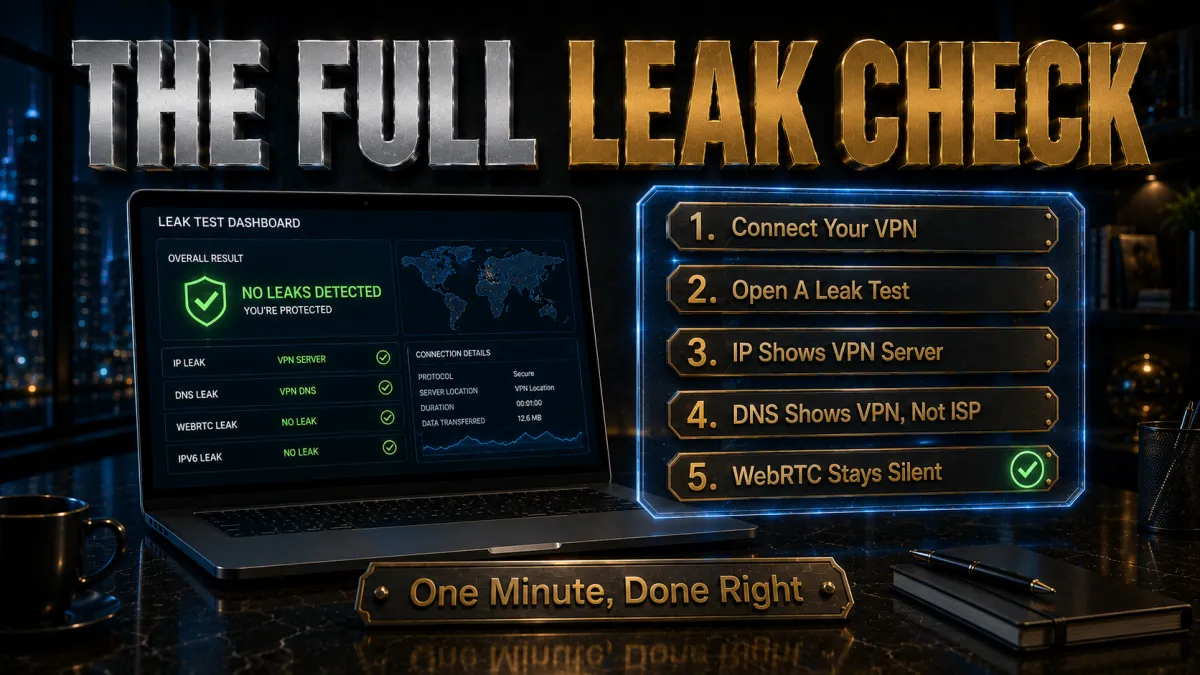
The most reliable method is a before-and-after comparison, the same routine ExpressVPN and Surfshark publish on their own test pages. It needs no software beyond your browser and VPN app.
- Disconnect the VPN and open a test page. Use a WebRTC test such as the one on BrowserLeaks, or any of the pages listed below.
- Write down every public IP address you see. Include IPv6 addresses (long ones with colons) as well as IPv4. These are your real addresses.
- Close the page and any tabs opened before you connect. ExpressVPN warns that some browsers keep addresses from older tabs in memory, which can show your real IP even after a refresh.
- Connect your VPN app. Pick a server in another country so a change of address is easy to spot, as Proton suggests.
- Open the test page again in a new tab and let it finish. Some tests take a little while to gather every address.
- Compare the results. If any public address from step 2 appears, you have a WebRTC leak. If you only see the VPN’s address, local addresses, .local names or nothing at all, WebRTC isn’t exposing your real IP in that browser.
- Repeat in every browser and device you use. A pass in Chrome says nothing about Firefox, Safari or the browser on your phone.
Wherever you are, whether in the US, the UK, Canada, Australia or India, the test works the same way: it compares addresses, not countries, so connecting to a server in another country simply makes the change easier to see.
Which WebRTC leak test page to use
Any reputable test does the same basic job. Several VPN providers run free test pages, and you can use them whichever VPN you have.
- BrowserLeaks. Shows your remote IP, whether WebRTC is supported, the local and public IPs WebRTC reveals and the raw session description. Mullvad and Proton both point readers to it.
- ExpressVPN and Surfshark test pages. Simple pages that list the public and local addresses WebRTC exposes and explain the before-and-after method.
- Mullvad Connection check. Combines IP, DNS and WebRTC checks on one page. Mullvad’s help page says you are safe if the WebRTC box is green.
- The official WebRTC samples. For a closer look, the Trickle ICE sample from the WebRTC project lists every candidate your browser gathers, with its type (host, srflx or relay) and address.
Test pages see your IP addresses just as any website does. Stick to well-known pages, and treat a page that pushes a download or a “fix” app as a red flag.
WebRTC leak test settings in Chrome, Firefox, Safari, Edge and Brave
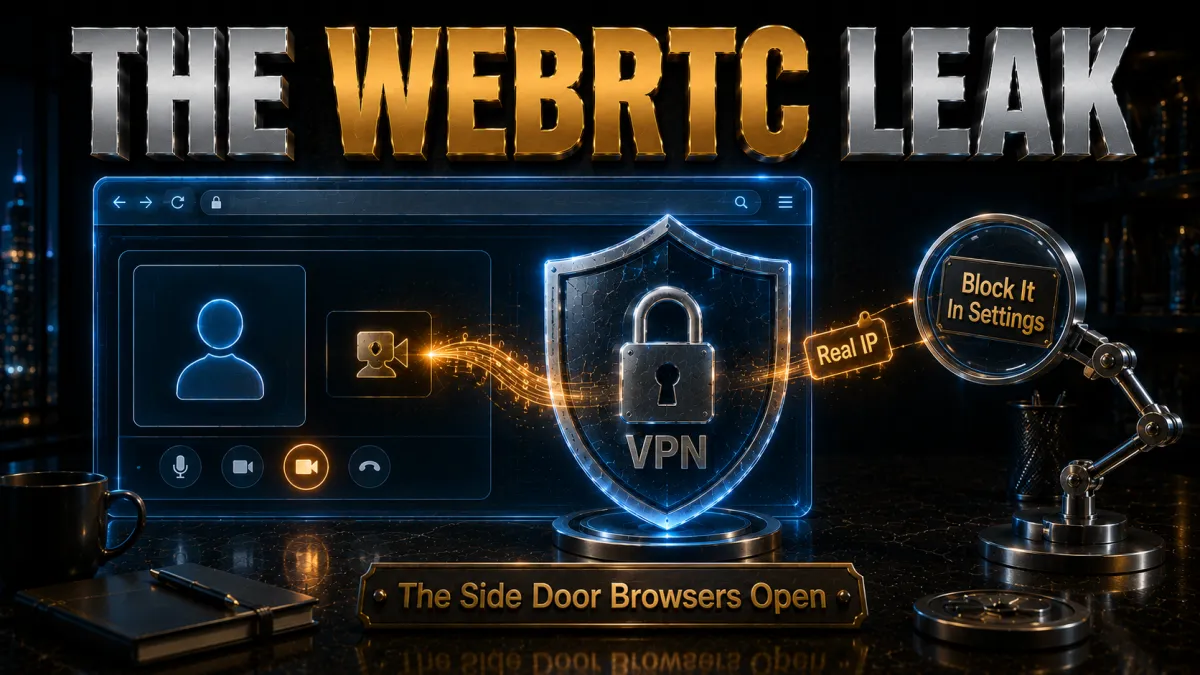
Each browser handles WebRTC differently, and the controls range from a visible setting to an advanced preference. This is what each maker documents.
Chrome: WebRTC leak test settings
In 2019, the WebRTC team announced on its discuss-webrtc group that from Chrome 76 private IP addresses would be replaced by mDNS .local names for sites without camera or microphone permission. To go further, Google’s WebRTC Network Limiter extension stops WebRTC using private addresses and public addresses on interfaces that aren’t used for web traffic. Google notes it can lower call quality.
Firefox: WebRTC leak test settings
Firefox has hidden local addresses behind .local names on desktop since Firefox 72. To turn WebRTC off completely, type about:config in the address bar, accept the warning, search for media.peerconnection.enabled and set it to false. The MozillaWiki WebRTC privacy page also lists gentler prefs, such as media.peerconnection.ice.default_address_only and media.peerconnection.ice.no_host, that limit which addresses are used.
Safari: WebRTC leak test checks
In a 2017 post on the WebKit blog, WebKit’s engineers explained that, until a site is given camera or microphone access, Safari only exposes server-reflexive and relay candidates, not host addresses. We found no Safari privacy setting for WebRTC on the Apple and WebKit pages we checked (the WebRTC items in Safari’s Develop menu are developer options), so rely on the test, and run it again after you give any site camera or microphone access.
Edge: WebRTC settings and checks
Microsoft says extensions made for Chrome also work in Edge, so you can add WebRTC Network Limiter from the Chrome Web Store after allowing extensions from other stores. On managed work PCs, the WebRtcLocalhostIpHandling policy controls whether WebRTC exposes local addresses.
Brave: WebRTC settings and checks
Brave has a built-in WebRTC IP handling policy under Settings, Privacy and security. According to Brave’s help center, “Default public interface only” and “Disable non-proxied UDP” don’t expose local addresses, while “Default” lets WebRTC use all network interfaces.
Browser WebRTC controls compared
| Browser | What its maker documents | Where to limit WebRTC | Notes |
|---|---|---|---|
| Chrome | Since Chrome 76 (2019), local addresses are replaced with .local names for sites without camera or microphone permission | Google’s WebRTC Network Limiter extension; WebRtcIPHandling policy on managed devices | With the policy unset, WebRTC uses all available network interfaces |
| Firefox | Local addresses are hidden behind .local names on desktop since Firefox 72 | about:config: set media.peerconnection.enabled to false, or use the ice.default_address_only and ice.no_host prefs | Turning WebRTC off stops WebRTC-based calls and apps in Firefox |
| Safari | WebKit said in 2017 that it exposes only server-reflexive and relay candidates until a site gets camera or microphone access | No privacy setting for WebRTC is described on the Apple and WebKit pages checked; the Develop menu’s WebRTC options are for developers | Test Safari after giving any site camera or microphone access |
| Edge | Microsoft’s policy page says WebRTC exposes the local IP address when the policy isn’t set | Chrome Web Store extensions such as WebRTC Network Limiter; WebRtcLocalhostIpHandling policy on managed PCs | Edge asks you to allow extensions from other stores first |
| Brave | “Default” lets WebRTC use all network interfaces, except in Tor tabs | Settings, Privacy and security, WebRTC IP handling policy | “Default public interface only” and “Disable non-proxied UDP” don’t expose local addresses |
Sources for each row are listed in Sources below. Browser defaults change with updates, so the test result in your own browser is what counts.
Limiting WebRTC has a cost: Mullvad points out that websites that rely on WebRTC may not work properly with it disabled. For everyday browsing behind a VPN, a setting that limits addresses (such as Brave’s “Default public interface only”) is a gentler first step than switching WebRTC off.
Check your IP, DNS and IPv6 too
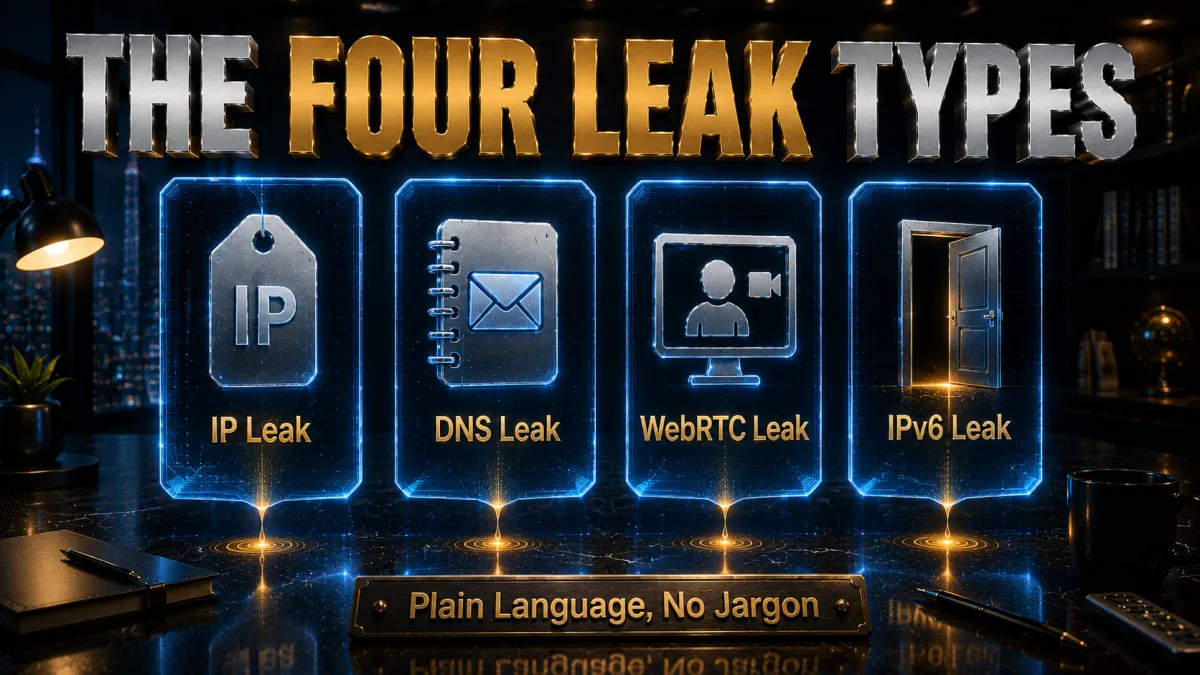
A WebRTC pass doesn’t prove the whole connection is private. Three quick checks cover the other common leaks.
- IP address. With the VPN off, note your public IP on an IP checker. Connect and reload: the address and the provider shown should now belong to the VPN. If the address doesn’t change, the VPN isn’t working at all.
- DNS. DNS requests turn site names into addresses. Run a DNS leak test with the VPN connected: the servers listed should belong to your VPN, not your internet provider. Our explainer on what DNS is and why it matters covers why those requests reveal the sites you visit.
- Browser secure DNS. A browser’s own DNS over HTTPS setting can send requests to a third-party resolver instead of the VPN’s. Mullvad’s DNS-leak guide notes that Firefox uses Cloudflare DNS over HTTPS by default in the US and Canada, among other countries, so a DNS test there may show Cloudflare servers rather than your VPN’s.
- IPv6. If your provider gives you IPv6, an IP checker shows a long address with colons. If that address still appears with the VPN on, IPv6 traffic is leaving outside the tunnel. Our guide to IPv6 leaks explains what an IPv6 leak exposes.
WebRTC leak test failed: what to check
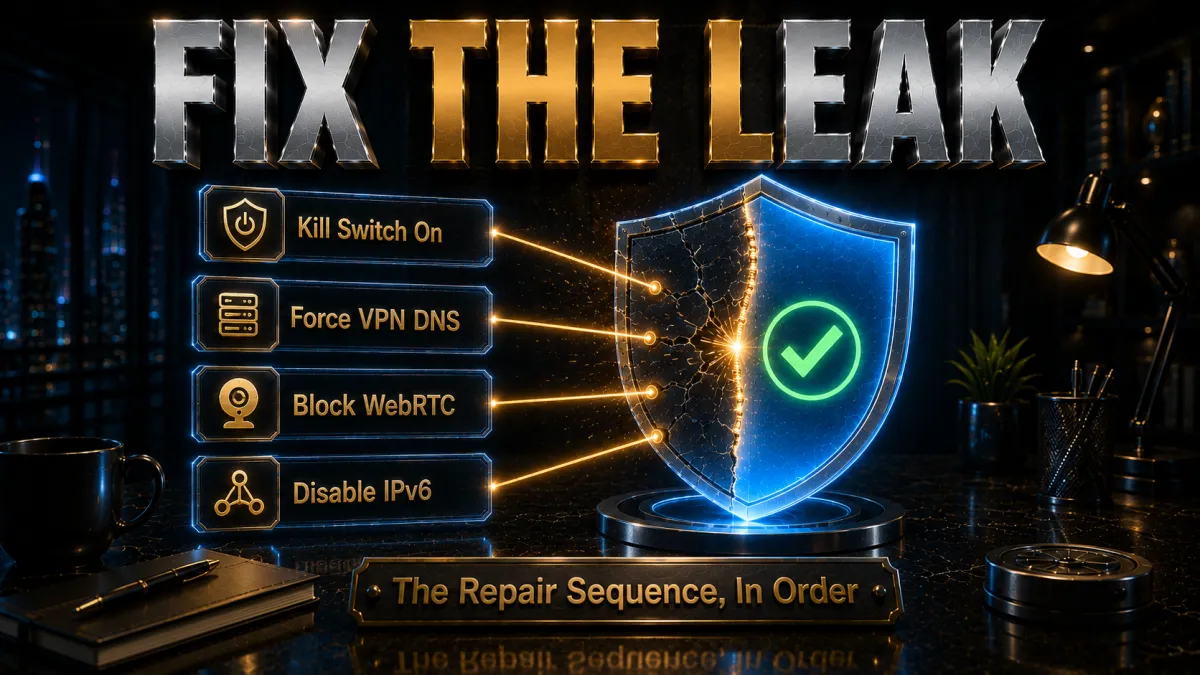
Start with the quick checks, then move on to settings. Our full guide on how to fix a VPN IP leak walks through every fix in order, so here is the short version.
- Re-test in a fresh tab. Close tabs opened before you connected, reconnect the VPN and run the test again.
- Check the VPN app’s settings. Turn on any leak protection or kill switch option, and make sure split tunnelling isn’t leaving your browser outside the VPN.
- Use the full VPN app, not just an extension. A browser extension or proxy only covers some traffic, and RFC 8828 notes that WebRTC’s STUN checks can bypass a proxy when direct internet access is allowed. The guide to the difference between a proxy and a VPN explains why.
- Limit WebRTC in the browser. Use the browser setting, preference or extension described above, then run the test again.
Proton VPN, ExpressVPN and Surfshark all say their apps include WebRTC leak protection, and ExpressVPN says its browser extension for Chrome, Firefox and Edge can turn WebRTC off. Those are the providers’ own statements, so confirm them with the test on your own devices.
When to repeat a WebRTC leak test
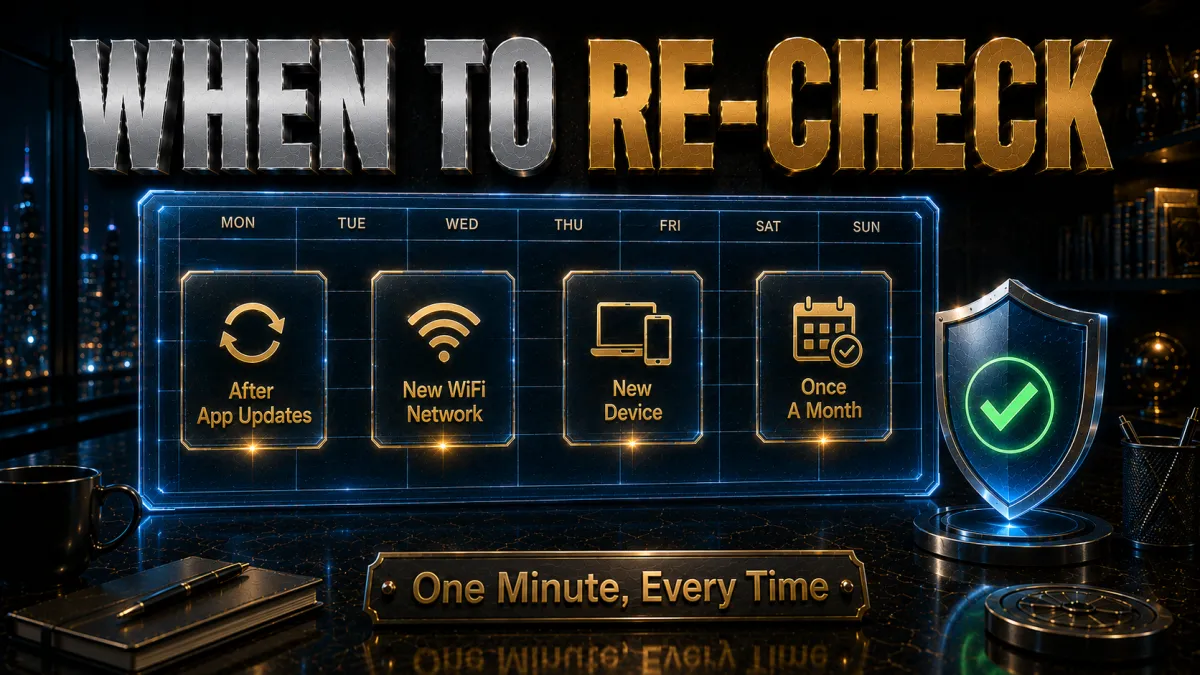
A clean result today can change after an update or a new network, so make the test a habit rather than a one-off.
- Re-test after changes. Run the test after VPN app or browser updates, when you join a new Wi-Fi network or travel, on every new device, and after you change split tunnelling, extensions or browser privacy settings.
- Don’t panic over local addresses. A private address or a .local name is not your public IP. Only a public address that belongs to your own connection counts as a leak.
- Make sure the VPN was really on. A result taken while the VPN was still connecting, or after it dropped, will show your real IP. Check the app before reading the result.
- “WebRTC not available” is a pass, not an error. It means WebRTC is off or blocked in that browser, so there is nothing for it to leak.
Related reading:
Frequently Asked Questions
What is a WebRTC leak test?
It is a web page that asks your browser to start a WebRTC connection and then shows the IP addresses the browser reveals while doing it. If you are connected to a VPN and the page still shows the public IP address you have without the VPN, your browser is leaking your real IP through WebRTC.
Is it a problem if the test shows a local IP address?
A private address such as 192.168.1.2 is your device’s address on your own network and can’t be used to reach you from the internet, so it isn’t a public IP leak. The IETF notes that private addresses can still help sites fingerprint a device, so you can limit them with a browser setting if that matters to you.
What does a .local address in a WebRTC test mean?
It means your browser has hidden your local address behind a random temporary name, using a technique called mDNS. Chrome does this for sites that don’t have camera or microphone permission, and Firefox does it on desktop. It is not your IP address and is not a leak.
Can a VPN app stop WebRTC leaks on its own?
Several providers, including Proton VPN, ExpressVPN and Surfshark, say their apps include WebRTC leak protection. WebRTC is still a browser feature, though, and settings such as split tunnelling or a browser-only proxy can let it find a route outside the tunnel. Running the test is the only way to know what your setup does.
Why does the test show my real IP when the VPN says it is connected?
Common causes are a tab that was opened before you connected, split tunnelling that leaves the browser outside the VPN, a browser extension or proxy being used instead of the full VPN app, and IPv6 traffic the VPN doesn’t cover. Close old tabs, reconnect and test again in a fresh tab before you change any settings.
Does turning off WebRTC break anything?
It can. WebRTC is what lets websites run voice and video calls, screen sharing and some file transfers in the browser, so those features may stop working, and Mullvad notes that some websites that use WebRTC may not work properly with it disabled. A setting that limits which addresses WebRTC can use is a gentler option than switching it off.
Do I need to test every browser and device?
Yes. Each browser handles WebRTC in its own way, so you can be safe in one and not in another. Run the test in each browser you use on your computer and phone, and again after you change VPN or browser settings.
How often should I run a WebRTC leak test?
Run it when you first set up a VPN, after VPN app or browser updates, when you connect from a new network, when you set up a new device and after you change settings such as split tunnelling or extensions.
Sources
Official, standards and provider pages checked on 7 October 2026 (IST). They support the explanations, tables and FAQs above.
Standards and specifications
- IETF RFC 8828: WebRTC IP Address Handling Requirements
- IETF RFC 8445: Interactive Connectivity Establishment (ICE)
- W3C: WebRTC 1.0 specification (editor’s draft)
- IETF draft (expired): Using Multicast DNS to protect privacy when exposing ICE candidates
- MDN: RTCIceCandidate type (host, srflx, prflx, relay)
- MDN: Introduction to WebRTC protocols (ICE, STUN, NAT, TURN)
- WebRTC project: webrtc.org
- WebRTC samples: Trickle ICE
Browser documentation
- Google discuss-webrtc: private IP addresses changing to mDNS hostnames (Chrome 76)
- Chrome Web Store: WebRTC Network Limiter (Google)
- Chrome Enterprise: WebRtcIPHandling policy
- MozillaWiki: Media/WebRTC/Privacy (about:config prefs)
- Mozilla Bugzilla 1588817: mDNS hostname obfuscation on desktop (Firefox 72)
- WebKit blog: A closer look into WebRTC
- Microsoft Learn: Edge WebRtcLocalhostIpHandling policy
- Microsoft Support: Add extensions to Microsoft Edge, including from the Chrome Web Store
- Brave Help Center: Privacy settings and WebRTC IP handling policy
Leak-test tools and VPN provider guides
- BrowserLeaks: WebRTC leak test
- BrowserLeaks: IP address and IPv6 check
- ExpressVPN: WebRTC leak test
- ExpressVPN: DNS leak test
- Surfshark: WebRTC leak test
- Mullvad: Connection check
- Mullvad Help: WebRTC
- Mullvad Help: How to prevent DNS leaks
- Proton VPN: Is my VPN working? (IP, IPv6, DNS and WebRTC checks)
- DNS leak test (dnsleaktest.com, run by IVPN)
- test-ipv6.com: IPv6 connectivity test
The Bottom Line
A WebRTC leak test answers one question: does your browser reveal a public IP address that belongs to your own connection while the VPN is on? If the result shows only the VPN’s address, a private address, a .local name or nothing at all, WebRTC isn’t exposing your real IP in that browser.
Practical move:
- Compare before and after: note your public IPs with the VPN off, then test again in a fresh tab with it on.
- Test every browser: Chrome, Firefox, Safari, Edge and Brave all handle WebRTC differently.
- Check IP, DNS and IPv6 too: a WebRTC pass doesn’t cover the other leaks.
- Fix, then re-test: use the VPN’s leak protection and the browser’s WebRTC setting, and confirm with a new test.
Re-run the test after updates, new networks and new devices. This article is general information based on official documentation and does not include invented test results.
Saurabh VPN Expert writes and reviews VPN guides for VPN Expert Guide, covering privacy, streaming, regional access, and device setup. Our articles draw on provider documentation and published product information, with updates when important details change.
Meet our testing team →Last updated: October 12, 2026