
VPN Kill Switch: What It Is, How It Works and How to Turn It On (2026)
A VPN kill switch stops your device from sending traffic outside the VPN when the connection drops, so your real IP address doesn’t slip out during a reconnect. This guide explains how kill switches work, the difference between standard and always-on versions, what the major VPN apps call theirs and where to find it, the built-in options in Android, iPhone and Windows, and how to check yours safely. Everything is based on the providers’ and platform makers’ own documentation. No invented test results.
What a VPN kill switch is, and what it isn’t
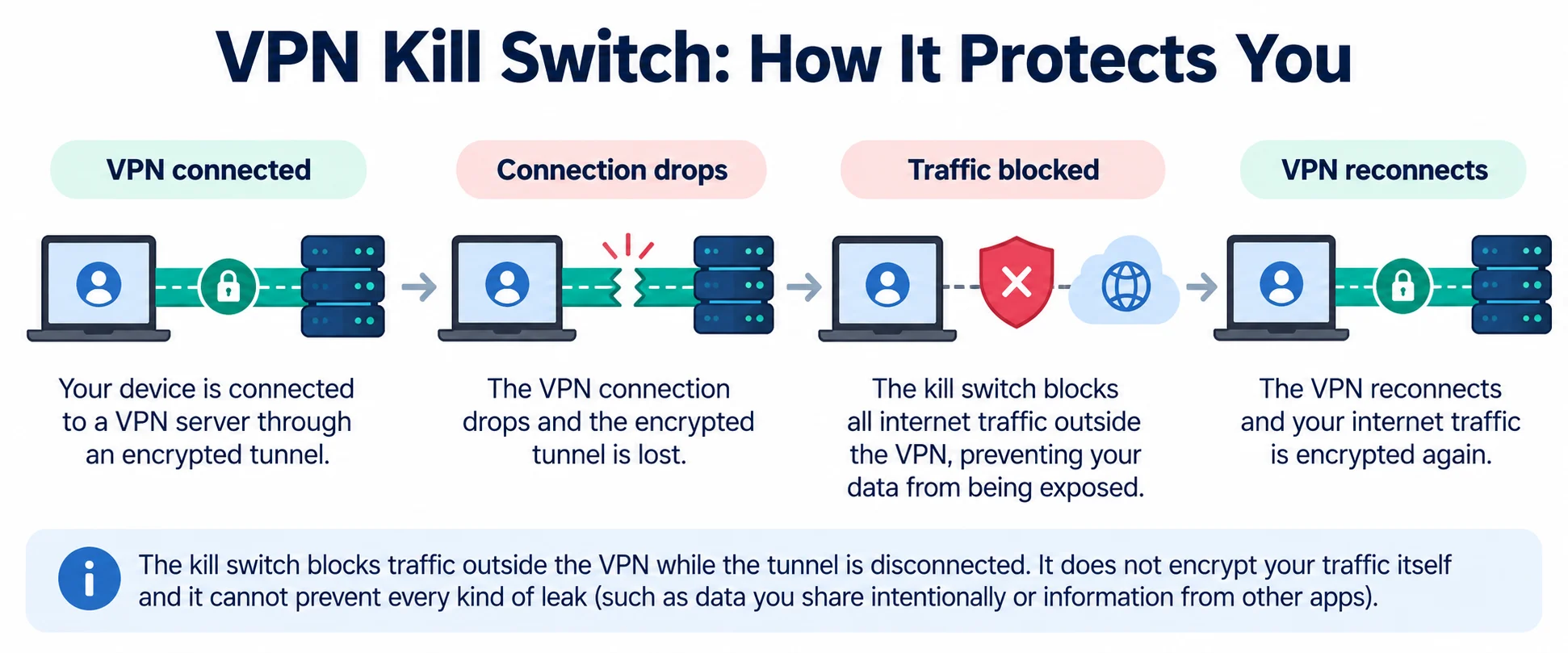
A VPN sends your traffic through an encrypted tunnel to a VPN server, so websites see the server’s IP address instead of yours. If you are new to that idea, our guide to what a VPN is and how it works covers the basics. The weak spot is the moment the tunnel goes down: unless something stops it, your device carries on over your normal connection, with your real IP address. A kill switch is that something.
- It blocks traffic, it doesn’t encrypt it. A kill switch doesn’t make the VPN stronger. It simply cuts off internet traffic that would otherwise leave outside the tunnel, until the VPN reconnects.
- It covers the moments you can’t see. Proton VPN lists weak Wi-Fi signal, server maintenance and switching from Wi-Fi to mobile data as ordinary reasons a VPN connection is lost. Those are exactly the moments a kill switch is for.
- It goes by many names. Depending on the app it may be called Internet Kill Switch, Network protection, VPN bypass prevention, Lockdown mode or Firewall. The idea is the same: no VPN, no internet traffic.
- It isn’t a complete leak fix. DNS, IPv6 and WebRTC leaks can happen while the VPN is connected, so a kill switch is one layer of protection, not the whole job.
What happens when the connection drops?
Providers describe two broad designs. Both aim for the same result, but they get there in different ways, and that affects how much can slip out in the instant a connection fails.
- Monitor and react. NordVPN describes its kill switch as watching your connection to the VPN server for changes and shutting down internet access when it detects that the connection has dropped. Surfshark describes the same check-and-block sequence.
- Block by default with firewall rules. Some apps set firewall rules that only allow traffic through the VPN, so there is nothing to react to when the tunnel fails. Windscribe’s help center argues that a reactive kill switch can let packets out between the drop and the moment the program notices, and calls its firewall approach a proactive alternative. That comparison is Windscribe’s own claim.
- System firewalls do the work on desktops. Mullvad’s published security documentation says its app uses the operating system’s own firewall (WFP on Windows, PF on macOS and nftables on Linux) and applies strict rules as soon as it starts connecting. ExpressVPN also says its Internet Kill Switch applies firewall-based rules when the VPN disconnects.
- It should cover more than plain web traffic. ExpressVPN says its Internet Kill Switch blocks IPv4, IPv6 and DNS requests until the tunnel is back, and Proton VPN says its kill switch keeps your IP address and DNS queries from leaking while the connection is lost.
Three protection modes compared
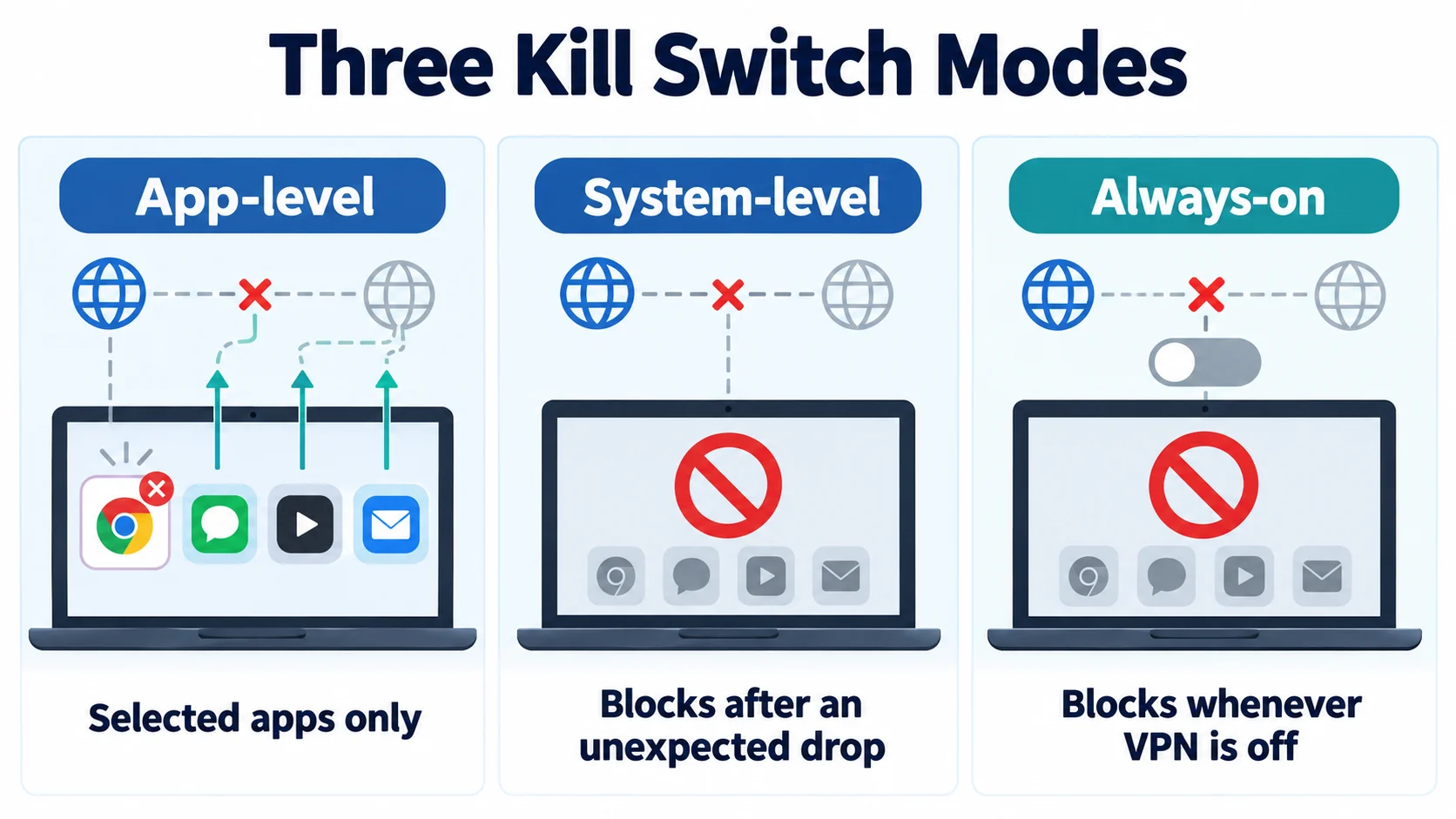
The most useful question is not “does this VPN have a kill switch?” but “what does it block, and when?” These are the three types you will meet in VPN apps.
- App-level. The VPN closes chosen apps if the connection drops, for example a torrent client. NordVPN’s Windows App Kill Switch works this way, and NordVPN notes it is off by default. Everything else on the device keeps using your normal connection.
- System-level, automatic. All internet traffic is blocked if the VPN drops unexpectedly, and comes back when it reconnects. ExpressVPN and Proton VPN both say this standard kind doesn’t block anything after you disconnect on purpose.
- Always-on, or permanent. Traffic is blocked whenever the VPN isn’t connected, including after you disconnect yourself. Proton VPN says its Advanced kill switch even stays active when you restart the device.
- Which one to use. For most people, the system-level automatic kind is the right default. Choose always-on when being online without the VPN would be a real problem for you, and accept that you will have to switch it off for some jobs.
How the three modes compare
Here is how the three types compare.
| Kill switch type | What it blocks | When it blocks | Everyday trade-off | Examples in VPN apps |
|---|---|---|---|---|
| App-level | Only the apps you pick (the VPN closes them) | When the VPN connection drops | Other apps keep using your normal connection, so they are not protected | NordVPN App Kill Switch (Windows and the macOS website version) |
| System-level, automatic | All internet traffic on the device | Only after an unexpected drop or while the VPN reconnects, not after you disconnect yourself | You can still go online without the VPN when you choose to | ExpressVPN Internet Kill Switch, Proton VPN Standard kill switch, Surfshark Soft mode, PIA VPN Kill Switch, Mullvad’s built-in kill switch, Windscribe Firewall in Automatic mode |
| Always-on (permanent) | All internet traffic outside the VPN | Whenever the VPN isn’t connected, including after you disconnect it yourself and, in some apps, after a restart | No internet at all until the VPN connects, which can stop hotel Wi-Fi logins and some sign-ins | ExpressVPN “Enable at all times”, Proton VPN Advanced kill switch, Surfshark Strict mode, Mullvad Lockdown mode, PIA Advanced Kill Switch, Windscribe Always on, Android “Block connections without VPN” |
Examples are taken from each provider’s help pages listed in Sources. On narrow screens, scroll sideways to see every column.
When a kill switch matters most
Proton VPN says a kill switch doesn’t affect connection quality while the VPN stays connected, so there is little reason to leave it off. These are the situations where it matters most.
- Public and shaky Wi-Fi. Cafés, airports and trains are where connections drop and networks change most. Our guide to using a VPN on public Wi-Fi covers the other precautions worth taking there.
- Apps that run unattended. Downloads, file sharing and sync apps keep sending traffic while you aren’t watching, so a drop can go unnoticed. Surfshark singles out file sharing as one of the main reasons to use a kill switch.
- Moving between networks. Switching from Wi-Fi to mobile data briefly takes the tunnel down while the app reconnects, a moment both Apple’s and Proton VPN’s documentation describe.
- Where your privacy really matters. If someone seeing your real IP address or location would cause you serious trouble, use an always-on mode so that no traffic can leave outside the VPN, even by accident.
What each major VPN calls its kill switch, and where to find it
Names, defaults and menus differ a lot between apps, which is why people often can’t find the setting. This table lists what each provider’s own help pages say, as checked on 7 October 2026. Menus change with app updates, so use it as a guide to what to look for.
Provider names and settings
| VPN | What the app calls it | On by default? | Always-on option | Where to find it |
|---|---|---|---|---|
| NordVPN | Internet Kill Switch and App Kill Switch (Windows); Kill Switch (Linux); VPN bypass prevention (iOS and the Mac App Store version) | No on Windows, macOS, Android and Linux, per NordVPN | NordVPN says the Internet Kill Switch blocks traffic whenever you aren’t connected, even after a manual disconnect | Windows: Settings, Kill Switch. Linux: nordvpn set killswitch on. Android: system Always-on VPN |
| ExpressVPN | Internet Kill Switch (its feature page still uses the name Network Lock in places) | Yes on Windows, Mac, Linux and Android phones; always on in iOS (Standard level) | “Enable at all times” (Advanced Internet Kill Switch) on Windows, Mac and Linux | Profile tab, Settings, Internet Kill Switch |
| Surfshark | Kill Switch, with Soft and Strict modes | Not stated on the pages checked; check the toggle | Strict mode blocks the internet whenever the VPN is off | Settings, VPN settings, Kill Switch |
| Proton VPN | Kill switch, with Standard and Advanced levels | Not stated; Standard is selected when you switch it on | Advanced kill switch on Windows, the Linux app and iOS/iPadOS (beta); Android uses the system setting | Windows: Kill switch in the side bar or Settings, Connection. iOS: Settings, Security Options |
| Mullvad | Built-in kill switch (no setting) plus Lockdown mode | The kill switch is always on and can’t be turned off | Lockdown mode also blocks the internet after you click Disconnect or Quit | Settings, VPN settings, Lockdown mode. CLI: mullvad lockdown-mode set on |
| Private Internet Access (PIA) | VPN Kill Switch and Advanced Kill Switch | Yes, the VPN Kill Switch is on by default (Windows app) | Advanced Kill Switch works even when the PIA app is closed | Desktop app: Settings, Privacy tab |
| Windscribe | Firewall, with Automatic, Manual, Always on and Always-on+ modes (Windscribe says it doesn’t offer a “kill switch” by that name) | Not stated on the pages checked; check Firewall Mode | Always on blocks all non-VPN traffic, even after a restart | Desktop: Preferences, Connection, Firewall Mode. Android and iOS: the system’s always-on VPN |
Provider details come from each company’s own help and feature pages, listed in Sources. On narrow screens, scroll sideways to see every column.
Platform details to keep in mind
A few details are easy to miss. NordVPN’s Mac App Store and iOS apps call their protection VPN bypass prevention and describe it as forcing all traffic covered by the VPN configuration through the tunnel. ExpressVPN’s iOS app offers a Standard and an Advanced level, and ExpressVPN warns that the Advanced level may interfere with AirDrop, CarPlay, AirPlay and Personal Hotspot. Mullvad is the odd one out: its kill switch has no setting at all, and Lockdown mode is a separate option for blocking the internet after you disconnect.
Operating-system options on phones and computers
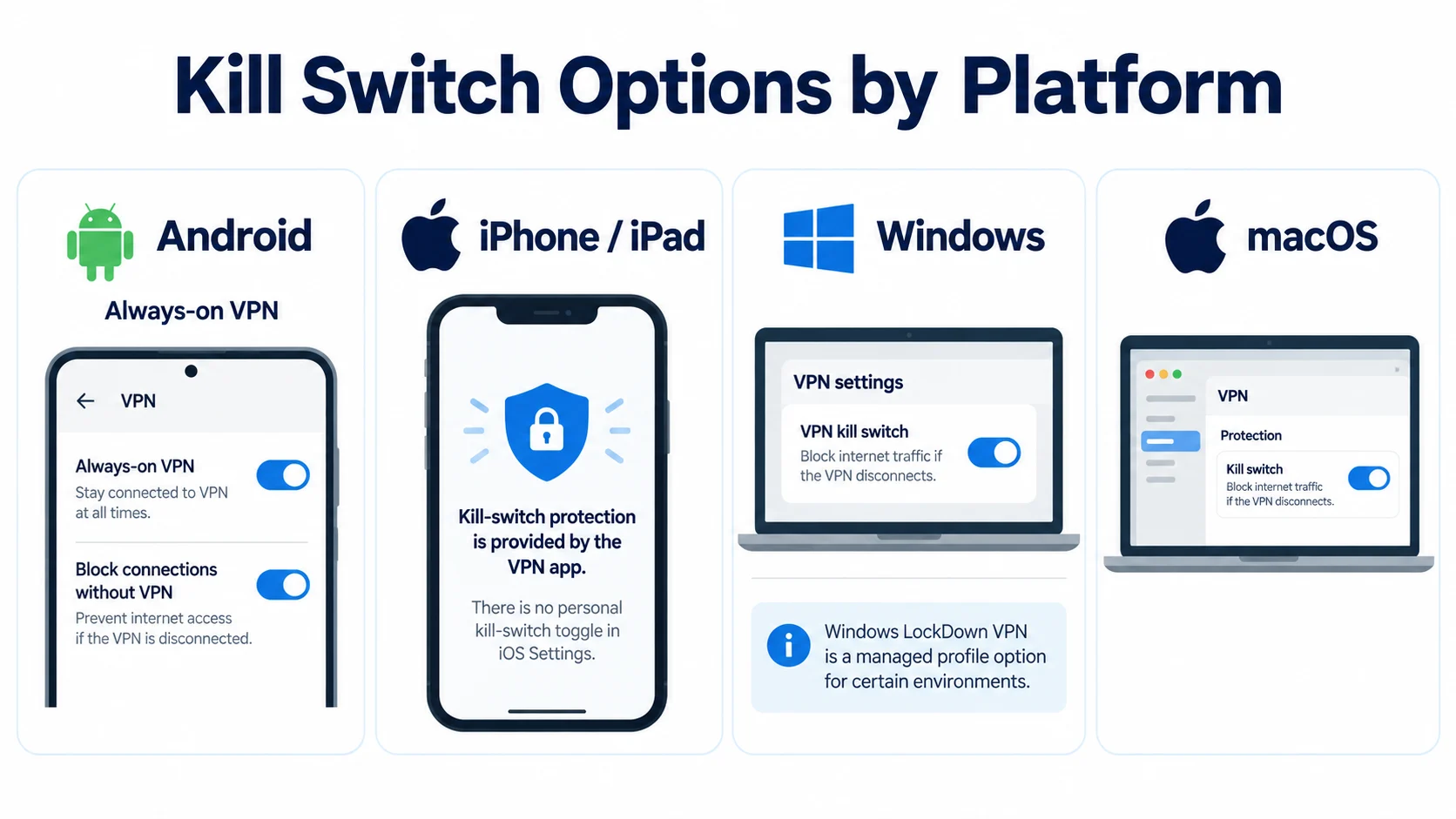
Your operating system may offer its own protection on top of the VPN app’s. How much you get depends heavily on the platform.
- The Android developer documentation explains that Android 7.0 and later can keep a VPN running at all times (Always-on VPN), and that a Block connections without VPN switch in the VPN settings blocks any traffic that doesn’t use the VPN. ExpressVPN notes that some phones label it Only allow connections through VPN, and Proton VPN uses this system setting as its Android kill switch. The menu path varies by phone maker, so search Settings for “VPN”.
- Apple’s documentation doesn’t describe a kill switch toggle in iOS Settings for personal VPN apps. Instead, Apple lets a VPN app turn on a setting called includeAllNetworks, which, according to Apple’s developer guide to routing VPN traffic, sends almost all traffic through the tunnel and drops traffic while the VPN is reconnecting. Apple’s Always On VPN, which drops all traffic when the tunnel is down, is designed for organisations and is set up through device management, not by personal VPN apps.
- Microsoft’s LockDown VPN only allows traffic over the VPN and blocks outbound traffic when the VPN isn’t available, but Microsoft’s documentation describes it as a VPN profile setting for the built-in IKEv2 client, deployed through device management (the VPNv2 CSP). On a home PC, the kill switch you will actually use is the one in your VPN app.
- Like iOS, macOS supports includeAllNetworks for VPN apps, and Apple’s documentation doesn’t describe a separate kill switch toggle in System Settings for third-party VPNs, so it again comes down to the app. Proton VPN warns that on macOS its kill switch may briefly expose your real IP when switching servers, and that some DNS requests from Apple services can bypass the VPN.
Android
\niPhone and iPad
\nWindows
\nmacOS
\nHow to turn on a VPN kill switch, step by step
The exact menu names differ, but the routine is the same in every app covered here.
- Update the VPN app first. Kill switch options and names change between versions, and ExpressVPN advises updating the app if its kill switch isn’t working as expected.
- Open the app’s settings and find the kill switch. Look under VPN settings, Connection, Privacy, Security or Profile, or search for the names in the table above, such as Network protection, Lockdown mode or Firewall.
- Choose the type. Pick the system-level (internet) option over an app-level one. Turn on the always-on mode only if you are sure you never want to be online without the VPN.
- Add the system setting on Android. Open Android’s VPN settings, tap the gear icon next to your VPN app, and turn on Always-on VPN and Block connections without VPN.
- Decide about local devices. Some apps let printers, casting and other local devices keep working while the kill switch is on. ExpressVPN’s desktop apps call this Allow access to devices on local network, and PIA calls it Allow LAN Traffic.
- Check your split tunnelling settings. Apps handle split tunnelling and kill switches very differently (see the limits section below), so review which apps are excluded from the VPN.
A safe way to test the setting
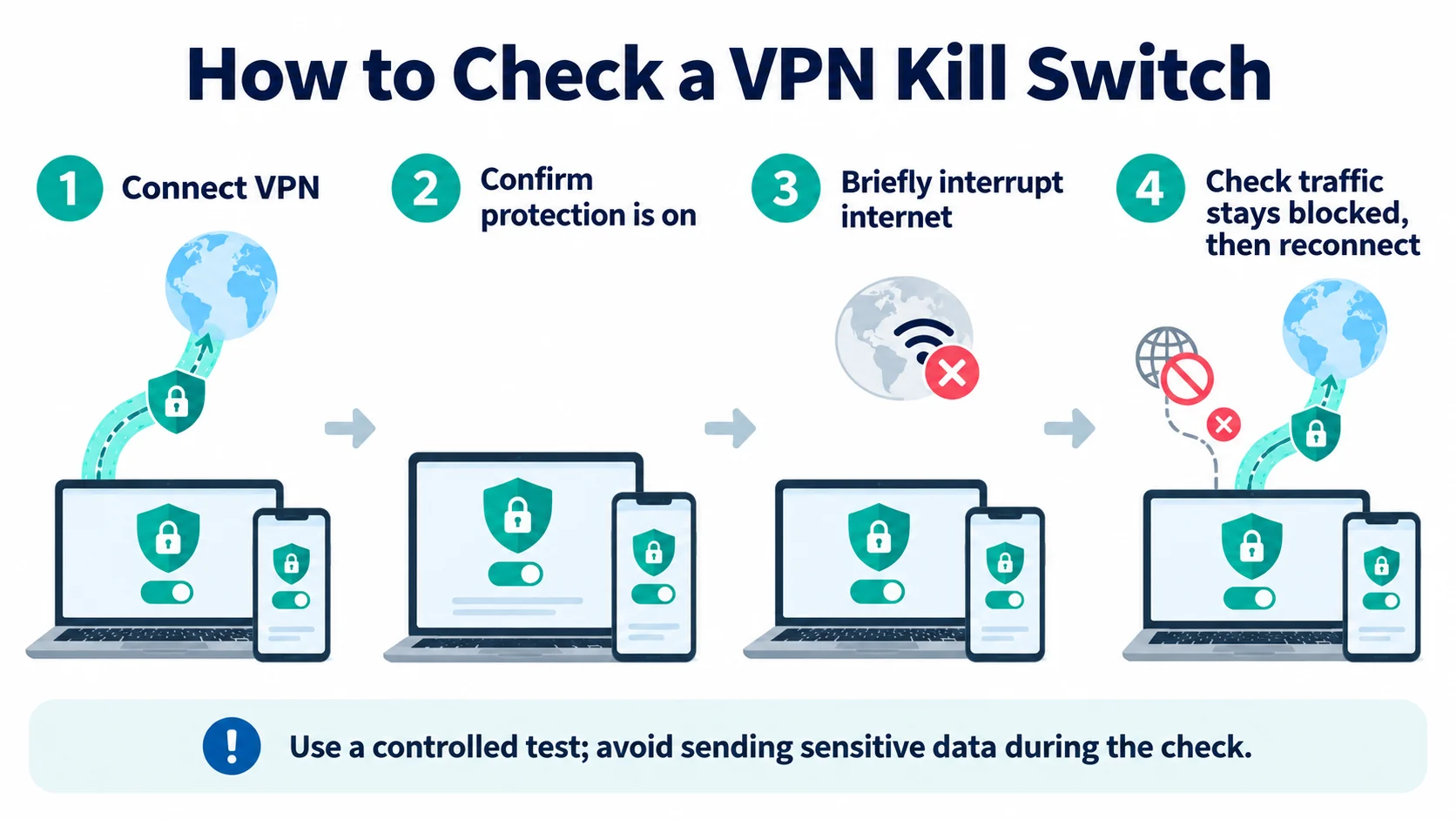
You don’t need special tools. The idea is to cause a short, harmless break in your connection and see whether anything gets through before the VPN is back. ExpressVPN’s kill switch page suggests the same basic method: connect, briefly turn off your internet connection, and check that your internet pauses until the VPN tunnel is restored.
- Note your real IP address. With the VPN off, open an IP checker page and write down the address it shows.
- Connect the VPN with the kill switch on. Reload the IP checker and confirm that it now shows the VPN server’s address.
- Cause a short drop. Turn Wi-Fi off and back on, or unplug the network cable for a few seconds. Don’t force-quit the VPN app or change system files; a normal drop is enough.
- Watch what happens while the VPN reconnects. Pages and apps should stop loading until the app says it is connected again. If pages load normally while the app is still reconnecting, the kill switch isn’t covering that moment.
- Check the IP address again. Once the VPN reconnects, the IP checker should show a VPN address, never the real address you noted in step 1.
- For always-on modes, disconnect on purpose. With the always-on mode enabled, click Disconnect. Websites should stop loading until you connect again or turn the mode off.
Repeat the check on each device you use, because the kill switch on your phone works independently of the one on your laptop. Wherever you are, whether in the US, the UK, Canada, Australia or India, the method is the same.
Important limits: DNS, WebRTC, split tunnelling and Wi-Fi logins
A kill switch protects you when the VPN is down. Several common leaks happen while the VPN is up, and some settings change how the kill switch behaves. If a leak check fails, our guide on how to fix a VPN IP leak goes through the fixes in order.
- DNS and IPv6 leaks. If your device sends DNS requests to your internet provider, or sends IPv6 traffic outside the tunnel, a connected VPN can still leak. Our explainer on what DNS is and why it matters shows why those requests reveal the sites you visit, so run a DNS and IPv6 check as well.
- WebRTC leaks. WebRTC is a browser feature that can reveal your IP address while the VPN is connected. A kill switch doesn’t change that, so use your VPN’s leak protection and the browser’s WebRTC settings.
- Split tunnelling. Apps disagree here. NordVPN says its Internet Kill Switch also blocks apps you excluded from the VPN, Proton VPN says its kill switch doesn’t work with split tunnelling on most platforms except Windows, and Mullvad says excluded apps keep internet access even in Lockdown mode.
- Hotel and airport Wi-Fi logins. A login page on public Wi-Fi (a captive portal) has to load before the VPN can connect, and a kill switch can block it. NordVPN’s captive portal guide suggests turning off the kill switch and auto-connect, completing the login with the VPN off, then reconnecting and turning the kill switch back on.
When your internet stops working
A kill switch that blocks your connection is usually working as designed. These are the common cases and what to do.
- No internet after a disconnect. If an always-on mode is enabled, you can’t get online until the VPN connects or you turn that mode off. Reconnecting, or switching to the standard kill switch, restores access.
- Windows sign-in needs the internet. Proton VPN warns that after some Windows updates or a password change you may need to sign in to Windows with your Microsoft account online, which its Advanced kill switch would block. Proton suggests creating a backup local Windows account first.
- Printers, casting or AirDrop stop working. Some kill switches block local network traffic. Look for a local network or LAN option in the app, or switch from an advanced to a standard level, as ExpressVPN suggests for iOS.
- Apps you excluded from the VPN lose access. That is expected in apps where the kill switch overrides split tunnelling. Check your app’s help page for how the two settings work together.
Frequently Asked Questions
What does a VPN kill switch do?
A kill switch blocks your device’s internet traffic when the VPN tunnel isn’t working, so apps can’t fall back to your normal connection and reveal your real IP address. Most block traffic only when the VPN drops unexpectedly, while always-on versions block everything whenever the VPN isn’t connected.
Should I keep the kill switch on all the time?
For most people, yes, at least the standard automatic kind, because it only steps in when the VPN drops. The always-on kind is worth it if you never want any traffic outside the VPN, but it also blocks the internet whenever the VPN is off, so it can get in the way of public Wi-Fi logins and some sign-ins.
Is a VPN kill switch on by default?
It depends on the app. ExpressVPN and PIA say theirs is on by default, Mullvad’s built-in kill switch can’t be turned off, and NordVPN says its kill switch is off by default on Windows, macOS, Android and Linux. Open your app’s settings and check the toggle rather than assuming.
Does a kill switch protect me if I disconnect the VPN myself?
A standard kill switch usually doesn’t. ExpressVPN and Proton VPN both say their standard kill switch doesn’t block traffic after a deliberate disconnect. For that you need an always-on option such as Proton’s Advanced kill switch, Surfshark’s Strict mode, Mullvad’s Lockdown mode or Android’s Block connections without VPN.
Do free VPNs have a kill switch?
Some do. Proton VPN says its kill switch is available with every plan, including Proton VPN Free. Other free plans vary, so check the provider’s own help pages before you rely on one.
Does the iPhone have a built-in kill switch?
Apple doesn’t document a kill switch toggle in iOS Settings for personal VPN apps. Instead, VPN apps can use an Apple setting that sends almost all traffic through the tunnel and drops it while the VPN reconnects, so the kill switch you use on an iPhone is the one in your VPN app. Apple’s Always On VPN is meant for organisations and is set up through device management.
Does Android have a built-in kill switch?
Yes. In Android’s VPN settings you can turn on Always-on VPN for your VPN app and then Block connections without VPN, which blocks any traffic that doesn’t use the VPN. Some phones call it Only allow connections through VPN, and the menu path varies by phone maker.
Why did my internet stop working after I turned on the kill switch?
That usually means the kill switch is doing its job while the VPN isn’t connected. Reconnect the VPN or switch to the standard kill switch. If you use an always-on mode, you won’t get online until the VPN connects or you turn that mode off.
Does a kill switch stop DNS and WebRTC leaks?
Only partly. A kill switch mainly covers the moments when the VPN is down, and providers such as Proton VPN and ExpressVPN say theirs also block DNS requests during a drop. A WebRTC leak happens in your browser while the VPN is connected, so you still need the VPN’s leak protection and the right browser settings.
Can I use split tunnelling with a kill switch?
Sometimes. Proton VPN says its kill switch doesn’t work with split tunnelling on most platforms except Windows, NordVPN says its Internet Kill Switch also blocks apps you excluded from the VPN, and Mullvad says excluded apps keep internet access even in Lockdown mode. Check how your own app handles the two together.
Sources
Official provider and platform pages checked on 7 October 2026 (IST). They support the explanations, tables and FAQs above.
VPN provider help pages
- NordVPN Support: NordVPN Kill Switch, how does it work
- NordVPN: VPN kill switch feature page
- NordVPN Support: How Kill Switch and Split Tunneling interact
- NordVPN Support: How to log in to a captive portal Wi-Fi network
- ExpressVPN Support: How to use the Internet Kill Switch on the desktop apps
- ExpressVPN: Internet Kill Switch feature page
- ExpressVPN Support: Internet Kill Switch for Android
- ExpressVPN Support: Internet Kill Switch for iOS
- Surfshark Support: How to use Kill Switch
- Surfshark: What is a VPN kill switch (Soft and Strict modes)
- Proton VPN Support: How to use kill switch
- Proton VPN Support: How to use advanced kill switch
- Proton VPN: Kill switch feature page
- Mullvad Help: Using the Mullvad VPN app (Kill switch and Lockdown mode)
- Mullvad Help: How to use the Mullvad CLI
- Mullvad VPN app on GitHub: security documentation
- PIA Support: Windows Kill Switch settings
- PIA Support: Understanding Basic Settings on the PIA client
- PIA Support: Understanding Advanced Settings on the desktop PIA client
- Windscribe: Where is the Kill Switch for the Windscribe desktop app?
- Windscribe: What is the difference between the Firewall modes?
- Windscribe: Firewall feature page
Operating system documentation
- Android Developers: VPN (always-on VPN and blocking connections without VPN)
- Android Enterprise Help: Set up VPN on Android devices
- Apple Developer: Routing your VPN network traffic
- Apple Developer: NEVPNProtocol includeAllNetworks
- Apple Platform Deployment: VPN overview (Always On VPN)
- Apple Platform Deployment: Always-on VPN declarative configuration
- Microsoft Learn: VPN security features (LockDown VPN)
- Microsoft Learn: VPNv2 CSP
The Bottom Line
A VPN kill switch is a simple safety net: when the VPN tunnel isn’t working, it stops your traffic from leaving over your normal connection. The two things that matter are whether it blocks the whole device or only some apps, and whether it blocks only after a drop or whenever the VPN is off.
Practical move:
- Turn it on: enable the system-level kill switch in your VPN app, and on Android also use Always-on VPN with Block connections without VPN.
- Choose the level: use always-on (advanced, strict or lockdown) only if you never want to be online without the VPN.
- Check it: cause a brief drop and make sure nothing loads until the VPN reconnects.
- Close the other gaps: check DNS, IPv6 and WebRTC too, and review split tunnelling.
Settings and names change with app updates, so look again after major updates. This article is general information based on official documentation and does not include invented test results.
Saurabh VPN Expert writes and reviews VPN guides for VPN Expert Guide, covering privacy, streaming, regional access, and device setup. Our articles draw on provider documentation and published product information, with updates when important details change.
Meet our testing team →Last updated: October 10, 2026