
What Is Split Tunneling? How It Works, When to Use It and How to Set It Up (2026)
Split tunneling lets you choose which apps or websites use your VPN and which use your normal connection. This guide explains how it works, the three common modes, when it helps, the privacy trade-off and how to set it up and check it in the major VPN apps. Instead, the guide relies on official documentation and providers’ own help pages. No invented test results.
What is split tunneling?
A VPN normally works as a full tunnel: once it connects, all of your device’s traffic travels through an encrypted connection to the VPN server. If you are new to the basics, our guide to what a VPN is and how it works explains that part first. Split tunneling changes the rule from “everything” to “everything except” (or “only these”).
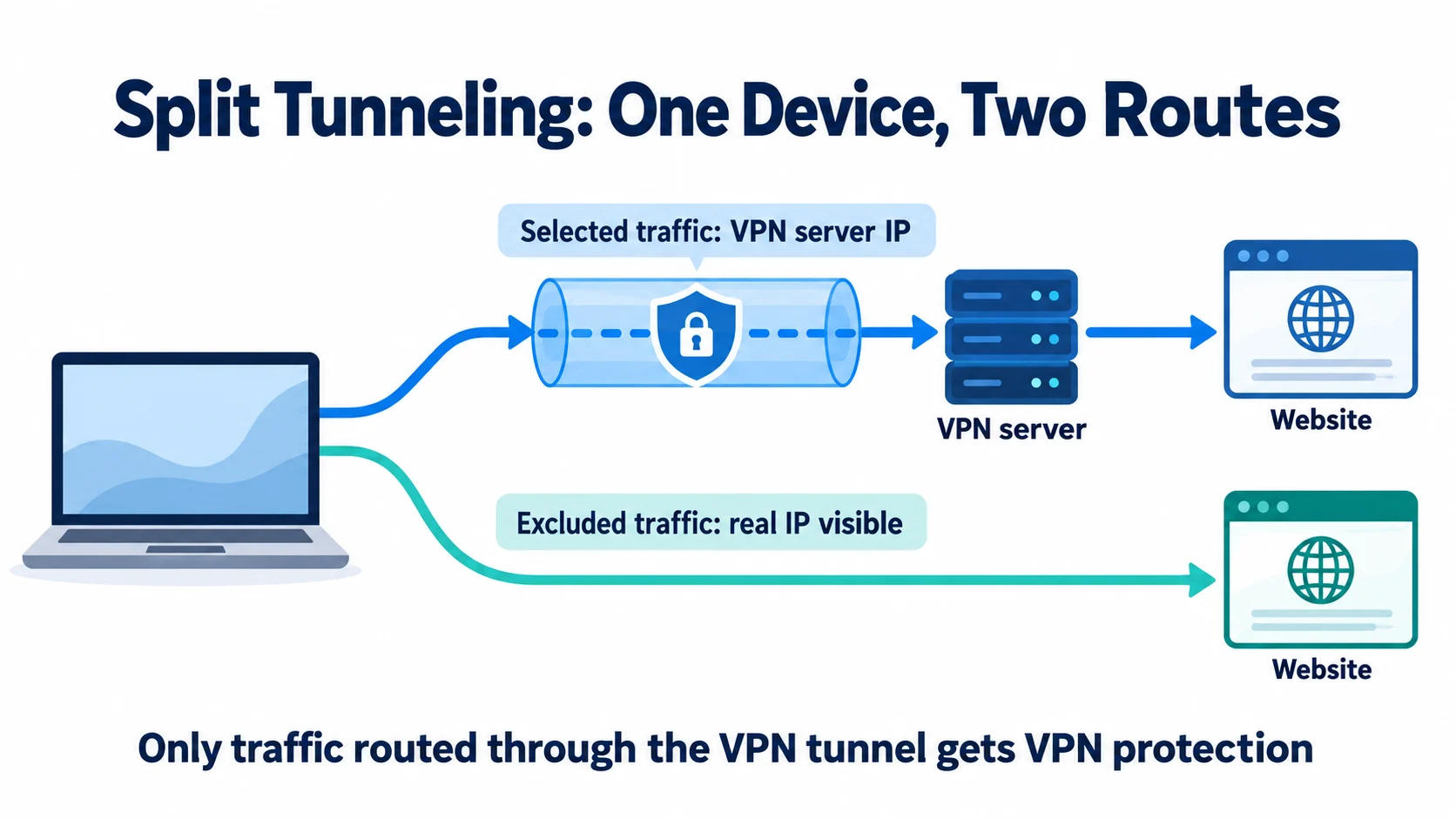
- Two routes at once. The VPN encrypts traffic you send through it, which leaves from the VPN server’s IP address. Traffic you exclude goes straight out through your internet provider with your real IP address.
- You decide what goes where. Depending on the app, you choose individual apps, websites, IP addresses or network ranges, and the VPN app sets up the routing for you.
- Full tunnel is the default. Microsoft’s Windows VPN documentation describes force tunnel as the default when no routes are specified, and Android sends all network traffic through the VPN unless the VPN app creates an allowed or disallowed list.
- It started as a business feature. NIST describes split tunneling as a VPN client feature that sends an organization’s internal traffic through the VPN and lets everything else go direct. Consumer VPN apps now offer the same idea for everyday use.
How split tunneling works
Your device uses routing rules to choose where each piece of traffic goes. A VPN app sends traffic into the tunnel, and split tunneling adds exceptions. On Android, for example, the Android VPN developer guide says a VPN app can build either an allowed list or a disallowed list of apps, but not both.
- App-based rules. The VPN app tells the operating system which programs should skip the tunnel (or use it). Android supports this directly: apps that Android blocks from using the VPN “use networking as if the VPN wasn’t running”, in Android’s own words.
- Route-based rules. Instead of apps, you exclude destinations, such as an IP address, a subnet like your home network or a list of business services. Windows VPN profiles support exclusion routes for this.
- Browser-only rules. Some browser extensions, such as those from NordVPN and Proton VPN, let you exclude specific websites. These only affect the browser, because the extension controls only browser traffic.
- Changes often need a reconnect. Many apps apply new split tunneling rules the next time the VPN connects. Therefore, reconnect after you change the list.
The three types of split tunneling
However, providers use different names for similar rules. Surfshark calls its feature Bypasser, Proton VPN calls its modes Exclude and Include, and ExpressVPN uses “Bypass VPN” and “Only VPN”. In practice, you will see three common modes.
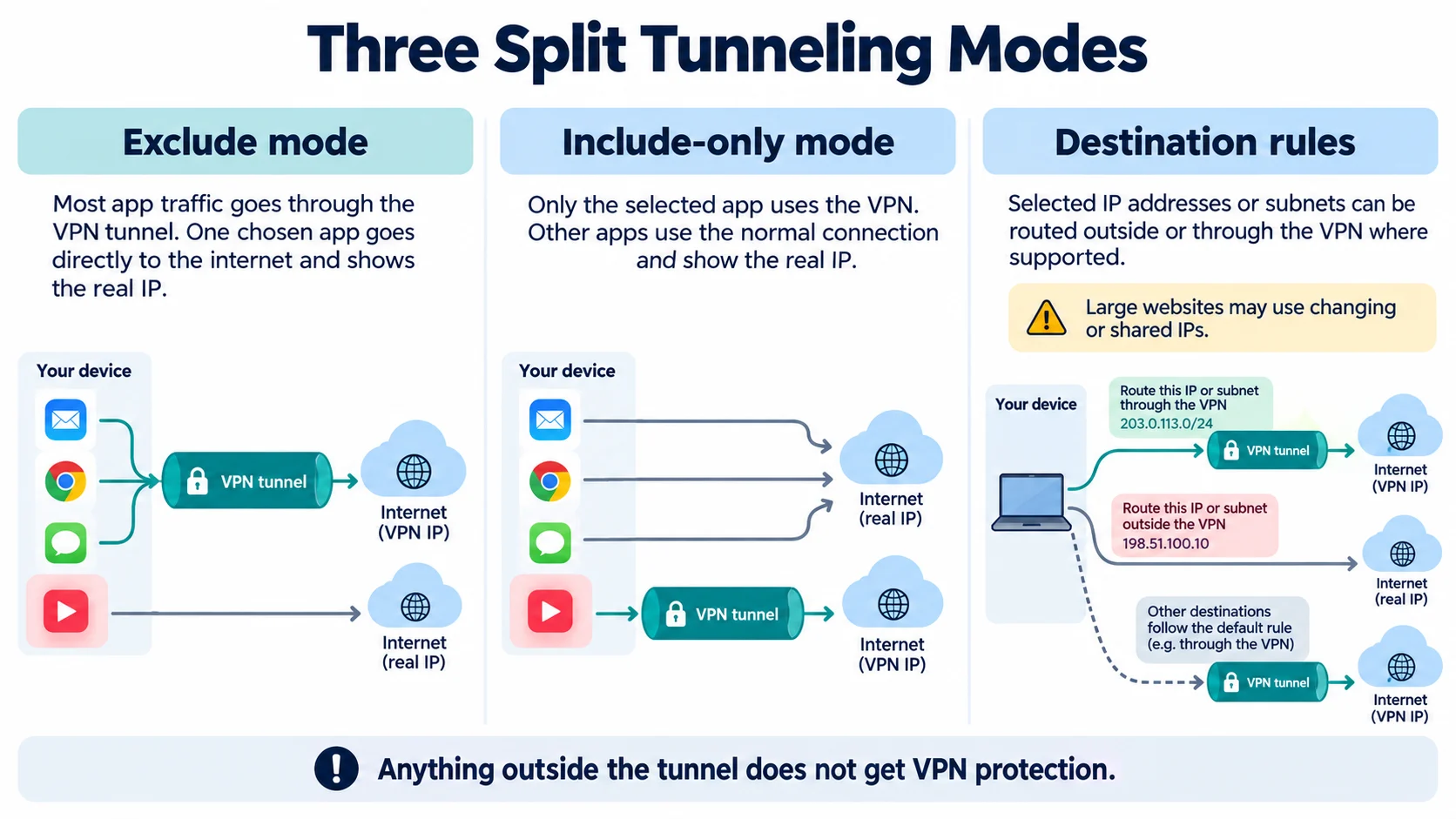
- Exclude mode (standard split tunneling). Everything uses the VPN except the apps, sites or IP addresses you list. This is a common default-preserving option: new apps stay on the VPN unless you add them to the exclusion list.
- Include mode (inverse split tunneling). Only the apps or sites you list use the VPN, and everything else uses your normal connection. Mullvad doesn’t offer it, saying it believes a VPN should be used by default and not by exception.
- Website and IP-based split tunneling. Rules apply to destinations rather than apps. This suits local network devices and fixed business addresses, but ExpressVPN warns that IP rules don’t work reliably for large websites, whose addresses change and that share IP addresses with unrelated sites.
Split tunneling vs full tunneling at a glance
For clarity, this table shows what changes in each mode. It summarizes how the feature works, not a ranking.
| Question | Full tunnel (the default) | Split tunnel (exclude) | Inverse split tunnel (include only) |
|---|---|---|---|
| What goes through the VPN | All traffic from the device | Everything except the apps, websites or IP addresses you exclude | Only the apps, websites or IP addresses you choose |
| What your ISP or Wi-Fi owner can see | Encrypted traffic going to the VPN server | The excluded traffic, as if no VPN were running | Everything you haven’t included |
| IP address websites see | The VPN server’s address | Your real address for excluded traffic | Your real address for everything not included |
| Good fit | Public Wi-Fi, maximum privacy and the simplest setup | A few apps, sites or local devices that don’t work over the VPN | When only one or two apps need the VPN |
| Main drawback | Local devices and sites that block VPNs may not work | Excluded traffic has no VPN protection, and it is easy to forget what you excluded | New apps stay outside the VPN unless you add them |
On narrow screens, scroll sideways to see every column.
If you are unsure, start with a full tunnel. Then add one exclusion only when a specific app or site fails. On public Wi-Fi, keep everything on the VPN, as our guide to using a VPN on public Wi-Fi explains.
When split tunneling is useful
For most people, split tunneling solves a specific conflict, so it is unnecessary day to day. For example, these are the situations where it makes the most sense.
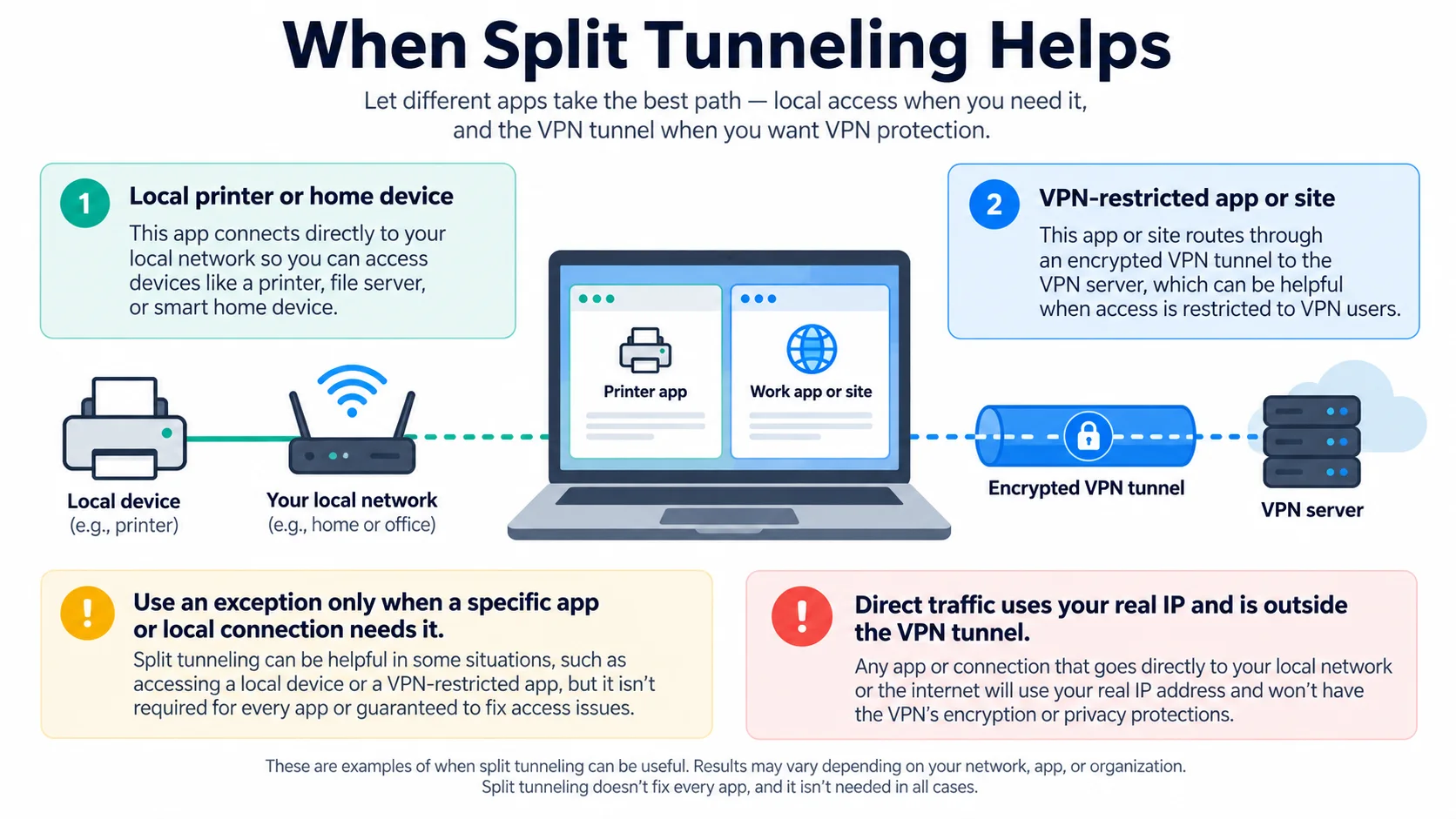
- Local devices. A VPN can stop your phone or laptop from reaching printers, smart TVs, cameras and other devices on your home network. Excluding the local network or the app that controls the device fixes this without turning the VPN off.
- Banking and local services that block VPNs. Some banking apps and websites refuse VPN connections. Excluding just that app keeps the rest of your traffic on the VPN, which is safer than disconnecting completely.
- Heavy or latency-sensitive traffic. You can route large downloads, video calls and games directly to avoid the VPN tunnel. Our guide to the best VPN for gaming and low ping covers when that is worth it for gamers.
- Two locations at once. You can keep one browser on a VPN server abroad while another uses your local connection for local news or services, an example NordVPN gives on its feature page.
- Work VPNs. Companies use split tunneling to keep cloud traffic off the corporate VPN. Microsoft’s guidance on VPN split tunneling for Microsoft 365 recommends sending key Microsoft 365 traffic, such as Teams, SharePoint and Exchange Online, directly to the service rather than through the VPN.
Is split tunneling safe? The privacy trade-off
Split tunneling itself is a normal, widely supported feature. Risk depends on what you exclude and where. Mullvad’s guide puts it plainly: traffic in excluded apps won’t go through the VPN, and Mullvad warns that excluded apps reveal your real IP address.
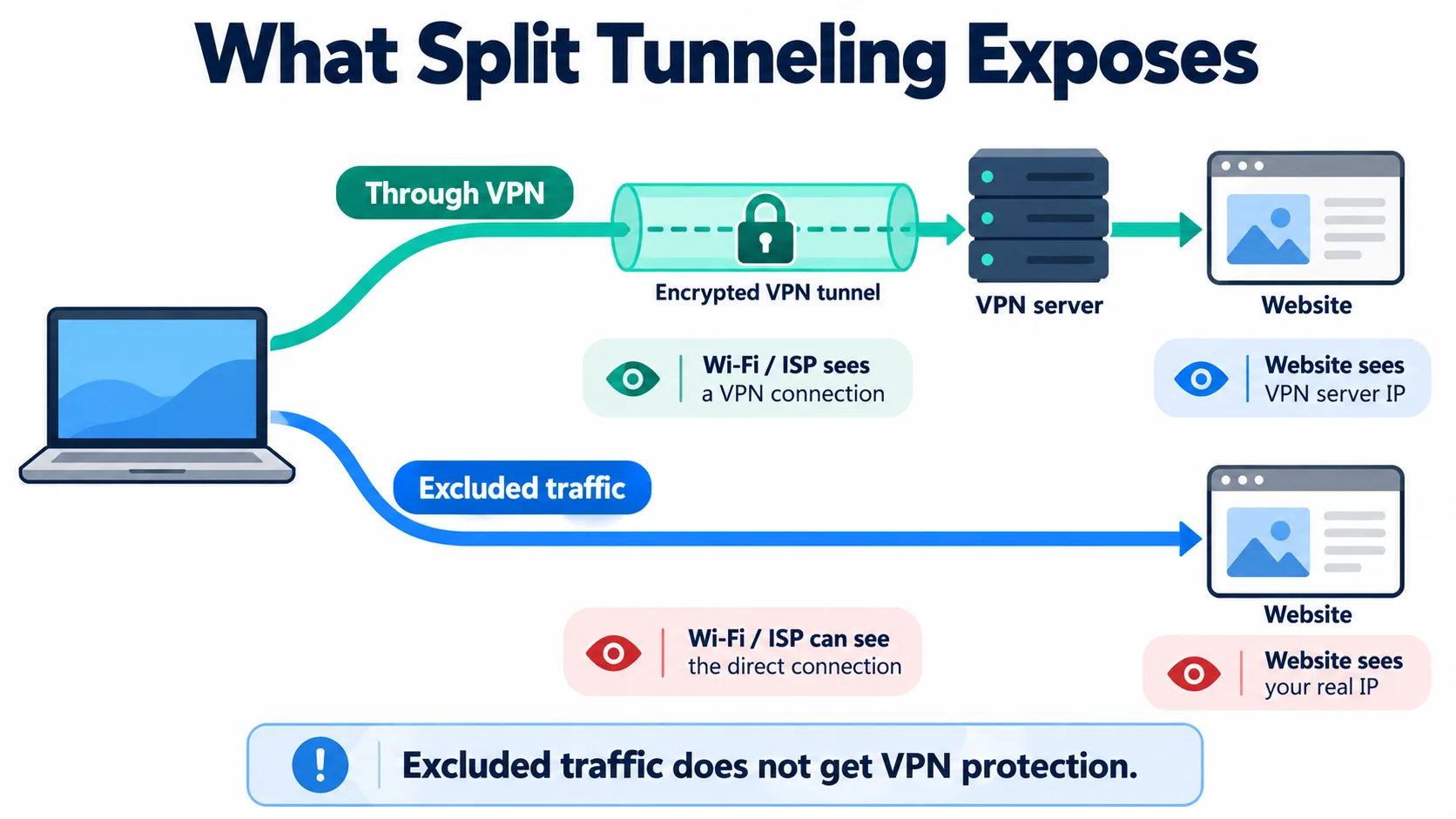
- Excluded traffic is visible again. Your internet provider, and whoever runs the Wi-Fi network, can see excluded traffic just as they would without a VPN. Most websites use HTTPS, which still encrypts the content, but the sites you connect to and your real IP address are no longer hidden.
- Public Wi-Fi is the wrong place to exclude things. The NIST telework security guide says organizations should consider disabling split tunneling for staff on untrusted networks, particularly wireless hotspots, so attackers can’t eavesdrop on their communications.
- You might exclude an app by accident. Mullvad explains that excluding an app also excludes its child processes. For example, a link opened in an excluded app may launch a browser window outside the VPN too.
- DNS may not follow the split. ExpressVPN says your DNS queries go through its servers while you stay connected, whatever your split tunneling settings. Mullvad says excluded apps also use its server DNS. That keeps those lookups away from your internet provider, but NordVPN notes the mismatch can confuse some streaming services and apps about your location. Our guide to what DNS is and why it matters explains the basics.
- Work devices have stricter rules. NIST warns that split tunneling can stop an organization from inspecting and protecting traffic, and that a device with two active connections could become a bridge between a trusted and an untrusted network. If your employer manages your VPN, follow its policy.
Split tunneling in popular VPN apps
However, support varies by provider and platform, especially on Mac and iPhone. The table below summarizes information from five well-known providers’ feature and help pages, checked on 10 October 2026. It presents published details, not rankings or test results.
Feature availability and routing rules by provider
| VPN | Name and platforms listed | App rules | Website or IP rules | Limits worth knowing |
|---|---|---|---|---|
| ExpressVPN | Windows 10/11, macOS 11+, Linux, Android 7+, and iOS 15+ | Desktop: Bypass VPN or Only VPN. Android: exclude or allow selected apps | IPv4/IPv6 addresses and subnets on desktop; single IPv4 addresses on iOS | On iOS it can’t be used with the Advanced Kill Switch. On Windows, Lightway Turbo can’t be used with split tunneling |
| Mullvad | Windows, Linux, macOS 13+, and Android; not iOS | Exclude apps only; no include mode | Not specified in its guide | Can’t exclude Safari/WebKit on macOS or Microsoft Store apps on Windows |
| NordVPN | Windows, Android, and Android TV; Linux has an Allowlist for ports and subnets | Select apps; Android and Android TV exclude the selections | Website exclusions in the browser extensions only | NordVPN says its kill switch takes priority, so excluded apps lose internet access when both are on |
| Proton VPN | Windows, experimental macOS, Linux, Android, Android TV, and browser extension; paid plans | Exclude or include apps on Windows, Linux, Android and Android TV. Exclude only on macOS | IP addresses and ranges on Windows and Android. Domains in the browser extension | Not compatible with the kill switch on most platforms, except Windows. On macOS it works only with WireGuard and Stealth |
| Surfshark | Bypasser on Windows, macOS (not Big Sur), Android, iOS and the browser extensions | Bypass VPN for apps, plus Route via VPN for apps on Windows and Android | Websites and IP addresses can bypass the VPN. Surfshark’s iOS steps cover websites only | On macOS you must allow the Surfshark system extension the first time, then reconnect |
Notes on the VPN provider comparison
Details come from each provider’s own pages, listed in Sources. “Not covered” means the pages checked didn’t say. On narrow screens, scroll sideways to see every column.
Platform differences to keep in mind
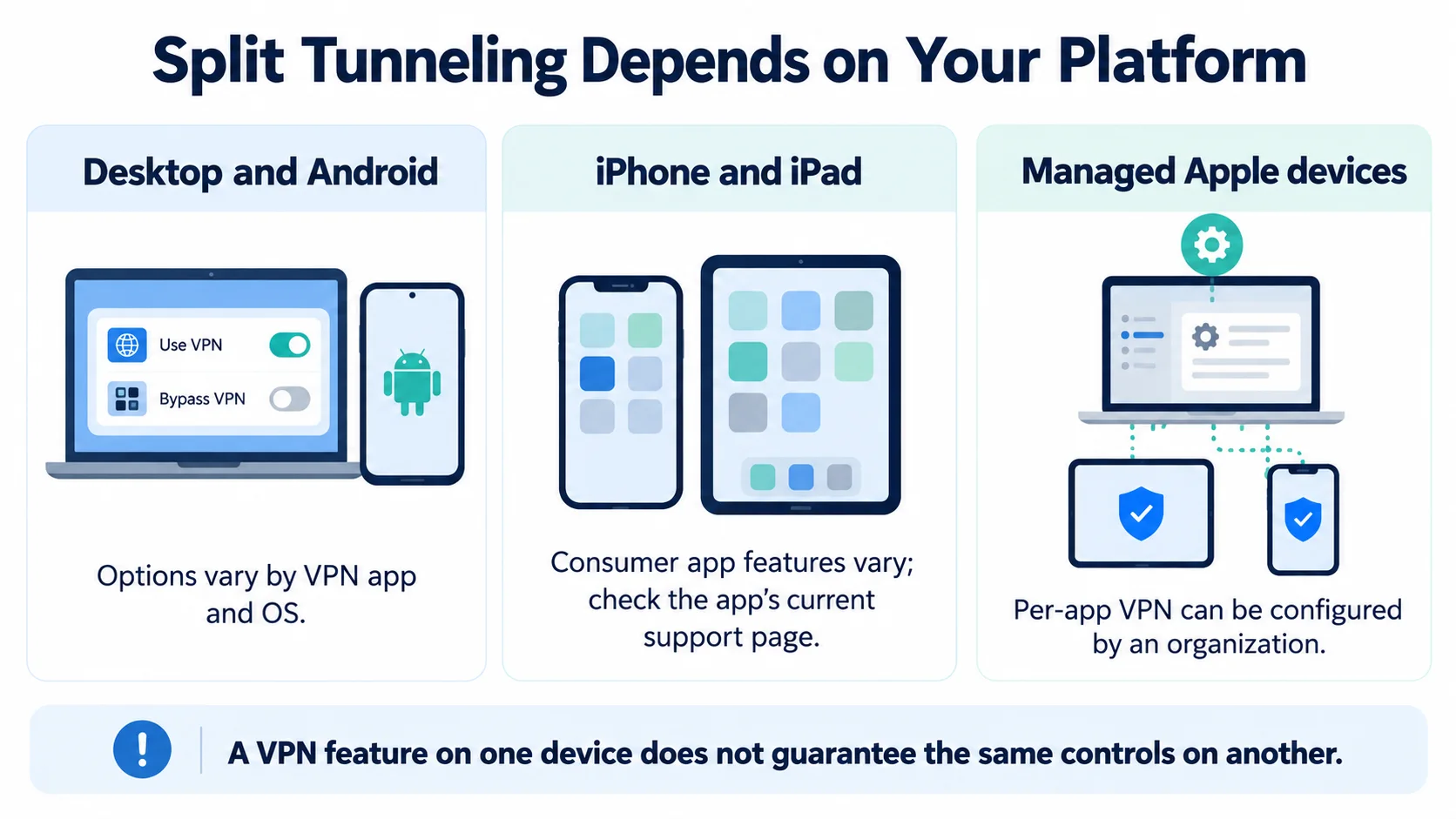
In particular, several differences matter when choosing a setup. Among these five providers, Windows and Android have the widest support. Android also lets VPN apps include or exclude individual apps. On macOS the feature is newer and has more caveats: the Proton VPN split tunneling guide lists it as experimental, and both Proton and Mullvad say Safari and other WebKit-based apps can’t be reliably excluded. On iPhone, only website or IP exclusions are on offer from the providers above, and NordVPN’s feature page lists no macOS or iOS support.
How to set up split tunneling
Although menu names differ, the setup follows the same pattern in most VPN apps. Use the provider’s help page for exact steps on your device.
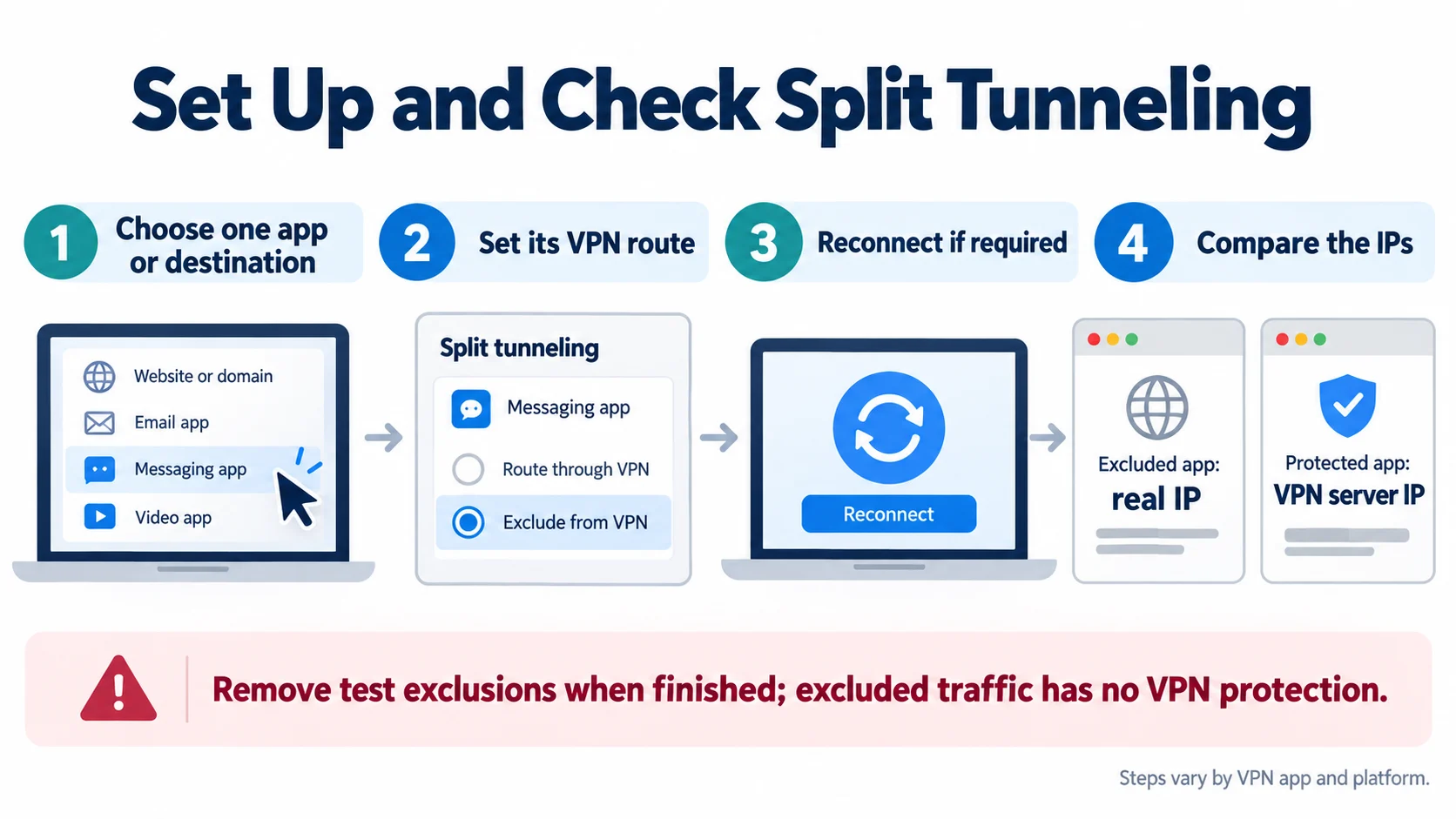
- Decide what actually needs to skip the VPN. Write down the one app, website or device that doesn’t work over the VPN. If nothing is broken, you don’t need split tunneling.
- Open the split tunneling setting. It is usually under Settings, VPN settings or Profile, and may be called Split Tunneling, Bypasser or similar.
- Choose the mode. Pick exclude mode in most cases. Use include mode only if you want just one or two apps on the VPN and understand everything else will be unprotected.
- Add the app, website or IP address. Prefer an app rule for big websites, because their IP addresses change. Use an IP or subnet rule for local devices such as a printer or home server.
- Reconnect the VPN. Many apps, including ExpressVPN when using WireGuard and Proton VPN, apply the new rules only after you reconnect. Restart any excluded app that was already open.
- Check it works. Confirm that the excluded app shows your real IP address and that everything else still shows the VPN’s address, as explained in the next section.
Platform notes: on Android, the system’s Block connections without VPN option stops excluded apps from connecting, which both ExpressVPN and Mullvad point out. On Mac, the VPN app may ask you to allow a network or system extension, or Full Disk Access in Mullvad’s case. For device-specific advice, see our guide to the best VPN for Android.
How to check split tunneling is working
Fortunately, a quick check takes a couple of minutes and needs no special tools. It is the method Mullvad suggests in its own guide, and it works with any VPN app.
- Exclude a second browser. Add a browser you don’t normally use, such as Firefox, to the exclusion list and keep your main browser on the VPN.
- Compare the IP address in both. Open an IP address checker in each browser. The excluded browser should show your real IP address and location, and the other should show the VPN server’s. Mullvad suggests using its Connection check page, which should say “Not using Mullvad VPN” in the excluded browser.
- Check for leaks in the protected browser. Run a DNS and WebRTC leak check in the browser that should be on the VPN. Our guide on how to fix a VPN IP leak shows what to look for.
- Remove the test exclusion. When you are done, take the test browser off the list so nothing is left outside the VPN by mistake.
Split tunneling not working? Common fixes
If split tunneling misbehaves, a conflicting setting usually causes the problem. Work through these in order.
- Excluded apps have no internet. Check the kill switch. NordVPN says its kill switch blocks excluded apps when both are on, and Proton VPN says the two only work together on Windows. On Android, turn off Block connections without VPN if you need excluded apps to connect.
- An excluded app still uses the VPN. Reconnect the VPN and restart the app. On a Mac, remember that Safari and other WebKit apps can’t be excluded in Mullvad’s and Proton VPN’s apps, so use another browser.
- Some apps can’t be excluded at all. Mullvad’s split tunneling guide says Microsoft Store apps can’t be excluded on Windows, and that some games with anti-cheat and some Java-based apps are difficult or impossible to exclude.
- Other software gets in the way. Mullvad lists other VPN apps and some network and security tools that can interfere with its split tunneling driver. Close or uninstall other VPN apps first.
- A feature is incompatible. ExpressVPN says Lightway Turbo conflicts with split tunneling on Windows. On iOS, use the Standard Kill Switch with split tunneling instead of the Advanced option.
- Still stuck? NordVPN’s troubleshooting steps are to reset the app, reinstall it or reset the network from the app’s diagnostics, then restart the device.
Related reading:
Frequently Asked Questions
What is split tunneling in simple terms?
Split tunneling is a VPN setting that lets some of your internet traffic skip the VPN while the rest stays protected. For example, you can keep your browser on the VPN while a banking app or a printer connection uses your normal internet connection. Without it, a VPN app normally sends all of your traffic through the encrypted tunnel.
Is split tunneling safe?
It is safe when you use it carefully, but anything you exclude loses VPN protection. Excluded apps use your real IP address, as Mullvad warns in its own guide, and their traffic is no longer hidden from your internet provider or the Wi-Fi network owner. Keep sensitive apps on the VPN, exclude only trusted apps or local devices, and avoid excluding things on public Wi-Fi.
Should split tunneling be on or off?
Leave it off unless you have a specific reason to use it. A full tunnel protects everything and is the simplest setup. Turn split tunneling on when a particular app, website or local device doesn’t work over the VPN, and exclude only that one thing rather than switching the VPN off completely.
Does split tunneling make my internet faster?
It can help the apps you exclude, because their traffic no longer takes the longer encrypted route through a VPN server. It doesn’t make the VPN itself faster, and it can add overhead: Mullvad says its macOS version tunnels all traffic through an extra interface, so all apps will likely be slower while the feature is on.
More split tunneling FAQs
Can I use split tunneling on an iPhone?
Only in a limited way. Apple’s per-app VPN, which sends chosen apps through a VPN, is a feature for devices managed by an organization. Some consumer VPN apps offer website or IP exclusions on iPhone instead: ExpressVPN lets you exclude single IPv4 addresses and Surfshark’s Bypasser can exclude websites. Mullvad says split tunneling isn’t currently possible in its iOS app.
Split tunneling settings FAQs
Can I use split tunneling with a kill switch?
It depends on the app. NordVPN says its kill switch takes priority and blocks excluded apps, Proton VPN says the two only work together on Windows, and ExpressVPN for iOS can’t use split tunneling with its Advanced Kill Switch. On Android, the system’s Block connections without VPN setting also stops excluded apps from connecting.
What is inverse split tunneling?
Inverse split tunneling, also called include mode or split-include, is the opposite of the usual setup. Instead of choosing what skips the VPN, you choose the only apps or sites that use it, and everything else goes over your normal connection. ExpressVPN, Surfshark and Proton VPN offer it on some platforms, while Mullvad doesn’t.
Do excluded apps still use the VPN’s DNS?
Often, yes. ExpressVPN routes DNS queries through its servers while your VPN stays connected, whatever split tunneling settings you choose. Mullvad also sends excluded apps’ DNS through its server. As a result, this DNS behavior can confuse some streaming services or apps about your location.
Can split tunneling fix a banking app that blocks my VPN?
Often it can. Excluding the banking app, or the bank’s website, lets it connect with your normal IP address while the rest of your traffic stays on the VPN. If the bank’s website changes IP addresses, an app-based rule is more reliable than an IP rule, because ExpressVPN notes that IP exclusions don’t work reliably for large websites.
Sources
Official documentation and provider help pages checked on 10 October 2026 (IST). They support the explanations, tables and FAQs above.
Standards and platform documentation
- NIST SP 800-46 Rev. 2: Guide to Enterprise Telework, Remote Access, and BYOD Security (PDF)
- Microsoft Learn: VPN routing decisions (split tunnel and force tunnel)
- Microsoft Learn: Overview of VPN split tunneling for Microsoft 365
- Android Developers: VPN guide, including per-app VPN
- Android Developers: VpnService.Builder reference (allowed and disallowed apps)
- Apple Platform Deployment: VPN overview and per-app VPN
- Apple Developer: Per-App VPN requires managed device configuration
VPN provider help pages
- NordVPN: VPN split tunneling feature page
- NordVPN Support: What is Split Tunneling and how to use it
- NordVPN Support: How Kill Switch and Split Tunneling interact
- NordVPN Support: Split Tunneling is not working
- ExpressVPN: Split tunneling feature page
- ExpressVPN Support: Split tunneling on Windows, Mac and Linux
- ExpressVPN Support: Split tunneling on Android
- ExpressVPN Support: Split tunneling on iOS
- ExpressVPN Support: Windows app setup guide (Lightway Turbo note)
- Surfshark: VPN split tunneling (Bypasser) feature page
- Surfshark Support: Bypasser on iOS (website exclusions only)
- Surfshark Support: Surfshark features and platforms
- Surfshark Support: How to use Bypasser on macOS
- Surfshark blog: Bypasser now available on macOS (steps for every platform)
- Proton VPN Support: How to use split tunneling
- Proton VPN Support: Product lifecycle and feature availability
- Mullvad: Split tunneling with the Mullvad app
- Mullvad blog: Split tunneling on macOS
- Mullvad VPN app on GitHub: split tunneling design notes
The Bottom Line
Split tunneling lets you keep most of your traffic on the VPN while one app, website or device uses your normal connection. It is a handy fix for printers, banking apps, local services and heavy traffic, but every excluded app or site behaves as if you had no VPN.
Practical move:
- Start with a full tunnel: only turn split tunneling on when something specific doesn’t work over the VPN.
- Exclude, don’t include: exclude mode keeps new apps protected by default, so use include mode only for a clear reason.
- Keep the list short: exclude trusted apps and local devices, and avoid excluding anything on public Wi-Fi.
- Check it: compare IP addresses in an excluded and a protected browser, and watch for kill switch conflicts.
Split tunneling features and platform support change with app updates, so check the latest provider pages linked in Sources. This article is general information based on official documentation and the providers’ own published information, and does not include invented test results.
Saurabh VPN Expert writes and reviews VPN guides for VPN Expert Guide, covering privacy, streaming, regional access, and device setup. Our articles draw on provider documentation and published product information, with updates when important details change.
Meet our testing team →Last updated: October 10, 2026