
How to Get a VPN: Choose, Install and Check Your Connection
To learn how to get a VPN, start with a service that supports your device. This guide explains installation, connection checks and the differences between free plans, trials and work access.
Before you get a VPN, decide what you need
A personal VPN and a company VPN solve different problems. A personal service routes supported traffic through the provider’s servers. A company VPN connects you to resources your employer controls. Buying a consumer subscription will not give you access to your employer’s files or internal applications.
For work access, ask your IT team for the approved app, account and connection instructions. For personal use, identify the devices you want to cover and the country options you need. Someone browsing on one phone has different requirements from a household connecting several computers and TVs.
Make a short checklist before paying: compatible operating system, simultaneous connection allowance, required locations, privacy documentation, support and the actual renewal charge. An advertised monthly equivalent can represent a payment for a whole year or longer.
Free plan, trial or paid subscription?
A permanent free plan is useful when its restrictions fit your everyday needs. Check its data allowance, location selection and supported devices. A free app download is not evidence of a free VPN service.
A trial provides access for a limited period. It may require payment details and renew automatically. Read the offer displayed for your country, plan and purchase channel rather than assuming a duration from an old article.
A money-back guarantee usually involves paying first and requesting a refund under its conditions. Turning off renewal is not necessarily a refund request. Keep the receipt and learn which company handles billing before purchasing.
| Access type | Payment question | What to check first |
|---|---|---|
| Permanent free plan | Can I start without buying a paid plan? | Data, country choice and connection restrictions |
| Limited trial | When would a charge occur? | Eligibility, cancellation deadline and renewal amount |
| Paid plan with refund policy | How do I request money back? | Purchase channel, deadline and exclusions |
| Employer VPN | Who supplies access? | Approved app and instructions from IT |
For actual no-cost options, read our free VPN plan comparison. For temporary access, see the VPN trial guide.
How to get a VPN on your device

1. Choose a service with support for your operating system
Check the provider’s current download page. An app for Windows does not establish support for your Linux distribution, TV model or router. Device names can hide important differences: two smart TVs may run completely different operating systems.
2. Download from the official source
Start at the provider’s website and follow its download or app-store link. Check the publisher before installing. Avoid unofficial installers, modified apps and offers claiming permanent premium access through a shared account.
3. Create an account or sign in
Use the account associated with your chosen plan. If you already subscribed, check that you are signing into the same account rather than purchasing again through an app store. Some free services have a different onboarding process; follow their own instructions.
4. Allow the expected VPN connection setup
The app needs to configure a connection on your device. Read the system prompt and confirm that it belongs to the app you installed. Optional marketing or diagnostic choices are separate from the VPN connection itself.
5. Connect and check the result
For ordinary browsing, start with automatic server selection or a nearby available location. If you specifically need a country, choose it when your plan allows manual selection. Wait for the connected state before opening the apps you intend to use through the tunnel.
Which setup method fits your device?
| Device or situation | Starting point | Important limitation |
|---|---|---|
| Windows or Mac | Official desktop app | A built-in connection screen still needs a provider or employer configuration |
| Android or iPhone | Official mobile app | Follow the operating system’s VPN approval prompt |
| Linux | Provider’s supported installation method | Distribution, version and desktop environment can affect compatibility |
| Browser-only use | Provider’s documented extension | Do not assume other applications use that connection |
| TV or console without a compatible app | Check router or connection-sharing support | Requires additional configuration; Smart DNS is not an encrypted VPN tunnel |
| Company resources | Employer-approved client | Consumer VPN credentials do not replace company access |
For detailed steps, use our Windows installation guide, Linux guide or router setup guide.
Check the connection before relying on it
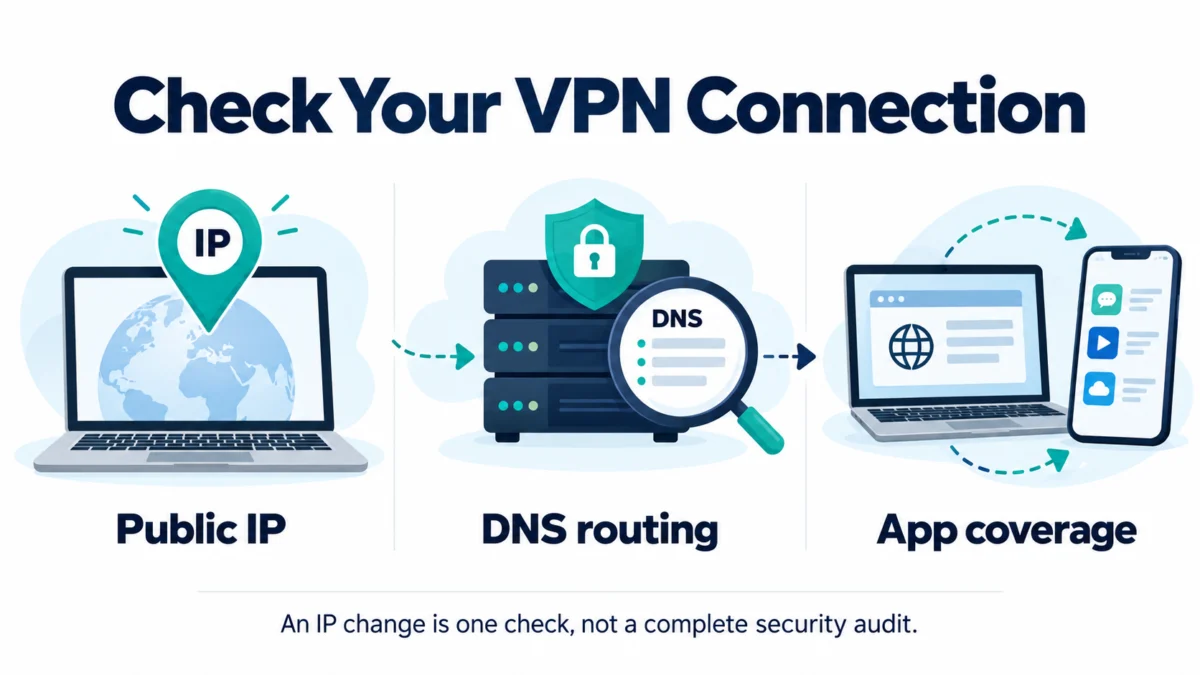
Use the same device and browser for a simple before-and-after comparison. Note your public IP with the VPN disconnected, connect, then repeat the check. A different public address indicates that the checked browser’s traffic is leaving through a different endpoint. It does not prove that every app is protected.
Next, review whether split tunneling excludes any applications you care about. Check the provider’s DNS and IPv6 guidance and run an appropriate leak check. Results need interpretation: an approximate map location alone is not enough to diagnose a leak.
If you enable a kill switch, learn how that provider defines its behavior. An internet connection that stops when the VPN is disconnected may be the setting working as designed. Repeat basic checks after changing networks or important routing settings.
Our WebRTC leak test guide explains one browser-specific check. No single test establishes complete anonymity or guarantees future connection behavior.
Settings worth understanding
Start with the provider’s recommended automatic protocol rather than changing every option at once. If it cannot connect, use the documented troubleshooting guidance for your device.
Auto-connect can reduce forgotten connections, but check its behavior on trusted networks. A kill switch can help prevent unintended direct traffic after a tunnel interruption. Split tunneling deliberately allows selected traffic outside the VPN, so use it only when that is what you want.
These features vary across platforms. Do not assume a Windows feature also exists in the provider’s iPhone or Linux app.
If the VPN will not connect
First establish whether your normal internet connection works. Then check account access, app updates and the selected server. Change one thing at a time so you can identify what resolved the problem.
| Symptom | Useful next check |
|---|---|
| Sign-in fails | Correct account, active access and provider status |
| App connects but pages do not load | Kill switch behavior, DNS guidance and another server |
| Only one application behaves differently | Split-tunneling exclusions and browser-only extensions |
| Connection becomes slow | Compare the same task without the VPN, then try a nearer server |
| Work resources remain unavailable | Company VPN instructions and permissions with IT |
Avoid random DNS changes, disabling security software or installing another unverified client as a shortcut. Contact support with the app version, operating system and exact error, without posting passwords or configuration secrets publicly.
What getting a VPN will not solve
A VPN changes the route of covered traffic. It does not remove cookies, erase activity from accounts you sign into or repair a compromised device. Keep software updated and use strong account security.
Connection privacy also does not guarantee access to a streaming service. Services can reject VPN addresses, and subscription conditions still apply. Choose a service for capabilities you can verify rather than a promise that every website will work.
Related reading:
Frequently Asked Questions
Can I get a VPN without paying?
Yes, some providers offer an ongoing free plan. Read its limits first. A paid service’s free installer or refund offer is a different arrangement.
Does my device’s VPN setting include a service?
Not necessarily. A connection setting lets you configure access supplied by a service or employer; it does not by itself supply a VPN server or account.
Should I get a browser extension or a full app?
Choose according to the traffic you want covered. A browser extension should not be treated as protection for all other apps. Read the provider’s description of its extension and desktop client.
Can I use the same VPN on my phone and laptop?
Check both app compatibility and the plan’s simultaneous connection limit. Installing an app on several devices is not the same as permission to connect them all at once.
Does uninstalling cancel a trial?
Do not assume it does. Follow the cancellation process for the company that bills you and retain confirmation.
Sources and update notes
Official documentation checked on 14 October 2026. This guide explains setup; it does not claim measured speeds or hands-on testing of every platform. Interface labels and offers can change.
- Microsoft: Windows VPN connections
- Google: Android VPN connections
- Proton VPN: connection checks
- Proton VPN: DNS routing
- Proton VPN: free-plan documentation
The Bottom Line
Getting a VPN is straightforward when you separate the service, the app and the connection. Choose access that fits your device and budget, install from the official source, then check what is actually routed through the tunnel.
The useful decisions in one line each:
- Free access: choose a documented ongoing plan with limits that fit.
- Paid access: compare the full charge, renewal and refund conditions.
- Work access: use the app and configuration supplied by your IT team.
- Device coverage: check app support and simultaneous connection limits.
- Verification: check the connection before relying on it.
Use the free-plan comparison or trial guide to choose access, then install and check it. Keep account security and device updates in place alongside the VPN.
Saurabh VPN Expert writes and reviews VPN guides for VPN Expert Guide, covering privacy, streaming, regional access, and device setup. Our articles draw on provider documentation and published product information, with updates when important details change.
Meet our testing team →Last updated: October 15, 2026